Description
Jellyfin is all about accessibility. This project is all about ambience. However, with the one-button Smart Launch feature, you can instantly launch into the movie ambience without sacrificing any accessibility.
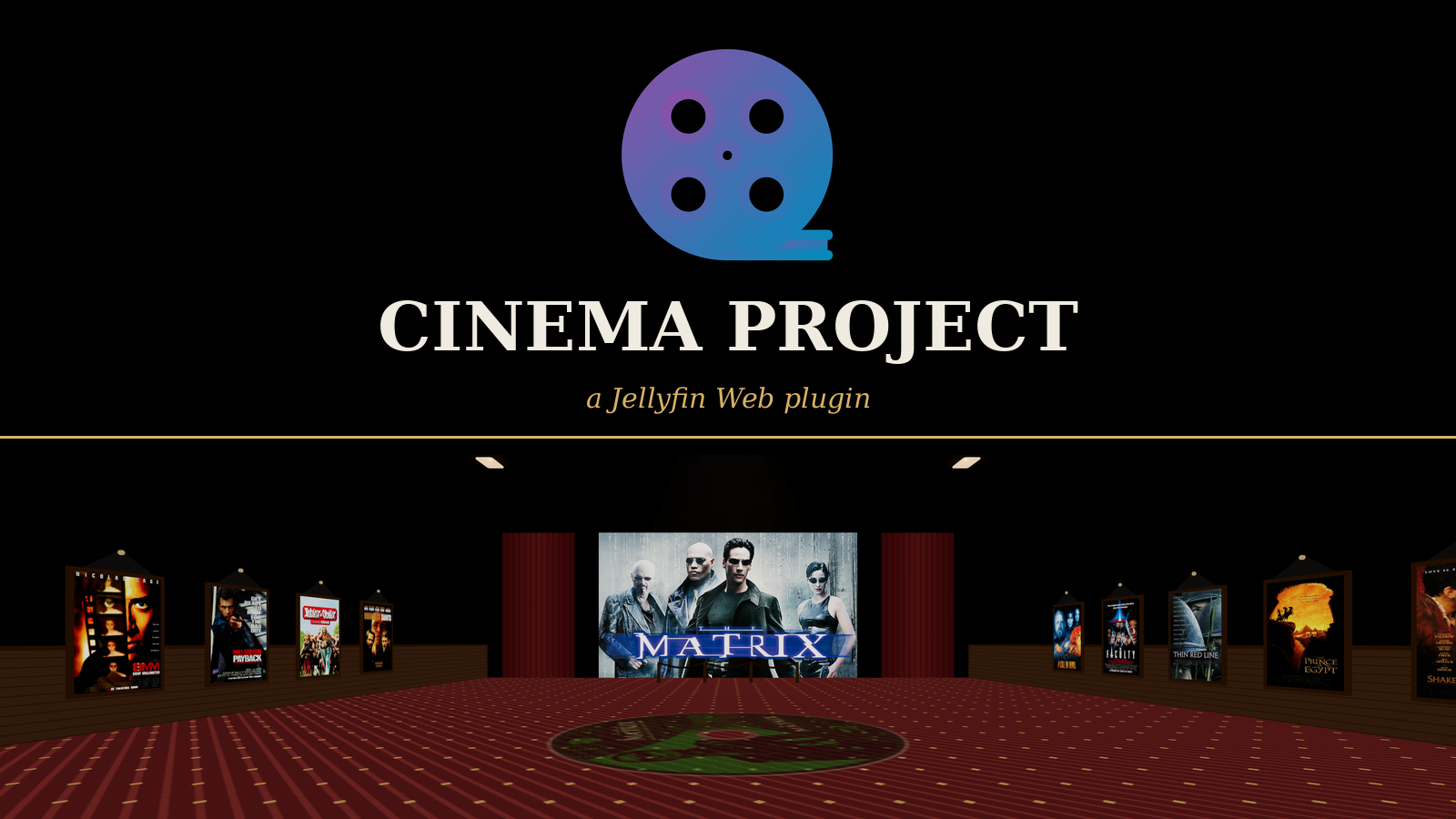
Walls lined with poster art, theme songs filling the room, trailers and movies playing on the screen up front. None of it is new content, it's what your Jellyfin library already had, just given somewhere to actually be experienced instead of scrolled past.
Walk up to a poster, pick movie / trailer / theme song / theme video / ambient mode. Front wall for videos, side walls as the library, back wall as an artwork slideshow. A kiosk to search and filter. Runs entirely in the browser, no extra server, no Docker container.
Embed Badge
Add this badge to your README to link back to your hub page:

Installation Instructions
There are two ways to install Cinema Project, and both end up running the exact same script with the exact same feature set. You only need one of them.
One more thing worth knowing either way: Cinema opens in its own new browser tab, built as a Blob URL. That's genuinely tied to the tab that created it, you have to keep the original Jellyfin Web tab open in the background. Closing it will end the Cinema tab along with it, since the browser ties a Blob URL's lifetime to the document that generated it in the first place.
Option A - Plugin (recommended) In Jellyfin, go to Dashboard → Plugins → Repositories → Add Repository and add: https://raw.githubusercontent.com/chrissix666/Jellyfin-Cinema-Project/main/manifest.json Go to Catalog, find Cinema Project (category: Experimental), install it, and restart the Jellyfin server. Reload Jellyfin Web. A Cinema button appears in the header on supported desktop browsers. Where the Cinema button shows up in the Jellyfin Web header
Don't miss the plugin's own settings page under Dashboard → My Plugins → Cinema Project. This is easy to overlook, but it's worth finding: settings changed here are saved permanently and apply server-wide for everyone, unlike the in-room Options menu (M key), which only affects your current browser session and resets the moment you close the tab. See Configuration & Options for the full picture. The plugin hooks itself into the Jellyfin Web interface automatically, so no separate injector step is needed. The script itself is delivered via jsDelivr.
Option B - Standalone script (no plugin) Install a JavaScript injector, for example the Jellyfin JavaScript Injector plugin, or a userscript manager such as Tampermonkey/Violentmonkey. Add the contents of Jellyfin-Cinema-Project.js as a new script entry. Save and reload Jellyfin Web. The Cinema button appears in the header. Keep in mind: with this variant, the in-room Options menu still lets you change anything you like, but none of it is saved beyond your current session, it resets the moment you close the tab. If you want changes to actually stick, the only way here is editing the defaults directly inside the .js file itself. See Configuration & Options for the full picture.
Comments (0)
No comments yet. Be the first to share your thoughts!
Log in to comment

High-availability NVMe VPS to self-host Jellyfin or Emby with 99.9% uptime.
Get started with Onidel


