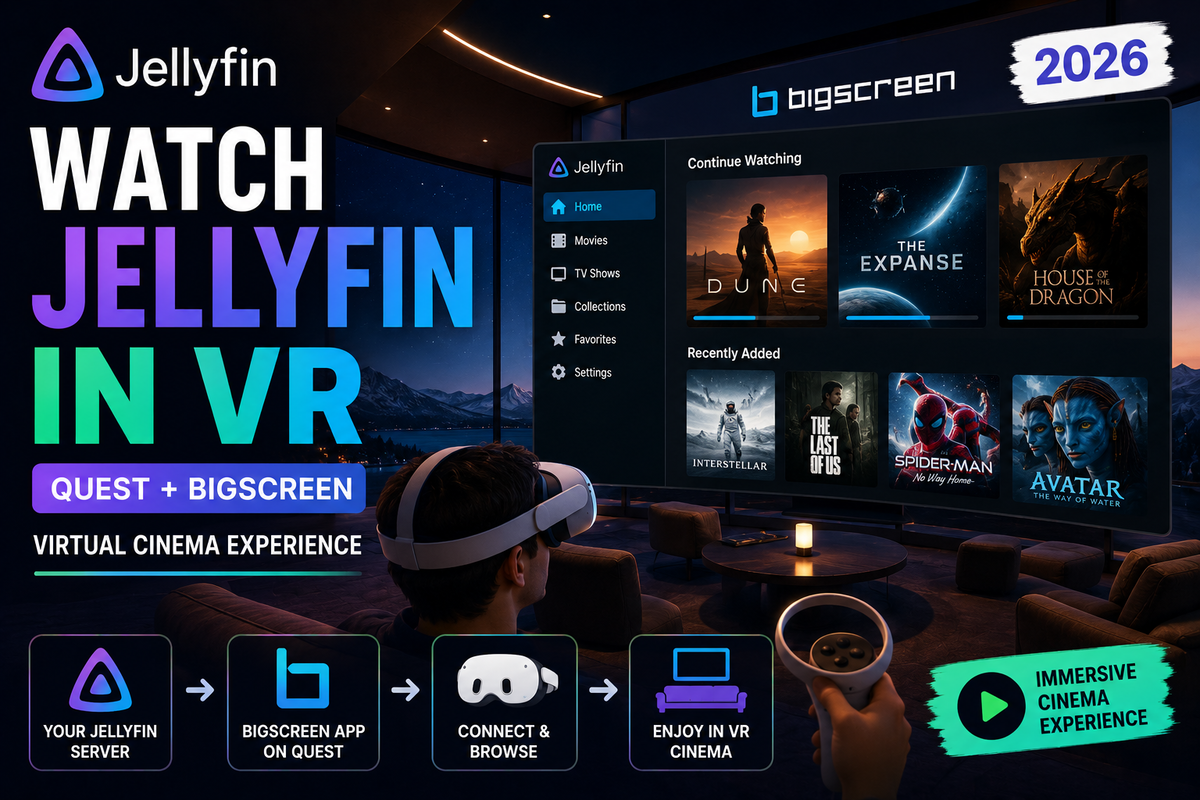
How to Watch Your Jellyfin Library in VR (2026): Quest, Bigscreen, and a Private 200-Inch Cinema
Your Jellyfin server already holds your entire movie collection. What if you could watch it on a virtual 200-inch screen, lying in bed, inside a private cinema that no one else can see? In 2026 that is not a gimmick, it is a genuinely good way to watch films, and your existing Jellyfin library plugs straight into it.
This guide covers every realistic way to get Jellyfin video onto a VR headset like the Meta Quest 3, from dedicated Jellyfin VR apps to general-purpose VR players pulling from your server over the network. No one else is writing this up properly for Jellyfin, so here is the complete picture.
Why Watch Jellyfin in VR at All
Before the how, the honest why. VR viewing is not about 3D effects (that is a separate topic). It is about the screen:
- A massive virtual screen. A headset gives you the equivalent of a 150 to 200 inch screen that fits in any room, even a tiny apartment or a hotel room.
- Total immersion. Dark theater environments, no distractions, no light bleed.
- Privacy and portability. Your own cinema that travels with you. Pair it with a downloaded library and you have a film theater on a plane.
- It uses media you already own. Your Jellyfin library is the source. No re-buying, no streaming subscription.
The tradeoffs are real too: headset weight for long films, battery life, and resolution that, while excellent in 2026, is not yet retina-sharp edge to edge. Worth knowing going in.
The Three Ways to Get Jellyfin Into a Headset
There is no single official "Jellyfin VR" app from the Jellyfin team, so you choose between three approaches. Each has a different tradeoff between convenience and polish.
| Approach | What it is | Best for |
|---|---|---|
| Dedicated Jellyfin VR app | A community app that talks to the Jellyfin API directly | Browsing your library natively in VR |
| General VR media player + network share | A polished VR player (Skybox and similar) reading files over DLNA or SMB | Best playback quality and format support |
| Flat screen mirroring / casting | Bigscreen or a virtual desktop showing a normal Jellyfin client | Watching together, or zero setup |
Let us go through each.
Approach 1: Dedicated Jellyfin VR Apps
A small but growing set of community projects connect to your Jellyfin server's API and present your library inside a VR theater. In 2026 the notable ones include JellyVR (a Godot-based VR cinema for Jellyfin) and JellyQuest (a Quest-focused VR cinema app that streams your Jellyfin library into immersive theater environments).
What they give you:
- Native library browsing (posters, continue watching) inside the headset
- Theater environments to watch in
- Direct connection to your server with your normal Jellyfin login
The catch: These are community projects, not polished commercial apps. They are usually side-loaded rather than installed from the official store, which on a Quest means using a tool like SideQuest. Expect rough edges, occasional bugs, and varying format support. Check the project's current documentation for which Jellyfin versions and codecs it handles before relying on it.
Because these apps connect to the Jellyfin API directly, they behave like any other client. That means transcoding rules still apply: if the app cannot direct play a file, your server transcodes it, which costs CPU.
Approach 2: A VR Player Reading From a Network Share (Best Quality)
This is the approach most serious VR film watchers settle on. Instead of a Jellyfin-specific app, you use a dedicated VR video player and point it at your media over the network.
Skybox VR is the long-standing favorite. It plays local and network media, auto-detects formats, supports very high resolutions, and reads files over DLNA or SMB straight from your server.
Setup over DLNA
Jellyfin can expose your library via DLNA, which most VR players can browse:
- In Jellyfin, enable the DLNA feature (Dashboard - Plugins, or the built-in DLNA settings depending on your version)
- In the VR player (Skybox and similar), open the DLNA / network source
- Your Jellyfin server appears as a media source
- Browse and play
Setup over SMB
If you prefer (or DLNA is unreliable on your network), share the media folder over SMB and point the VR player at the share directly. This bypasses Jellyfin entirely for playback, which means no transcoding and full original quality, at the cost of losing Jellyfin's library metadata and watch tracking.
The tradeoff in one line: API apps keep Jellyfin's metadata and watch state but obey transcoding. Network-share players give you the best raw quality but skip Jellyfin's library features.
Approach 3: Bigscreen and Virtual Desktop (Watch Together, Zero Setup)
The simplest route, and the only one built for watching with other people, is to display a normal Jellyfin client on a virtual screen.
- Bigscreen is a social VR app: you sit in a shared virtual cinema with friends in other locations and watch a screen together. The classic method is to run a Jellyfin client (web or desktop) on a PC and share that screen into the Bigscreen room.
- Virtual Desktop mirrors your whole PC into VR, so you just open Jellyfin in a browser on the giant virtual monitor.
This needs no special Jellyfin configuration at all. The downside is you are mirroring a flat screen rather than getting a native VR library, and image quality depends on the desktop streaming pipeline.
For remote group watching, Bigscreen pairs naturally with Jellyfin's own SyncPlay, or community tools, to keep playback in sync across viewers.
Network and Hardware Reality Check
VR video is bandwidth-hungry, and a bad network ruins the experience faster than anything else.
- Use 5 GHz or Wi-Fi 6. Put the headset on the fast band and keep it close to the router. 2.4 GHz will stutter on high-bitrate films.
- Wire the server. Your Jellyfin server should be on Ethernet. Only the headset needs to be wireless.
- Direct play beats transcoding. If you use an API-based app, encode or store files the headset can direct play (H.264 or HEVC in MP4 or MKV) so your server is not transcoding on top of everything else.
- Mind the battery. A full-length film can outlast a Quest battery. A head-strap battery pack solves this for movie nights.
Which Approach Should You Pick
- You want the easiest path and to watch with friends: Bigscreen or Virtual Desktop.
- You want the best image quality from your own files: a VR player like Skybox over DLNA or SMB.
- You want a native Jellyfin library feel: try a dedicated app like JellyVR or JellyQuest, accepting that it is community software.
Many people end up using two: a network-share player for solo film nights, and Bigscreen for watching with others.
Keep an Eye on the Server While You Are in the Headset
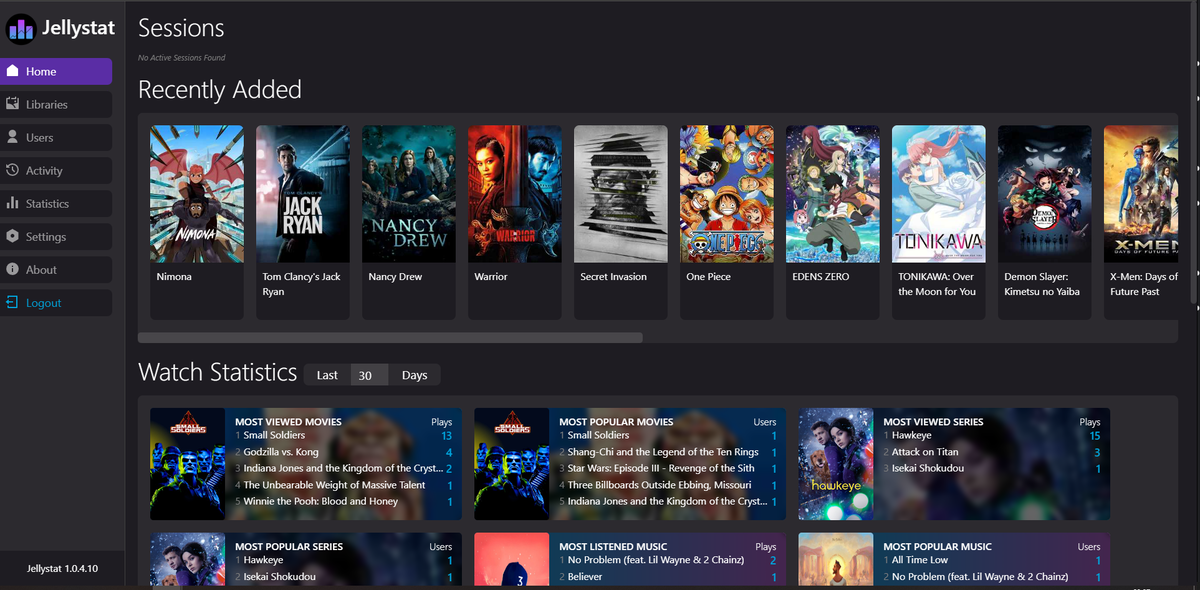
The thing about VR is you cannot see your server logs while a headset is strapped to your face. If an API-based app triggers a transcode, your server can be working hard without you noticing until playback stutters.
JellyWatch lets you glance at your phone and see exactly what your server is doing: active sessions, whether something is transcoding, and live CPU load. It is the easiest way to confirm your VR session is direct playing and not quietly cooking your CPU.
Bottom Line
There is no official Jellyfin VR app yet, but you have three solid routes: community apps like JellyVR and JellyQuest for a native library feel, a VR player like Skybox over DLNA or SMB for the best quality, and Bigscreen or Virtual Desktop for the simplest setup and group watching. Put the headset on fast Wi-Fi, keep the server wired, aim for direct play, and your existing Jellyfin collection becomes a private 200-inch cinema you can carry anywhere.
Built something cool with your server - now keep an eye on it from your phone. Download JellyWatch on Google Play - real-time CPU monitoring, session tracking, and server health for Jellyfin on Android.
On Emby? Download EmbyWatch on Google Play - the same monitoring experience for Emby servers.


Comments
No comments yet. Be the first to share your thoughts.
Leave a comment