Kids Profile, Linked Profiles and Home Assistant Cinema Mode
Three features the community has been asking about are now live in JellyWatch for Android TV. Here is what they do and how to set them up.
Kids Profile
Kids Profile gives children their own dedicated space inside JellyWatch, completely separate from the adult interface.
What it looks like
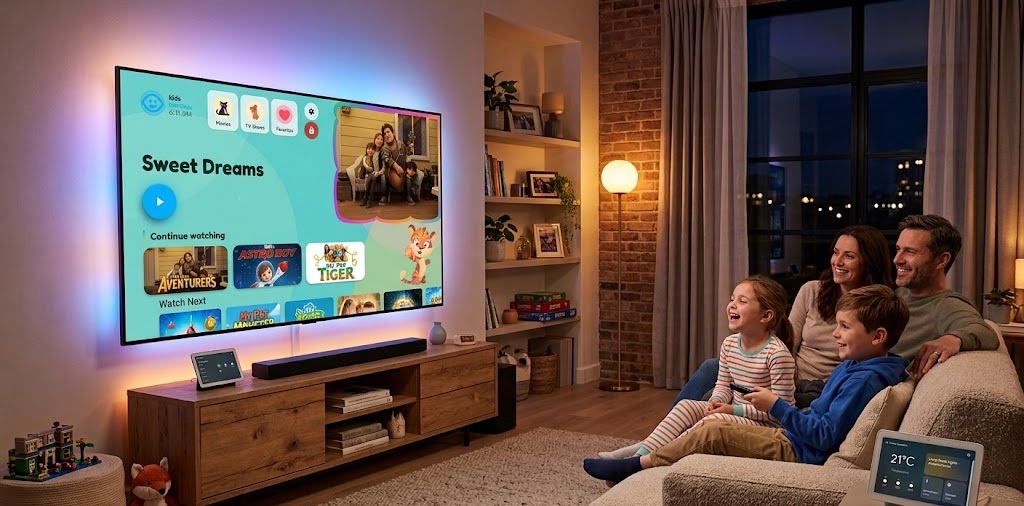
When a Kids profile is active, the entire app switches to a colorful home screen with large poster cards and a full-width hero banner. Navigation is simplified and the sidebar is trimmed to essentials only. The Fredoka font is used throughout for a rounded, approachable feel. Three color themes are available: Blue, Orange and Green.
Parental PIN lock
A parent sets a 4-digit PIN at profile creation. That PIN is required to exit Kids mode. Children can watch freely, but the rest of the app, including settings and other profiles, stays locked behind the PIN. The PIN is stored as a SHA-256 hash in AES-256 encrypted preferences on-device.
Content filtering
Content filtering is handled by your Jellyfin server user policy, not by the app. JellyWatch connects using the credentials of the child's Jellyfin account. Whatever your Jellyfin admin has configured on that account (max parental rating, blocked tags, allowed libraries) is exactly what the child sees. The app renders the filtered library as-is.
Set up the Jellyfin user policy for your child's account before activating Kids mode. Without server-side restrictions, the profile will display your full library.
How to set it up
- Open JellyWatch for Android TV and go to the "Who's watching?" screen.
- Tap Add profile and enter your Jellyfin server credentials for the child's account.
- Enable Kids Profile and choose a color theme.
- Set an exit PIN. This is the PIN a parent must enter to leave Kids mode.
- Tap Save.
Linked Profiles — Multiple Servers, One Home Screen
Linked Profiles solve a real problem for households with more than one Jellyfin server. Instead of switching between profiles to find what you want to watch, you link them together and the home screen merges their content automatically.
What gets merged
Once two or more profiles are linked:
- Continue Watching shows items in progress from every linked server.
- Next Up aggregates upcoming episodes across all servers.
- Recently Added combines new arrivals from all servers in one row.
Each profile stays fully independent for playback and watch history. Linking only affects what is displayed on the home screen. A movie playing on Server A reports its progress to Server A, not to Server B.
Rules
- A group requires at least two profiles. If you remove one profile from a two-member group, both become standalone automatically.
- Kids Profiles cannot be linked. They always appear as standalone entries in the "Who's watching?" screen.
- A profile can only belong to one group at a time.
How to set it up
- From the "Who's watching?" screen, long-press (or select the edit icon) on the first profile.
- Tap Link to another profile.
- Select the second profile from the list. A group is created.
- To add more profiles to the same group, repeat from step 1 with any existing group member.
The home screen updates immediately. No restart required.
Use cases
| Scenario | How it helps |
|---|---|
| Two separate Jellyfin servers at home | Merge both into one Continue Watching row |
| Shared server with a friend | Each keeps their own server, one view |
| 4K server + 1080p server | Browse both libraries without switching |
Home Assistant Cinema Mode
Home Assistant cinema mode connects JellyWatch directly to your smart home. When you press Play, your lights dim. When you pause, they come back on. When you stop, whatever scene or script you assigned runs automatically.
How it works
JellyWatch calls the Home Assistant REST API directly from the TV, using a Long-Lived Access Token you generate in your HA profile. Three events map to three configurable actions:
| Player event | What JellyWatch calls |
|---|---|
| Play (start or unpause) | Your configured script / service / scene |
| Pause | Your configured script / service / scene |
| Stop (player closed) | Your configured script / service / scene (falls back to pause action if not set) |
You can point each event at any valid HA entity string:
script.cinema_on— runs a scriptscene.cinema— activates a scenelight.turn_off— calls a service directly
The call is fire-and-forget on a background thread. A slow or unreachable Home Assistant instance has zero impact on video playback. The connection timeout is 3 seconds.
Fully local, no cloud
Everything happens over your local network. JellyWatch communicates with your HA instance directly. No cloud relay, no polling, no third-party service. Your Long-Lived Access Token never leaves your home network.
Requires TV Premium (Watch Pass)
Home Assistant cinema mode is a TV Premium feature. You need an active Watch Pass subscription to use it. The setting tile is visible to all users but the integration only fires when premium is active.
How to set it up
- In Home Assistant, go to your profile page and generate a Long-Lived Access Token.
- In JellyWatch for Android TV, open Settings → Home Assistant.
- Enter your HA base URL (e.g.
http://homeassistant.local:8123). - Paste your Long-Lived Access Token.
- Enter the script, scene or service to call on Play, Pause and Stop.
- Tap Test connection to verify.
- Enable the toggle and start watching.
Where to find these features
All three features are in the latest version of JellyWatch for Android TV. Install or update from Google Play or the Amazon Appstore. The Android TV landing page at jellywatch.app/android-tv has the full feature list.
Questions and feedback welcome on Discord.
--- The JellyWatch Team



Comments
No comments yet. Be the first to share your thoughts.
Leave a comment