Jellyfin on TrueNAS Electric Eel (v25): Complete Setup Guide (2026)
TrueNAS Electric Eel (v25.04) changed everything about how apps work. The old Kubernetes-based system (TrueCharts, Helm charts) is gone. In its place: native Docker Compose - simpler, faster, and more familiar to anyone who has run containers before.
If you are upgrading from Dragonfish (24.04) or starting fresh, this guide covers the complete Jellyfin setup on the new architecture.
What Changed in Electric Eel
| Feature | Dragonfish (24.04) | Electric Eel (25.04) |
|---|---|---|
| App engine | Kubernetes (k3s) | Docker Compose |
| TrueCharts | Supported | Not compatible |
| Custom apps | Helm charts | docker-compose.yml |
| GPU passthrough | Complex (k8s device plugin) | Simple (Docker devices) |
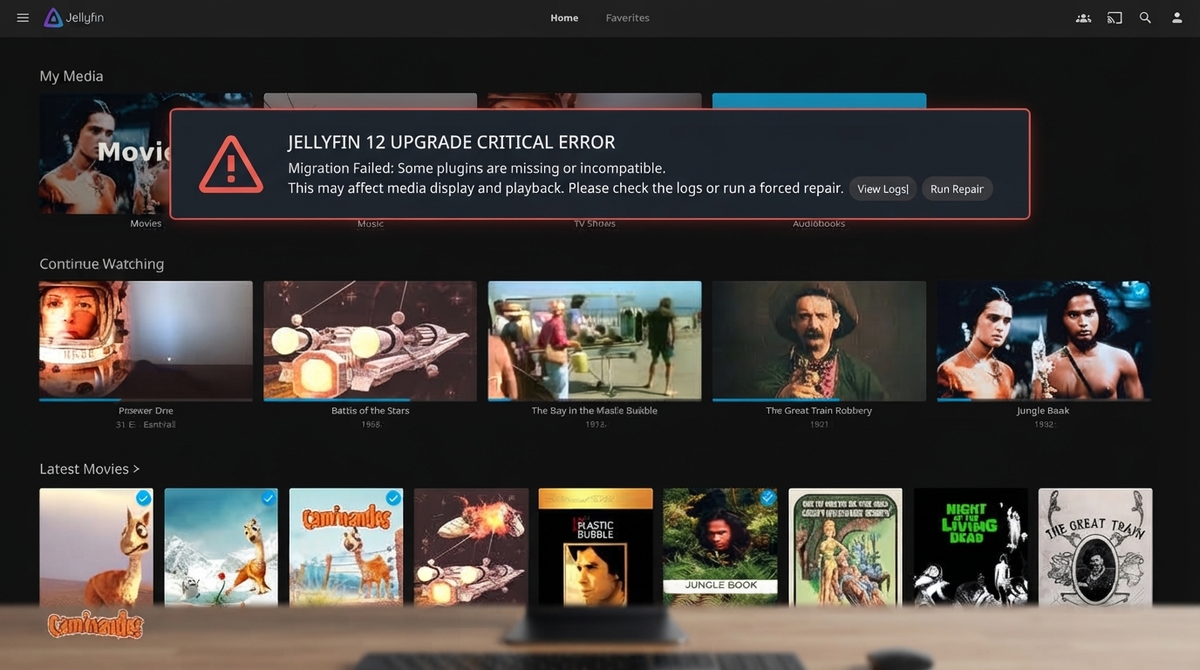
| Migration | N/A | Automatic (k8s_to_docker) |
| App catalog | TrueCharts + Official | Official + Community |
The migration from Kubernetes to Docker is automatic on upgrade, but Jellyfin users who relied on TrueCharts need to reconfigure. This guide starts from scratch.
Prerequisites
- TrueNAS SCALE 25.04 (Electric Eel) or newer
- A pool with at least one dataset for apps
- An Intel CPU with iGPU for hardware transcoding (recommended)
- Your media files accessible on the NAS
Step 1: Create ZFS Datasets
Proper dataset structure is critical for ZFS snapshots and permissions.
From the TrueNAS UI
- Storage → Datasets → Create Dataset
- Create these datasets on your pool:
| Dataset | Purpose | Preset |
|---|---|---|
pool/apps/jellyfin/config | Jellyfin configuration & metadata | Apps |
pool/apps/jellyfin/cache | Transcoding cache | Apps |
pool/media | Your media library | Generic (if not existing) |
Why separate datasets?
- Config dataset: snapshot this for backups - small, changes frequently
- Cache dataset: never snapshot - temporary transcoding files
- Media dataset: separate backup strategy - large, changes rarely
Set permissions
Datasets → pool/apps/jellyfin/config → Permissions
User: apps (UID 568) or your custom user
Group: apps (GID 568)
Apply recursively: Yes
Step 2: Install Jellyfin from the App Catalog
Method A: Official App Catalog (Easiest)
- Apps → Discover Apps → Search "Jellyfin"
- Click Install
- Configure:
- Application Name: jellyfin
- Storage → Config: select your
pool/apps/jellyfin/configdataset - Storage → Cache: select your
pool/apps/jellyfin/cachedataset - Storage → Additional Storage: add your media dataset as read-only mount
- Networking → Port: 8096 (default)
- Resources → GPU: select your Intel GPU (see Step 3)
- Click Install
Method B: Custom Docker Compose (Full Control)
If you prefer writing your own compose file:
- Apps → Discover Apps → Custom App
- Paste this docker-compose.yml:
services:
  jellyfin:
    image: jellyfin/jellyfin:latest
    container_name: jellyfin
    user: "568:568"
    network_mode: host
    volumes:
      - /mnt/pool/apps/jellyfin/config:/config
      - /mnt/pool/apps/jellyfin/cache:/cache
      - /mnt/pool/media:/media:ro
    devices:
      - /dev/dri:/dev/dri
    environment:
      - TZ=Europe/Paris
    restart: unless-stopped
- Click Save and Deploy
Step 3: GPU Passthrough for Hardware Transcoding
Intel iGPU (QSV)
Electric Eel makes GPU passthrough trivial compared to the old Kubernetes system.
Verify the GPU is available
SSH into your TrueNAS or use the Shell:
ls -la /dev/dri/
# Expected: card0  renderD128
In the App configuration
If using the official catalog app:
- Edit the Jellyfin app
- Resources → GPU Configuration → Intel GPU: check the box
- Save
If using custom Docker Compose, the devices: - /dev/dri:/dev/dri line handles it.
Enable QSV in Jellyfin
- Open Jellyfin at
http://YOUR_NAS_IP:8096 - Dashboard → Playback → Transcoding
- Hardware acceleration: Intel QuickSync (QSV)
- Enable: H.264, HEVC, VP9 decode
- Enable: Hardware Tone Mapping
- Save
Verify it works
Play a file that forces transcoding (set client quality to 720p). In the Jellyfin dashboard, the session should show HW badge.
NVIDIA GPU
If you have a discrete NVIDIA GPU:
- System → Advanced → Isolated GPU Devices: do NOT isolate it
- In the app config, select the NVIDIA GPU under Resources
- In Jellyfin, select NVIDIA NVENC as hardware acceleration
Step 4: ZFS Snapshots for Bulletproof Backups
This is TrueNAS superpower over Docker on bare metal. ZFS snapshots are instant, atomic, and zero-cost.
Automatic snapshot schedule
- Data Protection → Periodic Snapshot Tasks → Add
- Configure:
- Dataset:
pool/apps/jellyfin/config - Recursive: No
- Schedule: Daily at 3 AM
- Lifetime: 14 days
- Dataset:
- Save
Manual snapshot before upgrades
zfs snapshot pool/apps/jellyfin/config@pre-upgrade-$(date +%Y%m%d)
Restore from snapshot
# List snapshots
zfs list -t snapshot | grep jellyfin

# Rollback (destroys changes after snapshot)
zfs rollback pool/apps/jellyfin/config@pre-upgrade-20260510
No need to stop Jellyfin for snapshots - ZFS handles consistency at the filesystem level.
Step 5: Migrating from Dragonfish (24.04)
If you are upgrading from TrueNAS 24.04 with the old Kubernetes-based Jellyfin:
Automatic migration
Electric Eel attempts automatic migration on upgrade:
# Check migration status
midclt call -job k8s_to_docker
If migration fails
Common issue: TrueCharts apps do not migrate cleanly.
- Note your current Jellyfin config path (usually
/mnt/pool/ix-applications/...) - Copy the config to your new dataset:
cp -a /mnt/pool/ix-applications/releases/jellyfin/volumes/ix_volumes/*/config/* /mnt/pool/apps/jellyfin/config/ - Install Jellyfin fresh using Step 2
- Point it to the copied config
- Verify users, watch history, and plugins are intact
Preserving watch history
Your watch history lives in /config/data/jellyfin.db. As long as you copy this file to the new config dataset, all history is preserved.
Step 6: Network Configuration
Host networking (recommended)
Using network_mode: host gives Jellyfin direct access to your LAN - best for DLNA discovery and client auto-detection.
Bridge networking (isolated)
If you prefer isolation:
ports:
  - "8096:8096"
  - "8920:8920"
  - "1900:1900/udp"  # DLNA
  - "7359:7359/udp"  # Discovery
Step 7: Performance Tuning for TrueNAS
RAM considerations
TrueNAS uses RAM for ZFS ARC cache. Jellyfin 10.11+ also uses more RAM due to EF Core caching.
Recommendation:
- 16 GB total: set ARC max to 8 GB, leave 8 GB for apps
- 32 GB total: set ARC max to 16 GB, leave 16 GB for apps
- 64 GB total: no tuning needed
Set ARC limit: System → Advanced → Sysctl → Add
- Variable:
vfs.zfs.arc_max - Value:
8589934592(8 GB in bytes)
SSD for config
If your pool is HDD-based, consider a special vdev (SSD) for the config dataset. Metadata access is random I/O - SSDs make a massive difference.
Disable unnecessary TrueNAS services
If you only use TrueNAS for Jellyfin + NAS:
- Disable SMB if not needed
- Disable NFS if not needed
- Disable iSCSI
- This frees RAM for ARC and Jellyfin
Troubleshooting
| Problem | Cause | Fix |
|---|---|---|
| App won't start after upgrade | k8s_to_docker migration failed | Run midclt call -job k8s_to_docker manually |
| GPU not visible in app | GPU isolated in System settings | Un-isolate the GPU in Advanced settings |
| Permission denied on media | UID mismatch | Set dataset owner to UID 568 (apps user) |
| Jellyfin slow to browse | Config on HDD | Move config dataset to SSD pool/vdev |
| Transcoding falls back to CPU | /dev/dri not mapped | Verify GPU checkbox in app Resources |
| Can't access from LAN | Bridge networking + firewall | Switch to host networking |
TrueNAS Electric Eel vs Other NAS Platforms for Jellyfin
| Feature | TrueNAS EE (v25) | Synology DSM 7 | Unraid |
|---|---|---|---|
| App engine | Docker Compose | Docker (Container Manager) | Docker |
| GPU passthrough | Simple checkbox | Device mapping | Extra parameters |
| Filesystem | ZFS (snapshots!) | Btrfs / ext4 | XFS + FUSE |
| Instant backups | ZFS snapshots | Btrfs snapshots | Manual |
| Free | Yes | Hardware purchase | $59 license |
| Community | Large | Very large | Very large |
TrueNAS wins on ZFS snapshots and free cost. Synology wins on ease of use. Unraid wins on flexibility.
FAQ
Is TrueCharts still supported on Electric Eel? No. TrueCharts relied on Kubernetes which was removed. Use the official app catalog or custom Docker Compose instead.
Can I run Jellyfin and Plex simultaneously? Yes. They use different ports and can share the same media dataset (read-only).
How much RAM does Jellyfin need on TrueNAS? Jellyfin itself needs 1-4 GB. But TrueNAS needs RAM for ZFS ARC. Minimum 16 GB total, 32 GB recommended.
Does ZFS snapshot include my media files? Only if you snapshot the media dataset. For Jellyfin config backups, snapshot only the config dataset - it is small and fast.
Can I use NVIDIA GPU on TrueNAS? Yes. Electric Eel supports NVIDIA GPU passthrough to Docker containers natively.
Running Jellyfin on TrueNAS? Monitor it from your phone. Download JellyWatch on Google Play - real-time session monitoring, CPU alerts, and server health for your TrueNAS Jellyfin server.
On Emby? Download EmbyWatch on Google Play - the same monitoring experience for Emby servers.


Comments 2
The migration from Dragonfish was rough. TrueCharts apps all broke. But once I set up Jellyfin fresh with the new Docker system, it is actually simpler than the old Kubernetes approach. ZFS snapshots for config backups are instant and free.
Pro tip: create a separate dataset for Jellyfin config on your SSD special vdev if you have one. The metadata random I/O performance difference between SSD and spinning rust is night and day on TrueNAS.
Leave a comment