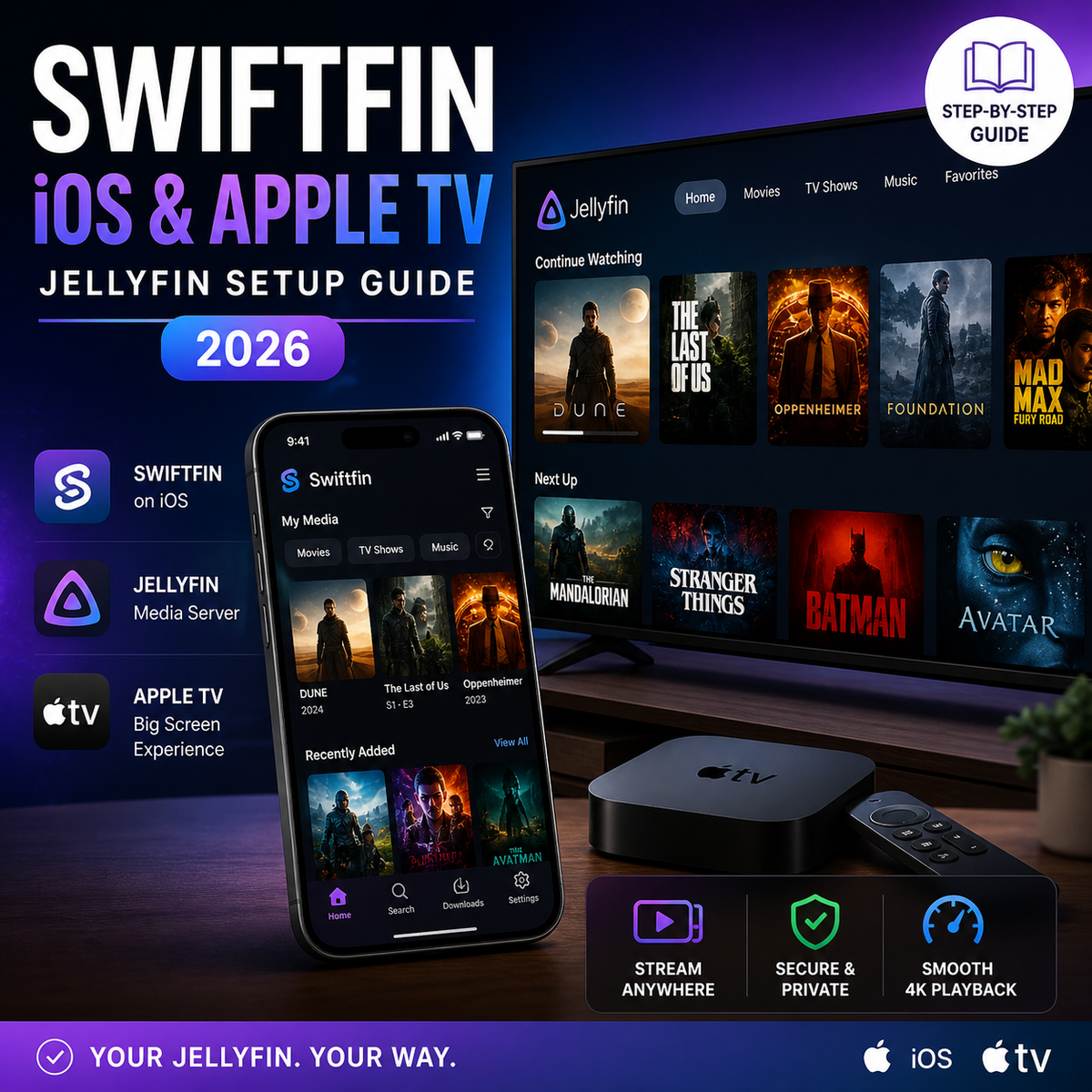
Swiftfin for Jellyfin on iOS and Apple TV: Complete Setup Guide (2026)
If you own an iPhone, iPad, or Apple TV and use Jellyfin, you have two main client options: Infuse (premium, ~$10/year) and Swiftfin (free, open source, official). For years, Infuse was the obvious choice. But Swiftfin 1.4, released in January 2026, changed the equation.
Swiftfin is now a genuinely excellent client. This guide covers everything you need to get the best experience from it.
What Is Swiftfin?
Swiftfin is the official Jellyfin client for Apple platforms, built natively in Swift and SwiftUI. It is free, open source, and available on the App Store for iOS, iPadOS, and tvOS.
Unlike the older "Jellyfin Mobile" app (which wraps the web interface), Swiftfin is a fully native app with its own UI, navigation, and media player.
Swiftfin 1.4: What Changed
The January 2026 release was a major milestone:
- Complete navigation and routing overhaul - faster, more responsive UI
- Full Jellyfin 10.11 support - compatible with the new EF Core database
- Revamped media player manager - better playback controls and stability
- Improved library browsing - smoother scrolling, faster metadata loading
- Better subtitle handling - improved rendering and track selection
- tvOS improvements - better remote control navigation on Apple TV
Installing Swiftfin
On iPhone and iPad
- Open the App Store
- Search for Swiftfin
- Tap Get (free, no in-app purchases)
- Open the app
On Apple TV
- Open the App Store on your Apple TV
- Search for Swiftfin
- Click Get
- Open the app
Connecting to Your Jellyfin Server
Method 1: Manual URL Entry
- Open Swiftfin
- Tap Connect to Server
- Enter your Jellyfin server URL:
- Local:
http://192.168.1.100:8096 - Remote:
https://jellyfin.yourdomain.com
- Local:
- Enter your username and password
- Tap Sign In
Method 2: Server Discovery
If your Apple device and Jellyfin server are on the same local network, Swiftfin can discover the server automatically:
- Open Swiftfin
- Wait for the Discovered Servers list to populate
- Tap your server
- Sign in
Method 3: QuickConnect
Jellyfin 10.11 supports QuickConnect, which lets you sign in without typing a password:
- In Swiftfin, tap QuickConnect
- Note the 6-character code displayed
- On any device already logged into Jellyfin, go to User Settings, QuickConnect and enter the code
- Swiftfin authenticates automatically
This is especially useful on Apple TV where typing passwords with the Siri Remote is painful.
Playback Settings for Best Quality
Swiftfin defaults are conservative. Adjust these for the best experience:
On iPhone/iPad
Settings, Video:
- Maximum Bitrate (Wi-Fi): Maximum / Original
- Maximum Bitrate (Cellular): 20 Mbps (adjust based on your data plan)
- Preferred Audio Language: Your language
- Preferred Subtitle Language: Your language
On Apple TV
Settings, Video:
- Maximum Bitrate: Maximum / Original
- Direct Play: Enabled
- Audio Passthrough: Enabled (if connected to an AV receiver)
Setting bitrate to Maximum is critical. Without it, Swiftfin may request a lower quality stream, triggering an unnecessary transcode on your server.
Codec Support in Swiftfin
Swiftfin uses Apple's native AVFoundation framework for playback. Codec support depends on the Apple hardware:
iPhone and iPad
| Codec | iPhone 12+ | iPhone 15 Pro+ |
|---|---|---|
| H.264 | Yes | Yes |
| H.265/HEVC | Yes | Yes |
| AV1 | No | Yes (A17 Pro+) |
| VP9 | No | No |
| HDR10 | Yes (OLED models) | Yes |
| Dolby Vision | Yes (OLED models) | Yes |
Apple TV 4K
| Codec | 2nd Gen (A12) | 3rd Gen (A15) |
|---|---|---|
| H.264 | Yes | Yes |
| H.265/HEVC | Yes | Yes |
| AV1 | No | Yes |
| VP9 | No | No |
| HDR10 | Yes | Yes |
| Dolby Vision | Yes | Yes |
| Dolby Atmos (DD+) | Yes | Yes |
| TrueHD passthrough | No | No |
| DTS passthrough | No | No |
Key limitation: Apple TV does not passthrough TrueHD or DTS audio regardless of which app you use. This is a hardware/OS limitation, not a Swiftfin limitation. Dolby Atmos is delivered via lossy Dolby Digital Plus.
Swiftfin vs Infuse: Honest Comparison
| Feature | Swiftfin 1.4 | Infuse Pro |
|---|---|---|
| Price | Free | ~$9.99/year |
| Open source | Yes | No |
| Native Jellyfin UI | Yes (full metadata fidelity) | Library Mode or Direct Mode |
| Codec breadth | Apple AVFoundation | Custom player (wider support) |
| VP9 support | No | Yes |
| Dolby Vision | Yes | Yes (all profiles) |
| Offline downloads | Not yet | Yes |
| Subtitle rendering | Good | Excellent |
| Scrubbing experience | Good | Best-in-class |
| Watch progress sync | Native (always accurate) | Requires Direct Mode |
| AirPlay | System-level | Built-in |
| Active development | Very active (community) | Active (Firecore team) |
Choose Swiftfin if:
- You want a free, open-source client
- You value native Jellyfin integration (metadata, watch progress, user profiles)
- Your library is H.264/H.265 (the vast majority of content)
- You do not need offline downloads
Choose Infuse if:
- You need the widest possible codec support (VP9, legacy formats)
- Offline downloads are important
- You want the smoothest scrubbing and playback experience
- You are willing to pay ~$10/year
Use both?
Many Apple users keep both installed. Swiftfin for daily browsing and native Jellyfin features. Infuse for problematic files that Swiftfin cannot Direct Play.
Apple TV Optimization Tips
Enable Match Content
Apple TV Settings, Video and Audio, Match Content:
- Match Dynamic Range: On
- Match Frame Rate: On
This ensures your Apple TV switches to the correct HDR mode and frame rate for each video automatically. Without it, a 24fps movie plays at 60fps with frame interpolation, and HDR content may display incorrectly.
Use Ethernet
The Apple TV 4K has a Gigabit Ethernet port. Use it. Wi-Fi is fine for 1080p, but 4K remuxes at 60-80 Mbps can stutter on Wi-Fi, especially if other devices are competing for bandwidth.
Siri Remote Shortcuts
| Action | Siri Remote gesture |
|---|---|
| Play/Pause | Click touchpad center |
| Seek 10 seconds | Swipe left/right on touchpad |
| Subtitles | Swipe down during playback |
| Audio track | Swipe down during playback |
| Info overlay | Swipe down during playback |
Troubleshooting Common Issues
| Problem | Cause | Fix |
|---|---|---|
| Buffering on 4K content | Bitrate limit too low | Set to Maximum in Swiftfin settings |
| No audio | Unsupported audio codec | Server transcodes audio automatically; check server logs |
| Subtitles not showing | Wrong subtitle track selected | Swipe down during playback to select |
| App crashes on large library | Memory pressure on older devices | Reduce home screen sections in Jellyfin |
| Cannot connect to server | Wrong URL or firewall | Verify URL is reachable from Safari first |
| HDR looks washed out | Match Dynamic Range disabled | Enable in Apple TV settings |
| QuickConnect not working | Feature disabled on server | Enable in Jellyfin Dashboard, Networking |
SyncPlay on Swiftfin
Swiftfin supports Jellyfin's built-in SyncPlay feature for group watching:
- Start playing any media
- Open the playback menu
- Join or create a SyncPlay group
- All group members' playback is synchronized
This works across devices. Someone on Swiftfin (Apple TV) and someone on Findroid (Android) can watch together in sync.
Swiftfin Roadmap
Based on the Swiftfin GitHub repository and community discussions, upcoming features include:
- Offline downloads - the most requested feature
- tvOS design refresh - bringing the tvOS app closer to the iOS experience
- Improved music playback - better album art and queue management
- Widget support - iOS home screen widgets for continue watching
FAQ
Is Swiftfin the official Jellyfin app for Apple? Yes. Swiftfin is maintained by the Jellyfin project and is the official client for iOS, iPadOS, and tvOS.
Does Swiftfin cost anything? No. It is completely free with no in-app purchases. It is open source under the GPLv3 license.
Can Swiftfin play 4K HDR? Yes. H.265 4K with HDR10 and Dolby Vision Direct Plays on supported Apple hardware.
Why does Swiftfin not support VP9? Apple's AVFoundation framework does not include a VP9 decoder. This is an Apple platform limitation. Infuse works around it with a custom software decoder.
Does Swiftfin support Live TV? Yes. If you have Live TV configured on your Jellyfin server, it is accessible from Swiftfin.
Can I use Swiftfin and Infuse on the same server? Yes. Both connect to the same Jellyfin server independently. Watch progress syncs through Jellyfin, so switching between apps is seamless.
Is there an admin app for Jellyfin on iOS? Swiftfin is a viewing client, not an admin tool. For server administration on mobile, JellyWatch on Android provides real-time session monitoring, transcoding diagnostics, and server health tracking.
Swiftfin handles the watching. JellyWatch handles the server. Download JellyWatch on Google Play - monitor every Swiftfin session in real time, verify Direct Play, and get alerts when something needs attention.
On Emby? Download EmbyWatch on Google Play - the same monitoring experience for Emby servers.


Comments
No comments yet. Be the first to share your thoughts.
Leave a comment