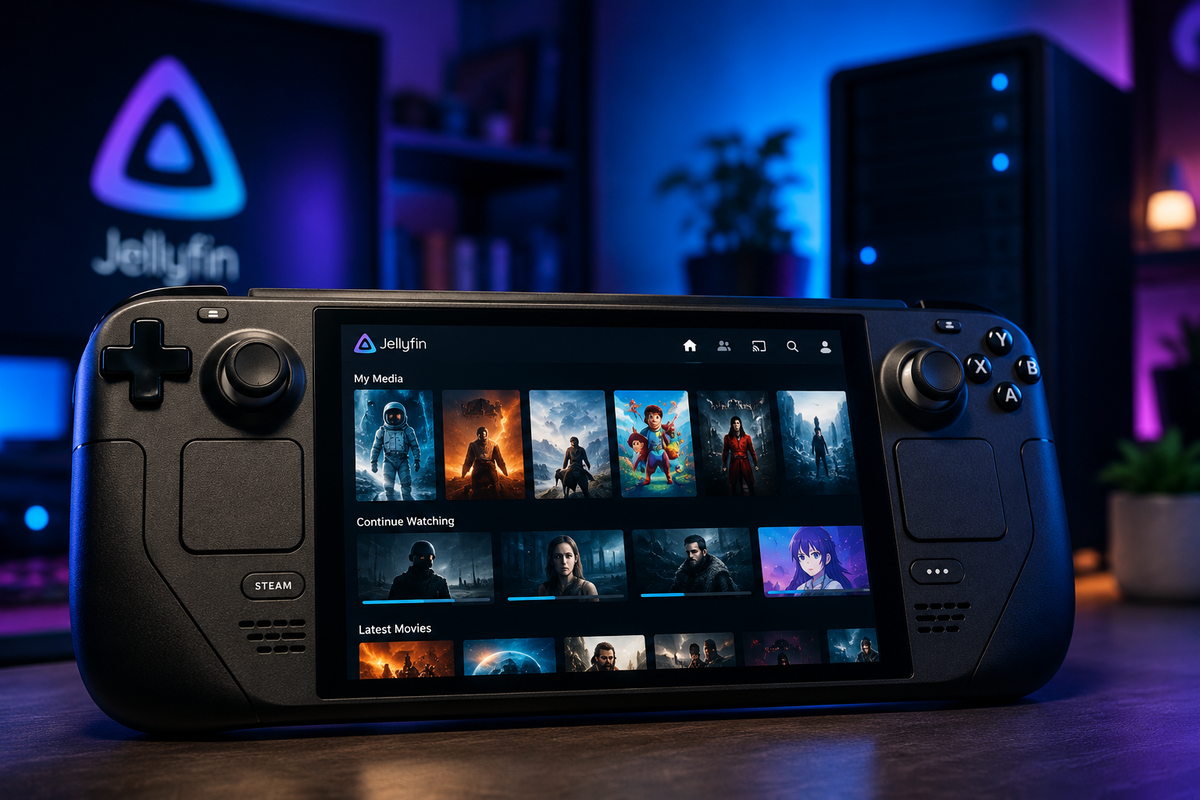
Jellyfin on Steam Deck in 2026: Desktop Mode, Game Mode & Offline Viewing
The Steam Deck is not just a gaming handheld - it is a full Linux PC running Arch-based SteamOS. Unlike the Nintendo Switch (which requires homebrew for Jellyfin), the Steam Deck runs Jellyfin natively with zero hacks.
You have three options: the web browser, Jellyfin Media Player (JMP) in Desktop Mode, or JMP as a non-Steam game in Game Mode with full controller support.
Why the Steam Deck Is Great for Jellyfin
- No homebrew required - it is a standard Linux PC
- Full codec support - H.264, H.265, AV1, VP9 hardware decode via AMD APU
- HDR on OLED model - Steam Deck OLED supports HDR10
- Controller navigation - works in Game Mode with Steam Input
- Wi-Fi 6E (OLED model) - fast enough for 4K remux streaming
- 720p/800p display - even 1080p encodes look sharp at this size
- Offline potential - download files to microSD for travel
Method 1: Jellyfin Media Player in Desktop Mode (Best Quality)
Install JMP via Flatpak
- Switch to Desktop Mode (hold Power → Switch to Desktop)
- Open Discover (the app store)
- Search for Jellyfin Media Player
- Click Install
- Launch JMP from the application menu
Connect to your server
- Enter your Jellyfin server URL
- Log in with your credentials
- Start watching
Why JMP over the browser
| Feature | JMP (Flatpak) | Firefox/Chrome |
|---|---|---|
| H.265 Direct Play | Yes (hardware) | No (transcodes) |
| AV1 Direct Play | Yes | Yes |
| HDR passthrough (OLED) | Yes | No |
| Subtitle rendering (ASS) | Full styling | Basic |
| Keyboard shortcuts | Full | Limited |
| Gapless audio | Yes | No |
JMP uses MPV as its playback engine - the same engine that powers the best Linux media players. It hardware-decodes everything the Steam Deck APU supports.
Method 2: JMP in Game Mode (Controller Support)
This is the killer feature. You can launch Jellyfin from Game Mode and navigate entirely with the Steam Deck controls.
Add JMP as a non-Steam game
- In Desktop Mode, open Steam
- Click Games → Add a Non-Steam Game
- Browse to:
/var/lib/flatpak/exports/bin/com.github.iwalton3.jellyfin-media-player - Add it
- Rename it to "Jellyfin" in your library
Configure Steam Input for Jellyfin
In Game Mode, press the Steam button on Jellyfin → Controller Settings:
| Steam Deck control | Map to | Action in JMP |
|---|---|---|
| D-pad | Arrow keys | Navigate UI |
| A button | Enter | Select/Play |
| B button | Escape/Back | Go back |
| X button | Space | Play/Pause |
| Left stick | Mouse | Pointer (for web UI) |
| L1/R1 | Left/Right arrow | Seek ±10 seconds |
| Start | F | Toggle fullscreen |
Launch from Game Mode
Switch back to Game Mode. Jellyfin appears in your library. Launch it - full controller navigation, no keyboard needed.
Method 3: Web Browser (Simplest, Least Capable)
- In Game Mode, add Firefox or Chrome as a non-Steam game
- Navigate to your Jellyfin server URL
- Works but H.265 will transcode on your server
Only use this if you cannot install JMP for some reason.
Codec Support on Steam Deck
The Steam Deck uses an AMD Van Gogh APU (custom RDNA 2 + Zen 2):
| Codec | Hardware decode | Notes |
|---|---|---|
| H.264 (AVC) | Yes | Universal |
| H.265 (HEVC) Main 10 | Yes | 4K HDR capable |
| AV1 | Yes (OLED model) | LCD model: software only |
| VP9 | Yes | |
| MPEG-2 | Yes | Legacy content |
HDR on Steam Deck OLED
The OLED model supports HDR10 output:
- In SteamOS: Settings → Display → Enable HDR
- In JMP: HDR content passes through automatically
- The 90Hz OLED panel displays HDR natively
The LCD model does NOT support HDR - content plays in SDR regardless.
Offline Viewing: Download to microSD
The Steam Deck has a microSD slot. For travel without internet:
Option A: Sync files directly
- In Desktop Mode, mount your microSD
- Use
rsyncor a file manager to copy media files - In JMP, add the microSD path as a local media source
- Watch offline - no server needed
Option B: Use Jellyfin's download feature (experimental)
Some Jellyfin clients support offline downloads. JMP does not natively, but you can:
- Install Findroid via sideloaded APK (Android layer not available on Deck)
- Or simply copy files manually - the Steam Deck is a Linux PC
Recommended format for offline
For maximum battery life and smooth playback on the Deck:
- Codec: H.265 (hardware decode = low power)
- Resolution: 1080p (overkill for 800p screen but future-proof)
- Bitrate: 5-10 Mbps (plenty for the small screen)
- Audio: AAC stereo (saves battery vs surround decode)
Performance and Battery Life
| Activity | Battery life (LCD) | Battery life (OLED) |
|---|---|---|
| Streaming 1080p H.265 (Wi-Fi) | ~5-6 hours | ~6-7 hours |
| Streaming 4K H.265 (Wi-Fi) | ~4-5 hours | ~5-6 hours |
| Local playback (microSD) | ~6-7 hours | ~7-8 hours |
| Gaming (comparison) | ~2-3 hours | ~3-4 hours |
Media playback is dramatically more efficient than gaming. The GPU idles during video decode.
Tips for maximum battery
- Set screen brightness to 50%
- Use H.265 content (hardware decode uses less power than H.264 on AMD)
- Disable Wi-Fi if playing from microSD
- Set TDP limit to 4W in Game Mode (Power → TDP Limit)
Steam Deck vs Other Portable Jellyfin Options
| Device | Price | Jellyfin app | Offline | HDR | Battery (video) |
|---|---|---|---|---|---|
| Steam Deck LCD | ~$399 | JMP (native) | Yes (manual) | No | ~6h |
| Steam Deck OLED | ~$549 | JMP (native) | Yes (manual) | Yes | ~7h |
| Android tablet | ~$200+ | Findroid | Yes (built-in) | Varies | ~8-10h |
| iPad | ~$329+ | Swiftfin/Infuse | Yes (Infuse) | Yes | ~10h |
| Nintendo Switch | ~$299 | Switchfin (homebrew) | No | No | ~4h |
The Steam Deck wins on codec support and controller integration. Tablets win on battery life and offline downloads.
FAQ
Do I need to install Windows on the Steam Deck? No. JMP runs natively on SteamOS (Linux). No dual-boot needed.
Does Jellyfin work in Game Mode? Yes - add JMP as a non-Steam game and configure controller mapping.
Can the Steam Deck handle 4K? Yes for decode (hardware H.265/AV1). But the screen is 800p/720p, so 1080p is the sweet spot.
Does the Steam Deck 2 work with Jellyfin? The Steam Deck 2 (if/when released) will also run SteamOS Linux - JMP will work identically.
Is there a Jellyfin app in the Steam Store? No. Install JMP via Flatpak in Desktop Mode, then add as non-Steam game.
Streaming Jellyfin on your Steam Deck? Monitor your server from your phone. Download JellyWatch on Google Play - see every active session including Steam Deck streams.


Comments 2
JMP as a non-Steam game in Game Mode with controller mapping is brilliant. Watched an entire season of a show on a flight using my Steam Deck OLED. Battery lasted over 6 hours. Better than any tablet for this.
The Flatpak install is dead simple. One command in Desktop Mode and you have a full MPV-powered Jellyfin client with hardware decode for everything. No Windows needed, no compromises.
Leave a comment