
Jellyfin Reverse Proxy Setup: NPM vs Traefik vs Caddy (2026)
A reverse proxy sits between the internet and your Jellyfin server. It handles SSL certificates, domain routing, and security - so you never expose port 8096 directly to the world.
In 2026, three reverse proxies dominate the self-hosting community. This guide compares them and gives you a working Docker setup for each.
Why You Need a Reverse Proxy
- HTTPS encryption - protect credentials and streams in transit
- Custom domain - access your server at
jellyfin.yourdomain.cominstead of an IP - Hide your home IP - when combined with Cloudflare
- Centralized routing - one entry point for Jellyfin, Radarr, Sonarr, Jellyseerr
- Security headers - add HSTS, CSP, and rate limiting
Option 1: Caddy (Simplest)
Caddy is the easiest reverse proxy to configure. Automatic HTTPS with zero extra steps.
Docker Compose
services:
  caddy:
    image: caddy:2-alpine
    ports:
      - "80:80"
      - "443:443"
    volumes:
      - ./Caddyfile:/etc/caddy/Caddyfile
      - caddy_data:/data
    restart: unless-stopped

volumes:
  caddy_data:
Caddyfile
jellyfin.yourdomain.com {
    reverse_proxy jellyfin:8096
}

radarr.yourdomain.com {
    reverse_proxy radarr:7878
}

sonarr.yourdomain.com {
    reverse_proxy sonarr:8989
}

requests.yourdomain.com {
    reverse_proxy jellyseerr:5055
}
That is it. Caddy obtains and renews Let's Encrypt certificates automatically.
Best for: Users who want the fastest setup with minimal configuration.
Option 2: Nginx Proxy Manager (Most Visual)
Nginx Proxy Manager (NPM) provides a web-based GUI for managing reverse proxy rules. No config files to edit.
Docker Compose
services:
  npm:
    image: jc21/nginx-proxy-manager:latest
    ports:
      - "80:80"
      - "443:443"
      - "81:81"  # Admin panel
    volumes:
      - ./npm/data:/data
      - ./npm/letsencrypt:/etc/letsencrypt
    restart: unless-stopped
Setup
- Access the admin panel at
http://your-server:81 - Default login:
admin@example.com/changeme - Add a Proxy Host:
- Domain:
jellyfin.yourdomain.com - Forward hostname:
jellyfin(Docker service name) - Forward port:
8096 - Enable SSL → Request a new certificate → Force SSL
- Domain:
- Repeat for each service
Best for: Users who prefer a GUI over config files.
Option 3: Traefik (Most Powerful)
Traefik is a cloud-native reverse proxy that auto-discovers Docker containers via labels. More complex to set up, but extremely powerful for large stacks.
Docker Compose
services:
  traefik:
    image: traefik:v3.0
    command:
      - "--api.insecure=true"
      - "--providers.docker=true"
      - "--entrypoints.web.address=:80"
      - "--entrypoints.websecure.address=:443"
      - "--certificatesresolvers.letsencrypt.acme.httpchallenge.entrypoint=web"
      - "--certificatesresolvers.letsencrypt.acme.email=you@yourdomain.com"
      - "--certificatesresolvers.letsencrypt.acme.storage=/letsencrypt/acme.json"
    ports:
      - "80:80"
      - "443:443"
    volumes:
      - /var/run/docker.sock:/var/run/docker.sock:ro
      - ./letsencrypt:/letsencrypt
    restart: unless-stopped

  jellyfin:
    image: jellyfin/jellyfin:latest
    labels:
      - "traefik.enable=true"
      - "traefik.http.routers.jellyfin.rule=Host(`jellyfin.yourdomain.com`)"
      - "traefik.http.routers.jellyfin.entrypoints=websecure"
      - "traefik.http.routers.jellyfin.tls.certresolver=letsencrypt"
      - "traefik.http.services.jellyfin.loadbalancer.server.port=8096"
    volumes:
      - ./jellyfin/config:/config
      - /path/to/media:/media:ro
    restart: unless-stopped
Traefik reads Docker labels and configures routing automatically. Add a new service with labels and it appears instantly.
Best for: Advanced users with large Docker stacks who want auto-discovery.
Comparison Table
| Feature | Caddy | Nginx Proxy Manager | Traefik |
|---|---|---|---|
| Setup difficulty | Very easy | Easy (GUI) | Medium-Advanced |
| Configuration | Caddyfile (text) | Web GUI | Docker labels + YAML |
| Auto SSL | Yes | Yes | Yes |
| Auto-discovery | No | No | Yes (Docker labels) |
| Performance | Excellent | Good | Excellent |
| Best for | Small stacks | GUI lovers | Large Docker stacks |
| Community size | Growing fast | Very large | Large |
Jellyfin-Specific Reverse Proxy Tips
WebSocket support
Jellyfin uses WebSockets for real-time features (SyncPlay, session updates). Make sure your reverse proxy passes WebSocket headers.
Caddy: handled automatically.
NPM: enable "WebSockets Support" in the proxy host settings.
Traefik: add this label:
- "traefik.http.middlewares.jellyfin-headers.headers.customrequestheaders.X-Forwarded-Proto=https"
Large file uploads
If you upload media through the Jellyfin web interface, increase the max body size:
- NPM: Custom Nginx config →
client_max_body_size 20G; - Caddy: No limit by default
- Traefik: Add buffering middleware
Cloudflare considerations
If you use Cloudflare DNS proxy (orange cloud):
- Cloudflare has a 100 MB upload limit on free plans - this can break large file transfers
- Video streaming through Cloudflare proxy may violate their ToS (Section 2.8)
- Consider using DNS-only mode (grey cloud) for your Jellyfin subdomain
Security Hardening
Once your reverse proxy is running:
- Force HTTPS - redirect all HTTP to HTTPS
- Enable HSTS - tell browsers to always use HTTPS
- Add Fail2Ban - block brute-force login attempts
- Restrict admin access - limit dashboard access to your local network or VPN
- Monitor access logs - watch for suspicious activity
Monitor Your Exposed Server
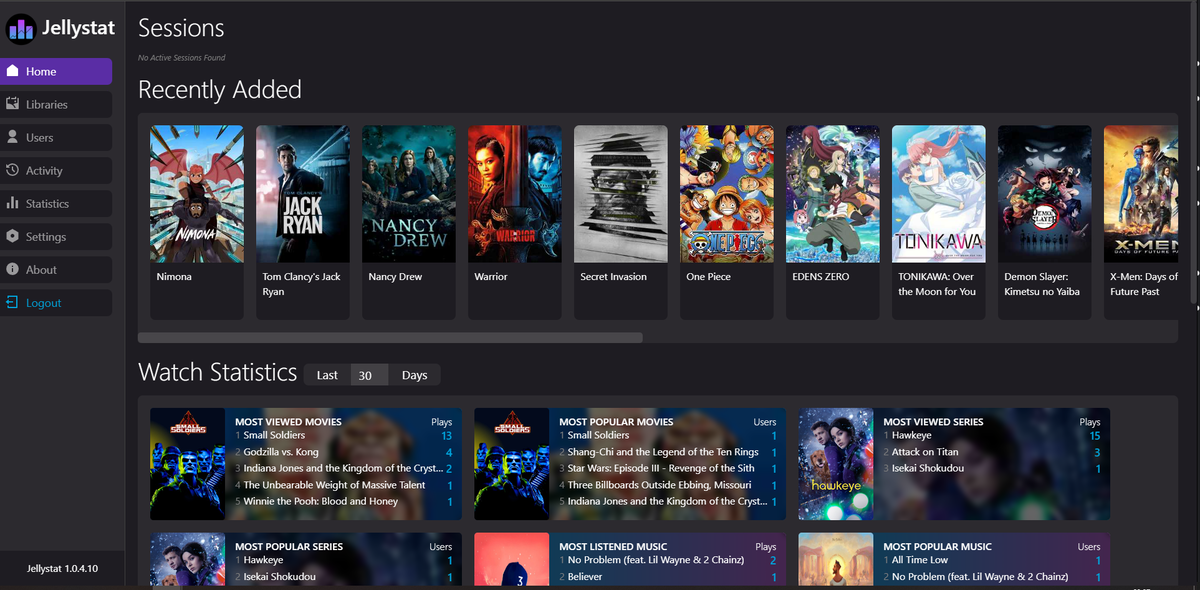
Once your Jellyfin server is accessible from the internet, monitoring becomes critical. You need to know:
- Who is connecting and from where
- Whether sessions are transcoding unexpectedly
- If CPU spikes after exposing the server publicly
- Whether unauthorized devices appear
JellyWatch gives you all of this from your Android device - push notifications for new sessions, device tracking, and real-time server health.
Your server is now public - keep it under control. Download JellyWatch on Google Play - monitor sessions, track devices, and get alerts when something looks wrong.
On Emby? Download EmbyWatch on Google Play - the same security monitoring for Emby servers.



Comments 5
Switched from Nginx to Caddy after reading this. Two lines in the Caddyfile and automatic SSL. Why did I ever use anything else?
Traefik with Docker labels is amazing for large stacks. Auto-discovery means I never touch config files when adding new services.
Nginx Proxy Manager GUI is perfect for people who don't want to edit config files. Point and click SSL. Highly recommend for beginners.
Migrated from Nginx Proxy Manager to Caddy after reading this. My entire Caddyfile is 12 lines for 5 services. Auto SSL, zero maintenance. Should have switched years ago.
The Traefik Docker labels approach is genius for large stacks. I add a new service, slap on 3 labels, and it is instantly accessible with SSL. No config file editing ever.
Leave a comment