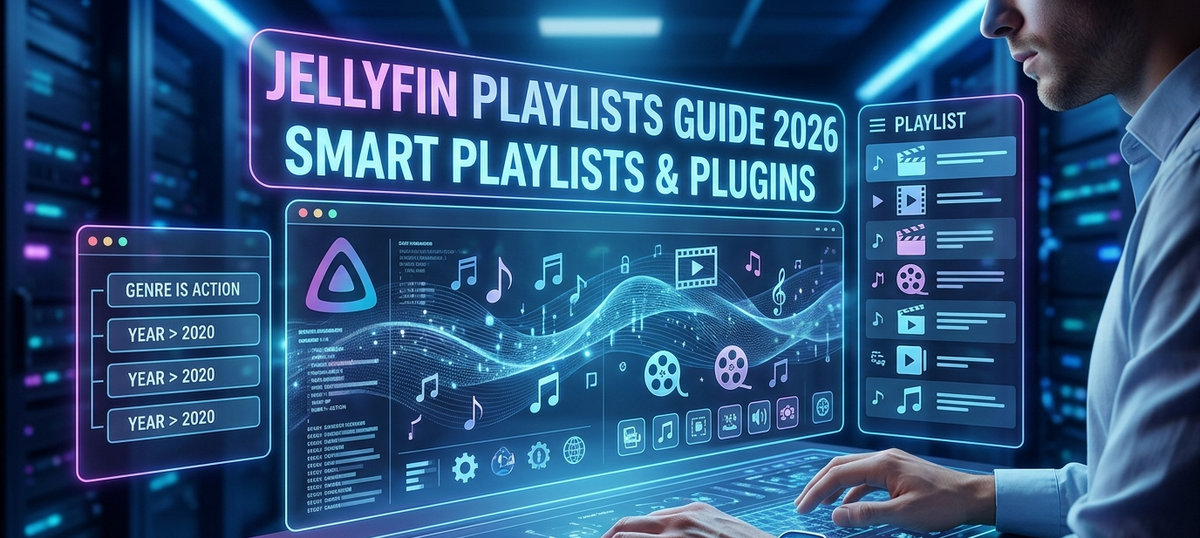
Jellyfin Playlists in 2026: Create, Share & Automate Smart Playlists
Playlists in Jellyfin are more powerful than most users realize. Beyond simple manual lists, you can create auto-updating smart playlists, share them across users, import M3U files, and build music queues that rival dedicated music apps.
This guide covers everything - from basic playlist creation to advanced automation with plugins.
Playlist Types in Jellyfin
Jellyfin supports several playlist approaches:
- Manual playlists - You pick items and add them to a list
- Smart playlists (via plugins) - Rules-based lists that auto-update
- M3U import - Import existing playlist files from other software
- Music playlists - Audio-specific with shuffle, repeat, queue
Creating Manual Playlists
Via Web UI
- Browse to any movie, episode, or album
- Click the three-dot menu (...) or right-click
- Select "Add to Playlist"
- Choose an existing playlist or create a new one
- Name it, set visibility (private or shared)
Bulk Adding
In any library view:
- Select multiple items (checkbox mode)
- Click "Add to Playlist" in the toolbar
- All selected items are added at once
Reordering
Open a playlist and drag items to reorder. The order is preserved for playback.
Smart Playlists (Auto-Updating)
Jellyfin does not have built-in smart playlists, but the community Smart Playlist plugin adds this functionality.
Installation
- Dashboard - Plugins - Repositories - Add the Smart Playlist repository URL
- Install from catalog
- Restart Jellyfin
Creating Rules
Smart playlists use filter rules that automatically include/exclude content:
Example: "Unwatched Movies Added This Month"
Rule: Media Type = Movie
AND: Play Status = Unplayed
AND: Date Added = Last 30 days
Sort: Date Added (newest first)
Limit: 50 items
Example: "4K HDR Content"
Rule: Media Type = Movie OR Episode
AND: Resolution = 4K
AND: HDR = True
Sort: Title (A-Z)
Example: "Top Rated Unwatched Comedies"
Rule: Media Type = Movie
AND: Genre = Comedy
AND: Play Status = Unplayed
AND: Community Rating >= 7.0
Sort: Rating (highest first)
Limit: 25 items
Example: "Recently Aired Episodes (This Week)"
Rule: Media Type = Episode
AND: Air Date = Last 7 days
Sort: Air Date (newest first)
Update Frequency
Smart playlists refresh automatically:
- On Jellyfin server startup
- On library scan completion
- On a configurable schedule (hourly, daily)
This means a "New This Week" playlist always shows current content without manual intervention.
Sharing Playlists with Users
Visibility Options
- Private: Only the creator can see and use the playlist
- Public/Shared: All users on the server can see the playlist
To change visibility: open the playlist - Edit - toggle Public checkbox.
Use Cases for Shared Playlists
- Family movie night: Create a "Saturday Night Picks" playlist that everyone can browse
- Kids content: Curated list of age-appropriate content for child profiles
- Watch order: "MCU Chronological Order" shared with all users
- Seasonal: "Halloween Movies" shared every October
M3U Playlist Import
If you have playlists from other software (VLC, Kodi, music players), you can import them:
For Music
- Place your
.m3uor.m3u8file in your music library folder - Jellyfin detects it during library scan
- The playlist appears in your music section
The M3U file must reference files that exist in your Jellyfin library (paths must match).
For Video
Video M3U import is less straightforward. Best approach:
- Create the playlist manually in Jellyfin
- Use the Jellyfin API to bulk-add items programmatically
- Or use a community script that converts M3U to Jellyfin API calls
Music Playlists
Jellyfin's music playlist support is solid:
Features
- Create playlists from albums, artists, or individual tracks
- Shuffle and repeat modes
- Queue management (add next, add to end)
- Gapless playback (client-dependent)
- Playlist artwork (auto-generated from track artwork)
Music Smart Playlists Ideas
- "Recently Added Albums" (last 2 weeks)
- "Most Played Tracks" (top 50)
- "Unplayed Albums" (discovery queue)
- "Decade Mix: 1980s" (by year filter)
Syncing with Navidrome
If you run Navidrome alongside Jellyfin for music, playlists do not sync between them natively. You need a tool like Playlisty or manual M3U export/import.
Playlists vs Collections: When to Use Which
| Feature | Playlist | Collection |
|---|---|---|
| Ordered | Yes (you control the sequence) | No (alphabetical or custom sort) |
| Auto-updating | Yes (with Smart Playlist plugin) | No (manual, or via Kometa) |
| Visible to specific users | Configurable (private/public) | Always visible to all |
| Playback as queue | Yes (plays sequentially) | No (browse and pick) |
| Best for movies/shows | Watch order, themed lists, queues | Franchises, genres, groupings |
| Best for music | Albums, artist mixes, moods | Not typically used for music |
| Remove after watching | Easy (manual or auto-remove) | Not typical |
Rule of thumb: Use playlists for things you want to watch/listen in order. Use collections for grouping related content.
Advanced: Playlist Automation with External Tools
Kometa Integration
Kometa can create playlists (not just collections) based on Trakt lists, IMDb lists, or custom rules. These sync to Jellyfin automatically.
Jellyfin API Scripts
Power users write Python/Bash scripts that:
- Create daily/weekly "What to Watch" playlists
- Build "Movie Marathon" playlists from franchise metadata
- Sync Spotify playlists to Jellyfin music playlists
- Auto-remove watched items from playlists
The Jellyfin API endpoints for playlist management:
POST /Playlists- Create playlistPOST /Playlists/{id}/Items- Add itemsDELETE /Playlists/{id}/Items- Remove itemsPOST /Playlists/{id}/Items/{itemId}/Move/{newIndex}- Reorder
Troubleshooting
| Problem | Solution |
|---|---|
| Playlist not visible to other users | Check visibility is set to Public/Shared |
| Smart playlist not updating | Verify plugin is enabled and check the schedule timer |
| M3U import not working | Ensure file paths in M3U match actual paths in your Jellyfin library |
| Playlist order gets scrambled | Some clients do not respect custom order. Test with web UI to confirm server-side order is correct. |
| Cannot delete a playlist | Only the creator or an admin can delete. Check permissions. |
| Music playlist has wrong tracks | Verify tracks are not from duplicate albums. Merge duplicates first. |
FAQ
Can I share a playlist URL with someone outside my server? No. Playlists are server-internal. Users must have accounts on your Jellyfin server to access shared playlists.
Do playlists sync across Jellyfin clients? Yes. Playlists are stored server-side, so they appear identically on web, mobile, TV, and desktop clients.
Is there a limit on playlist size? No hard limit, but very large playlists (1000+ items) may load slowly on some clients.
Can I export a Jellyfin playlist as M3U? Not natively from the UI. You can use the API to export item paths programmatically.
Do smart playlists work for music? Yes. The Smart Playlist plugin supports audio items with filters like genre, year, rating, and play count.
Can Watch Pass users (JellyWatch) see my shared playlists? Yes. Any user with server access sees public playlists.
Browse your playlists and library on mobile. Download JellyWatch on Google Play - view your library, track watch progress, and manage your Jellyfin server from anywhere.


Comments
No comments yet. Be the first to share your thoughts.
Leave a comment