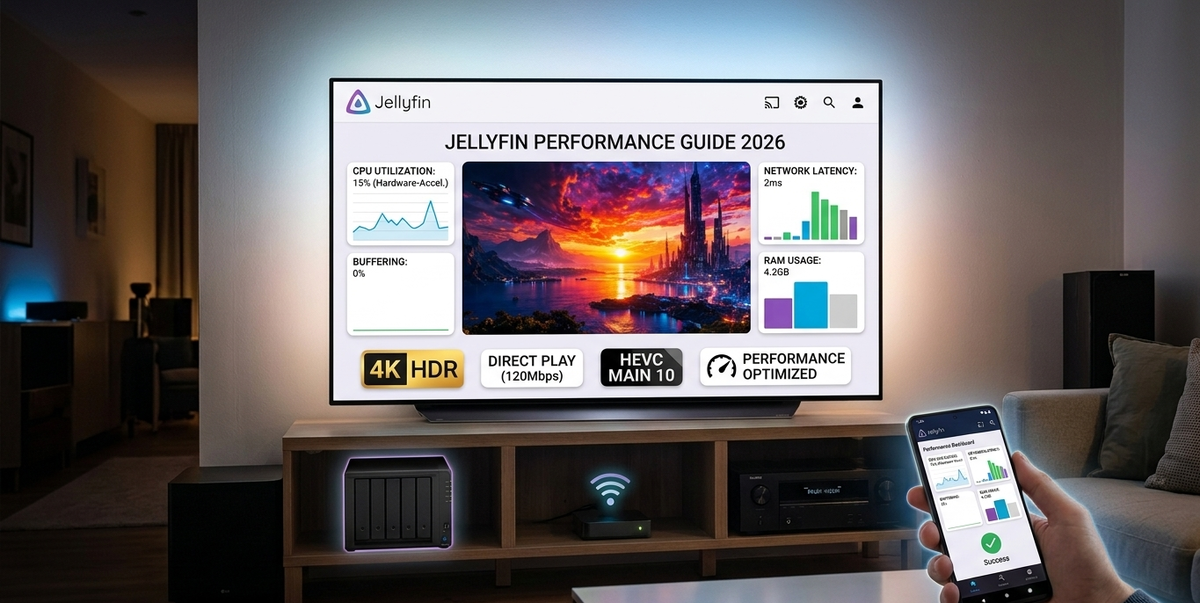
Jellyfin Performance Optimization Guide (2026)
If your Jellyfin server is buffering, lagging, or struggling with 4K playback, you are not alone. Proper optimization can dramatically improve streaming quality and reduce CPU spikes.
This guide explains how to speed up your Jellyfin server step by step.
1. Enable Hardware Acceleration (Most Important Step)
Hardware acceleration reduces CPU usage during transcoding.
Why it matters
- Lower CPU load
- Smoother 4K playback
- Less buffering for remote users
How to enable it
- Go to Dashboard → Playback → Transcoding
- Enable hardware acceleration
- Select your GPU (Intel Quick Sync, NVIDIA NVENC, AMD)
- Save and restart the server
If you are running Docker, make sure your container has GPU passthrough enabled.
2. Avoid Unnecessary Transcoding
Transcoding is the main cause of buffering.
Best practices
- Use modern codecs (H.264 or H.265)
- Match client playback settings
- Enable Direct Play whenever possible
| Scenario | Result |
|---|---|
| Direct Play | No CPU spike |
| Audio Transcode Only | Moderate load |
| Full Video Transcode | High CPU usage |
3. Optimize Your Library Structure
Poor file naming causes metadata issues and unnecessary scans.
Recommended structure
Movies: Movie Name (Year)/Movie Name (Year).mkv
TV Shows: Show Name/Season 01/Show Name - S01E01.mkv
Clean libraries reduce background processing and improve performance.
4. Limit Background Tasks
Some plugins and scheduled tasks consume resources.
Check these settings
- Library scan frequency
- Thumbnail generation
- Intro detection scans
If you use many plugins, review them regularly and remove unused ones.
5. Optimize for 4K Streaming
4K requires serious bandwidth and hardware.
Recommended minimum
| Component | Recommendation |
|---|---|
| CPU | 6+ cores |
| RAM | 16GB |
| Storage | SSD |
| Network | Gigabit Ethernet |
For remote streaming, ensure your upload speed is sufficient.
6. Use SSD for Metadata & Cache
Moving your config and metadata folders to SSD significantly improves responsiveness.
Benefits:
- Faster library browsing
- Faster poster loading
- Reduced UI lag
7. Monitor Server Health
Performance optimization is not a one-time task.
Track:
- CPU usage
- RAM usage
- Active streams
- Transcoding sessions
Monitoring tools help detect issues before users complain.
8. Network Optimization Tips
- Use wired Ethernet instead of Wi-Fi
- Enable port forwarding correctly
- Avoid double NAT
- Configure reverse proxy properly
Network misconfiguration is a frequent cause of buffering.
Common Causes of Jellyfin Buffering
| Cause | Fix |
|---|---|
| Weak CPU | Enable hardware acceleration |
| Slow disk | Move to SSD |
| Bad upload speed | Lower bitrate |
| Too many plugins | Remove unused plugins |
Final Thoughts
A fast Jellyfin server depends on three pillars:
- Hardware acceleration
- Direct Play optimization
- Clean server monitoring
With proper setup, Jellyfin can deliver a smooth streaming experience even for multiple 4K users.
If you want to push your setup further, combine performance tuning with smart plugin selection and active server monitoring for maximum stability.
Monitor your Jellyfin server performance in real time. Download JellyWatch on Google Play - CPU usage, active transcodes, and session details right on your Android phone.



Comments 5
Moving metadata to SSD was the single biggest improvement for me. Library browsing went from sluggish to instant.
Hardware acceleration dropped my CPU from 95% to 8% during 4K playback. Should be step 1 for everyone.
The troubleshooting table at the end is super helpful. Bookmarked this page for future reference.
Moved my config from a spinning disk to a cheap 256GB SATA SSD. Library browsing went from 8 seconds to under 1 second. This should be step zero for everyone.
Disabled Intro Skipper analysis schedule and set it to manual only. My N100 was hitting 100% CPU every night at 2 AM. Now I run it once a week on Sunday.
Leave a comment