
Jellyfin on NVIDIA Shield TV in 2026: TrueHD, Dolby Vision & Direct Play Setup Guide
The NVIDIA Shield TV (Pro and Tube) is widely considered the best Android TV streaming device for self-hosted media servers in 2026. While the Apple TV 4K wins on UI polish and the Onn 4K Pro wins on price, the Shield wins on something most other devices can't match: lossless audio bitstream passthrough. TrueHD, TrueHD Atmos, DTS-HD MA, DTS:X - the Shield passes them all to your AV receiver untouched.
Combined with hardware decode for H.264, H.265, VP9, and AV1, plus an 8-year-old Tegra X1+ chip that still gets driver updates, the Shield is a genuine "set it and forget it" Jellyfin client.
This guide covers everything: installing the official Jellyfin app, configuring Direct Play, enabling lossless audio passthrough, Dolby Vision setup, and the optimizations that separate a working Shield from a perfect one.
Why the Shield Is the Top Android TV Pick for Jellyfin
| Feature | Shield Pro (2019) | Apple TV 4K (3rd gen) | Fire TV Stick 4K Max | Onn 4K Pro |
|---|---|---|---|---|
| Price | ~$200 | ~$129 | ~$60 | ~$50 |
| TrueHD bitstream | Yes | No | No | No |
| DTS-HD MA bitstream | Yes | No | No | No |
| DTS:X bitstream | Yes | No | No | No |
| Dolby Atmos (DD+) | Yes | Yes | Yes | Yes |
| Dolby Vision | Yes (P5/P8) | Yes (all profiles) | Yes (P5/P8) | Yes (P5/P8) |
| HDR10+ | No | Yes | Yes | Yes |
| AV1 decode | Yes | Partial | Yes | Yes |
| Native Jellyfin app | Yes | Via Swiftfin/Infuse | Yes | Yes |
The Shield is the only mainstream streaming device that bitstreams lossless audio. For users with an AV receiver and a 4K Blu-ray remux library, this is non-negotiable - everything else decodes the audio internally and outputs lossy or LPCM.
The trade-off: the Shield does not support HDR10+. If your library is heavy on HDR10+ titles (mostly Samsung-led releases), the Apple TV or Fire TV is a better fit.
Shield Pro vs Shield Tube
| Spec | Shield Pro | Shield Tube |
|---|---|---|
| RAM | 3 GB | 2 GB |
| Storage | 16 GB | 8 GB (microSD expandable) |
| USB ports | 2x USB 3.0 | None |
| Plex Media Server | Yes | No |
| Form factor | Larger box | Tube |
| Price | ~$200 | ~$150 |
For Jellyfin clients, both work identically. Same chip, same codec support, same audio passthrough. The Pro is worth the extra $50 only if you want to plug in external storage or run a Plex server on it (which has no relevance for Jellyfin users).
Step 1: Install the Jellyfin Android TV App
The official Jellyfin app is available in the Play Store on the Shield:
- From the Shield home screen, open the Google Play Store
- Search for Jellyfin
- Install Jellyfin for Android TV (the official app maintained by the Jellyfin team)
- Launch the app and tap Add Server
- Enter your server URL:
- Local:
http://192.168.1.100:8096 - Remote:
https://jellyfin.yourdomain.com
- Local:
- Log in with your credentials
Skip the official "Jellyfin Mobile" app - it is not optimized for the 10-foot UI. The Android TV app is what you want.
Step 2: Configure Audio Passthrough (The Critical Step)
This is where most Shield owners leave performance on the table. Follow these steps exactly.
Shield system audio settings
- Shield Settings → Device Preferences → Display & Sound → Advanced sound settings
- Set Surround sound to Auto (or manually enable each format your receiver supports)
- Enable: Dolby Digital, Dolby Digital Plus, Dolby TrueHD, Dolby Atmos, DTS, DTS-HD
Important: "Auto" lets the Shield negotiate with your AV receiver via HDMI EDID. If your receiver supports a format, it gets passed through. If you set this to PCM, the Shield decodes everything internally and you lose lossless passthrough.
Jellyfin app audio settings
- Open Jellyfin app → tap your avatar → Settings
- Navigate to Playback
- Set:
- Audio output: Auto
- Allowed audio codecs: enable all (TrueHD, DTS-HD MA, EAC3, AC3, AAC)
- Enable Dolby Atmos passthrough: On
- Enable DTS passthrough: On
Verify lossless passthrough is working
Play a movie with a TrueHD Atmos track. Check your AV receiver display - it should show "Dolby TrueHD" or "Dolby Atmos". If it shows "Multi-Channel PCM" or "Dolby Digital Plus", passthrough is not working - revisit the Shield audio settings.
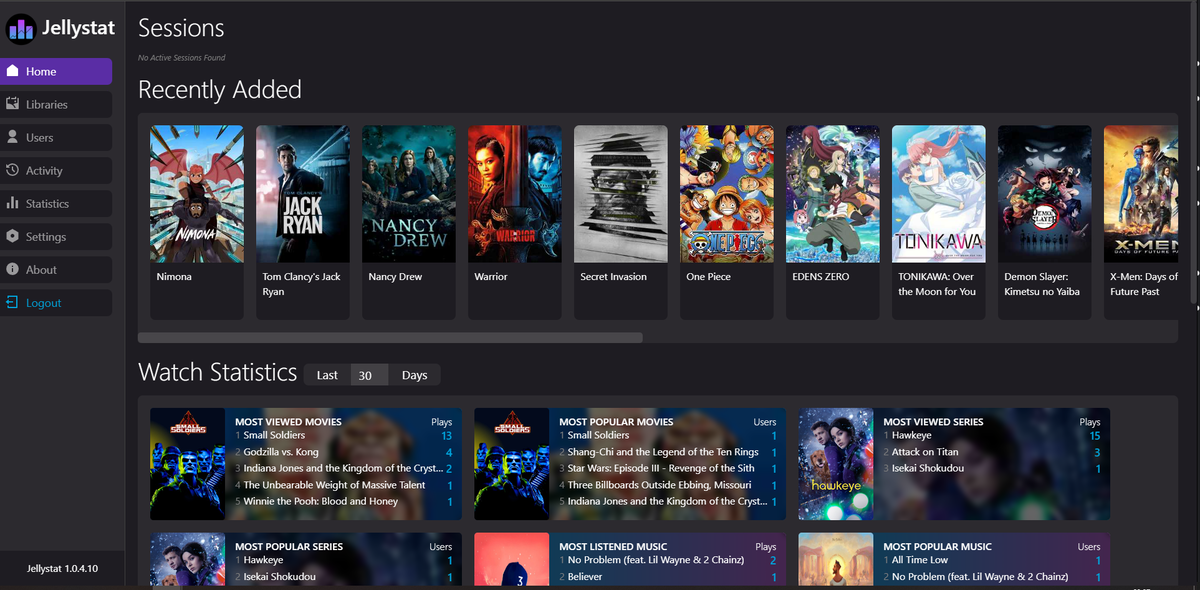
You can also verify in JellyWatch: the active session should show Direct Play with the TrueHD codec untouched.
Step 3: Enable Match Content (Frame Rate and HDR)
This is the second most important Shield setting.
Shield Settings → Device Preferences → Display & Sound → Display:
- Match content frame rate: On (Always)
- Match content dynamic range: On
What this does: When you play a 24fps movie, the Shield switches the HDMI output to 24fps automatically. When you play HDR10 content, it switches the TV to HDR10 mode. When you play SDR content, it switches back. Without this, you get judder on movies and incorrectly displayed HDR.
Step 4: Force Direct Play in the Jellyfin App
To prevent the Shield from triggering unnecessary transcodes:
- Jellyfin app → Settings → Playback
- Max streaming bitrate: Original / Maximum (no limit)
- Force playback at original quality: Enabled
- Direct Play: Enabled
The Shield can Direct Play virtually everything - so do not let the app artificially throttle quality.
What the Shield Direct Plays natively
| Format | Direct Play |
|---|---|
| H.264 (any container) | Yes |
| H.265 / HEVC Main 10 | Yes |
| H.265 4K HDR10 | Yes |
| H.265 4K Dolby Vision Profile 5 | Yes |
| H.265 4K Dolby Vision Profile 8 | Yes |
| AV1 (Tegra X1+ supports it) | Yes |
| VP9 | Yes |
| MPEG-2 | Yes |
| TrueHD audio (with passthrough) | Yes (bitstream) |
| DTS-HD MA / DTS:X | Yes (bitstream) |
The Shield is the most format-permissive Jellyfin client available. If something is transcoding, it's almost always a configuration issue, not a hardware limitation.
Step 5: Dolby Vision Setup
The Shield supports Dolby Vision Profile 5 and Profile 8. It does NOT support Profile 7 (the dual-layer FEL profile found on some Blu-ray remuxes).
Dolby Vision app settings
- Shield Settings → Display & Sound → Advanced display settings
- Dolby Vision: Enabled (Player-led)
- HDR mode: HDR10 + Dolby Vision
What works on Shield
- Dolby Vision Profile 5 (single-layer, common on streaming services)
- Dolby Vision Profile 8.1 (compatible with HDR10 fallback)
- Dolby Vision Profile 8.4 (compatible with HLG fallback)
What doesn't work
- Dolby Vision Profile 7 (Blu-ray dual-layer FEL)
- The Shield falls back to HDR10 for Profile 7 files
For Profile 7 content, you need either an Ugoos AM6B+ with CoreELEC (the only consumer device with Profile 7 FEL support) or a player that can convert Profile 7 to Profile 8 on the fly (such as some custom Kodi builds).
Step 6: Network Configuration for High-Bitrate Content
A 4K Blu-ray remux can hit 80-100 Mbps sustained. Wi-Fi is unreliable at that bitrate.
Use Ethernet
Both Shield Pro and Tube have a Gigabit Ethernet port. Use it. Wi-Fi 5 (the Shield's wireless standard) maxes out at ~400 Mbps in real-world conditions and drops sharply with interference.
Configure your network
- Place your Jellyfin server and Shield on the same subnet (avoids cross-VLAN routing latency)
- Set a static IP for the Shield in your router (optional but useful for monitoring)
- Verify your switch is Gigabit (not Fast Ethernet) - check the port LED color
For users without easy Ethernet access, a powerline adapter or MoCA bridge is a better choice than relying on Wi-Fi for 4K remux playback.
Step 7: Optional - Kodi + Jellyfin for Kodi Add-on
For users who want maximum control, the Shield runs Kodi excellently and the Jellyfin for Kodi add-on provides a richer interface than the official Jellyfin Android TV app.
Why use Kodi on Shield
- Better subtitle styling (libass)
- More precise audio configuration
- Library mode that syncs Jellyfin metadata into Kodi's database
- Custom skins (Estuary, Aeon Nox, etc.)
Setup
- Install Kodi from the Play Store on the Shield
- Install the Jellyfin for Kodi add-on from the Jellyfin repository
- Configure server URL and credentials
- Choose Library mode (full sync) or Add-on mode (browse on demand)
The official Jellyfin Android TV app is simpler and works for 95% of users. Kodi is the power-user option.
Common Shield + Jellyfin Issues
| Problem | Cause | Fix |
|---|---|---|
| Audio plays as PCM, not TrueHD | Shield audio set to PCM | Settings → Sound → Auto |
| 24fps content plays at 60fps | Match Content frame rate off | Enable in display settings |
| Dolby Vision not detected | Wrong DV mode | Set to Player-led |
| Buffering on 4K remux | Wi-Fi instead of Ethernet | Switch to Ethernet |
| App crashes on launch | Outdated app version | Update from Play Store |
| Subtitles cause transcode | PGS subtitle burn-in | Switch to SRT |
| Random pauses during playback | Background apps consuming RAM | Restart Shield, close apps |
How the Shield Compares to Other Setups for Jellyfin
Shield vs Apple TV 4K
- Audio: Shield wins (lossless passthrough vs decoded)
- UI: Apple TV wins (more polished)
- HDR: Apple TV wins (HDR10+, all DV profiles)
- App quality: Apple TV wins (Infuse > Jellyfin Android TV app)
- Best for: Audiophiles with AV receivers - Shield. Casual users with sound bars - Apple TV.
Shield vs Mini PC
A mini PC running Linux + Kodi can match the Shield on every front and adds support for Profile 7 Dolby Vision (with the right setup). But it requires more setup, more power, and lacks the Shield's polished Android TV experience.
Choose the Shield if you want plug-and-play. Choose a mini PC if you want maximum format support and don't mind tinkering.
Shield vs Vero V
The Vero V (OSMC's Kodi-focused device) supports TrueHD, DTS bitstream, and adds Dolby Vision Profile 7 support that the Shield lacks. At ~$185 it's slightly cheaper than the Shield Pro.
Trade-off: Vero V is Kodi-only (no Android TV apps), and runs OSMC instead of a mainstream OS. The Shield is more flexible if you also use streaming service apps.
Will the Shield Get Replaced?
NVIDIA has not released a new Shield TV since 2019. The Pro and Tube remain on sale in 2026 and continue to receive Android TV updates. There is no announced successor.
Even seven years later, the Shield's combination of TrueHD/DTS passthrough, Dolby Vision support, and broad codec coverage means no other Android TV device matches it. For Jellyfin users with AV receivers, it remains the recommended pick.
FAQ
Does the Shield support TrueHD Atmos passthrough? Yes. The Shield bitstreams TrueHD with Atmos metadata to your AV receiver, where it decodes natively. This is the only major Android TV device that does so.
Can the Shield play 4K Blu-ray remuxes via Jellyfin? Yes. With Ethernet and Direct Play enabled, the Shield handles 80+ Mbps remuxes without buffering.
Does the Shield support HDR10+? No. The Shield supports HDR10 and Dolby Vision but not HDR10+. For HDR10+ content, your TV must handle HDR10 fallback, or you need an Apple TV / Fire TV instead.
Will the Shield Direct Play DTS:X? Yes - it bitstreams DTS:X to compatible AV receivers, where the receiver decodes it natively.
Can I use the Shield as a Jellyfin server (like Plex Media Server)? No - and this is a key difference from Plex. Plex offers a native Plex Media Server app pre-installed on the Shield Pro that runs in the background as an Android service - it scans your USB-attached media, manages metadata, and serves streams to other devices on your network. Many Plex users treat the Shield Pro as a server AND a client simultaneously.
Jellyfin server is architecturally different: it is a .NET application that requires Linux, Windows, macOS, or FreeBSD. There is no Android build, no APK to sideload, and no plan to port the server to Android TV. The Shield is exclusively a Jellyfin client device.
If you want a combined Jellyfin server + living room player in one box, your options are:
- Intel N100 Mini PC (~$130) - run Jellyfin server in Docker + Kodi with Jellyfin for Kodi addon for TV playback. One device does both jobs.
- Shield Pro + separate server - keep the Shield as your premium client and run Jellyfin server on a dedicated mini PC, NAS, or VPS elsewhere on your network.
- Stay on Plex for the server-on-Shield convenience - if the "one box does everything" model is non-negotiable and you are willing to pay Plex Pass for it, the Shield Pro with Plex Media Server remains the only streaming device that acts as both server and player.
Does the Shield support AV1? Yes. The Tegra X1+ has AV1 decode support via firmware updates. AV1 content Direct Plays natively.
Streaming Jellyfin on a Shield? Monitor every session from your phone. Download JellyWatch on Google Play - see exactly when your Shield is Direct Playing or transcoding, and verify lossless audio passthrough is active.
On Emby? Download EmbyWatch on Google Play - the same monitoring experience for Emby servers.


Comments 3
Correction: The Shield doesn't support hardware VP9 or AV1 decoding. It does support 4K 60 H265 though.
Half of the settings you mention in this don't exist anymore. An update would be appreciated.
Just use Jellywatch player :) https://jellywatch.app/player
Leave a comment