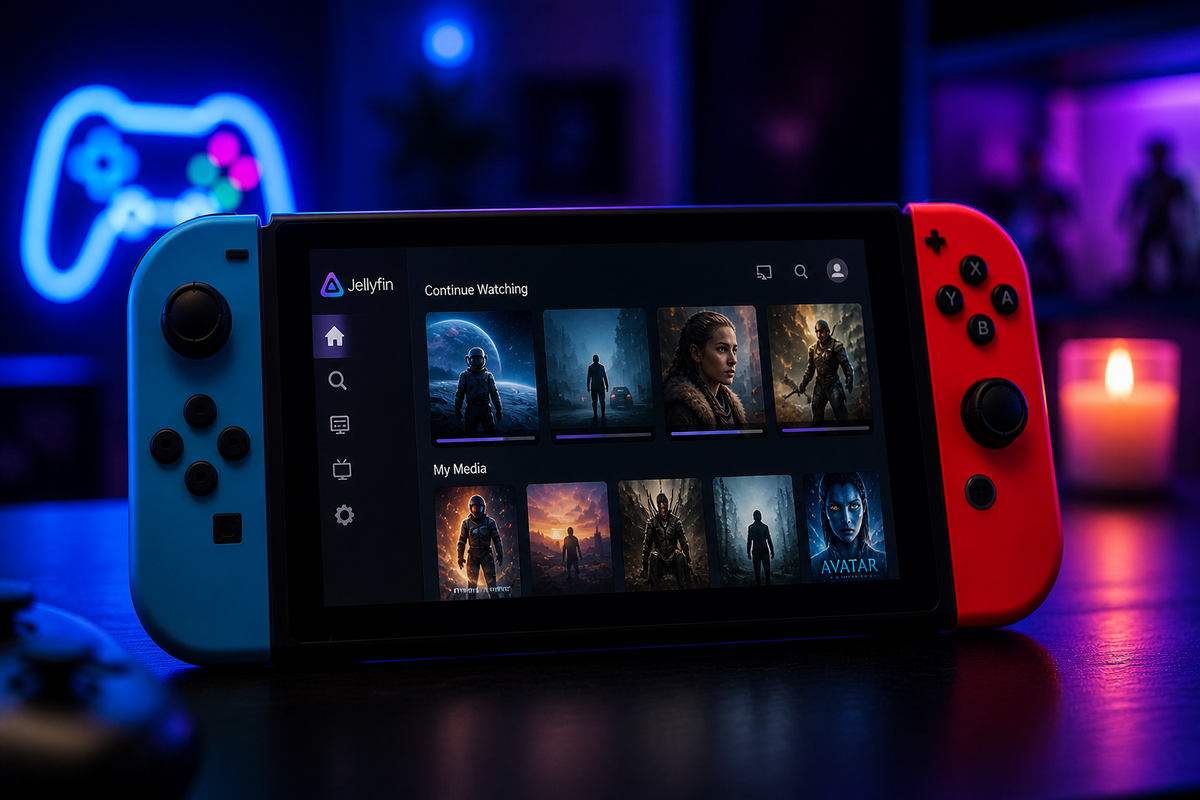
Jellyfin on Nintendo Switch: Switchfin Setup Guide (2026)
Yes, you can stream your Jellyfin library on a Nintendo Switch. Switchfin is an open-source Jellyfin client that runs on homebrew-enabled Switch consoles. It turns your portable gaming device into a media player for road trips, hotel rooms, or anywhere you want to watch your library without a phone or laptop.
What Is Switchfin?
Switchfin is a native Jellyfin client for the Nintendo Switch, built with C++ and the Switch homebrew SDK. It connects to your Jellyfin server and streams media directly to the Switch screen or to a TV via the dock.
- Source: github.com/dragonflylee/switchfin
- License: Open source
- Status: Beta (actively maintained)
- Requirements: A Nintendo Switch with homebrew access (CFW)
Requirements
Before you start, you need:
- A Nintendo Switch (original or OLED model - Switch Lite works for handheld only)
- Custom Firmware (CFW) installed (Atmosphère is the standard)
- A microSD card with enough space for the Switchfin NRO file
- Your Jellyfin server accessible from the Switch network
Important: Homebrew Requirement
Switchfin requires a homebrew-enabled Switch. This means:
- Your Switch must be running custom firmware (Atmosphère)
- You need access to the Homebrew Menu
- This is only possible on certain Switch hardware revisions
- Running CFW may void your warranty and carries a ban risk for online services
If your Switch is not already running homebrew, this guide does not cover the CFW installation process. Refer to the Switch homebrew community for setup instructions.
Installation
Step 1: Download Switchfin
- Go to the Switchfin Releases page
- Download the latest
switchfin.nrofile - Copy it to your Switch microSD card at:
/switch/switchfin.nro
Step 2: Launch Switchfin
- Boot your Switch into CFW
- Open the Homebrew Menu (hold R while launching a game, or use the Album app)
- Find Switchfin in the homebrew list
- Launch it
Step 3: Connect to Your Jellyfin Server
- On the Switchfin main screen, select Add Server
- Enter your Jellyfin server URL:
- Local:
http://192.168.1.100:8096 - Remote:
https://jellyfin.yourdomain.com
- Local:
- Enter your username and password
- Connect
Your library appears on screen. Browse and play.
Codec and Resolution Support
The Nintendo Switch has a Tegra X1 processor with hardware video decoding capabilities:
| Codec | Support | Notes |
|---|---|---|
| H.264 (AVC) | Yes (hardware decode) | Up to 1080p |
| H.265 (HEVC) | Yes (hardware decode) | Up to 1080p |
| VP9 | Partial | Software decode, limited performance |
| AV1 | No | Not supported by Tegra X1 |
| AAC audio | Yes | |
| AC3/EAC3 | Yes | |
| TrueHD/DTS | No | Server transcodes to compatible format |
Resolution limits
| Mode | Maximum resolution |
|---|---|
| Handheld | 720p |
| Docked (TV) | 1080p |
The Switch cannot output 4K. If your files are 4K, the Jellyfin server transcodes them down to 1080p (or the Switch requests a lower quality stream).
Features
Switchfin supports:
- Library browsing (Movies, TV Shows)
- Video playback with hardware decoding
- Subtitle display (SRT, ASS)
- Audio track selection
- Resume playback (syncs progress with Jellyfin)
- D-pad and touchscreen navigation
- Docked mode (output to TV via HDMI)
- Multiple server support
- User switching
Limitations
- No 4K - Switch hardware caps at 1080p
- No HDR - Switch display is SDR only
- No AV1 - Tegra X1 does not have an AV1 decoder
- No Live TV - not implemented
- No music playback - video-focused client
- Requires CFW - not available on stock Switch firmware
- No auto-update - must manually download new NRO versions
- Performance varies - complex H.265 content may stutter in software decode scenarios
Is It Worth It?
Good use cases
- Travel - watch your library on a plane, train, or hotel without carrying a laptop
- Bedtime viewing - the Switch OLED screen is excellent for handheld media consumption
- Kids - give kids access to their Jellyfin library on a device they already own
- Docked backup - a secondary TV client when your main streaming device is in use
Not ideal for
- Primary home theater - a $50 streaming stick is better in every way for TV use
- 4K HDR content - the Switch cannot display it
- Large libraries - navigation with Joy-Cons is slower than a proper remote
- Users without CFW - if your Switch is not already homebrew-enabled, the barrier to entry is high
Performance Tips
Optimize for the Switch
- Set client bitrate to 8-20 Mbps - the Switch Wi-Fi is not the fastest; avoid requesting full remux bitrates
- Use H.264 content when possible - hardware decode is most reliable for H.264
- Connect to 5 GHz Wi-Fi - the Switch supports 5 GHz and it provides better throughput than 2.4 GHz
- Use Ethernet in docked mode - with a USB-to-Ethernet adapter, you get stable wired connectivity
- Avoid PGS subtitles - they trigger a full video transcode on your server; use SRT instead
Server-side settings for Switch users
In Jellyfin, you can create a user profile specifically for Switch viewing:
- Dashboard → Users → Create a "Switch" user
- Set remote streaming bitrate limit to 15 Mbps
- This prevents the Switch from requesting streams it cannot handle smoothly
Updating Switchfin
Switchfin does not auto-update. To update:
- Check the GitHub Releases page for new versions
- Download the latest
switchfin.nro - Replace the old file on your microSD card at
/switch/switchfin.nro - Relaunch from the Homebrew Menu
Alternatives for Portable Jellyfin
If you do not have a homebrew Switch, other portable options exist:
| Device | Price | Jellyfin app | Offline downloads |
|---|---|---|---|
| Android phone/tablet | Varies | Findroid / Official | Yes (Findroid) |
| iPad | From $329 | Swiftfin / Infuse | Yes (Infuse) |
| Steam Deck | ~$399 | Jellyfin Media Player | No |
| Nintendo Switch (CFW) | Already owned | Switchfin | No |
For most users, a phone or tablet with Findroid (Android) or Swiftfin (iOS) is the more practical portable Jellyfin solution. Switchfin is best for users who already have a homebrew Switch and want to consolidate devices.
FAQ
Does Switchfin work on Switch Lite? Yes, in handheld mode only (Switch Lite has no dock/HDMI output). Resolution is capped at 720p.
Does Switchfin work on the Switch 2? As of May 2026, the Switch 2 homebrew scene is in its infancy. Switchfin is built for the original Switch (Tegra X1). A Switch 2 port may come later as the homebrew community matures.
Can I download content for offline viewing? No. Switchfin is streaming-only. You need an active network connection to your Jellyfin server.
Will using Switchfin get my Switch banned? Switchfin itself does not connect to Nintendo servers. However, running CFW in general carries a ban risk for Nintendo Online services. Use airplane mode or a dedicated "offline" Switch for homebrew to minimize risk.
Does it support controller input? Yes. Joy-Cons, Pro Controller, and touchscreen are all supported. D-pad navigates the library, A selects, B goes back.
Can I use Switchfin while docked? Yes. When docked, output is 1080p via HDMI. The experience is similar to any other streaming device connected to your TV.
Is there audio passthrough to a soundbar when docked? The Switch outputs PCM audio via HDMI. There is no bitstream passthrough for Dolby or DTS. Audio is decoded on the Switch and sent as PCM.
Conclusion
Switchfin is a niche but genuinely useful Jellyfin client. For homebrew Switch owners who travel frequently, it eliminates the need to carry a separate streaming device. The 720p OLED screen on the Switch OLED model is surprisingly good for media consumption in handheld mode.
It is not a replacement for a proper streaming stick on your TV. But as a portable companion to your Jellyfin server, it fills a unique gap that no other device quite matches.
Streaming Jellyfin on your Switch? Monitor your server from your phone. Download JellyWatch on Google Play - see every active session including Switchfin, with codec details and transcode status.


Comments
No comments yet. Be the first to share your thoughts.
Leave a comment