
Jellyfin Live TV and IPTV Setup Guide (2026)
One of Jellyfin's most underrated features is its built-in Live TV and DVR support - completely free, no Premiere license required. Whether you use an IPTV provider, an HDHomeRun tuner, or a local antenna, Jellyfin can turn your media server into a full cable replacement.
This guide covers everything from M3U playlist setup to DVR recording and troubleshooting.
Prerequisites
- Jellyfin server (10.8 or later)
- A valid M3U IPTV playlist from your provider, OR an HDHomeRun network tuner
- An XMLTV EPG source (optional but strongly recommended)
- Sufficient storage for DVR recordings
Unlike Emby, Jellyfin Live TV is 100% free - no subscription or license required.
Option A: IPTV via M3U Playlist
Step 1: Add your M3U tuner
- Dashboard → Live TV → Add (next to Tuner Devices)
- Select M3U Tuner
- Enter your M3U URL or upload a local file
- Set a simultaneous stream limit (match your provider's plan)
- Click Save
M3U format example
#EXTM3U
#EXTINF:-1 tvg-id="bbc1.uk" tvg-name="BBC One" tvg-logo="https://logo.url/bbc1.png" group-title="UK",BBC One
http://stream.provider.com/bbc1/index.m3u8

#EXTINF:-1 tvg-id="cnn.us" tvg-name="CNN" tvg-logo="https://logo.url/cnn.png" group-title="News",CNN
http://stream.provider.com/cnn/index.m3u8
Jellyfin reads tvg-id, tvg-name, tvg-logo, and group-title attributes automatically.
Step 2: Add EPG guide data (XMLTV)
Without EPG, you only see channel names - no program info, no scheduling.
- Dashboard → Live TV → Add (next to TV Guide Data Providers)
- Select XMLTV
- Enter your EPG URL (e.g.,
http://epg-provider.com/guide.xml) - Set refresh interval: every 24 hours
- Save
Matching channels to EPG
Jellyfin auto-matches channels using tvg-id. For unmatched channels:
- Dashboard → Live TV → Channels
- Click a channel → Edit → Set EPG channel manually
Option B: HDHomeRun Network Tuner
HDHomeRun devices connect to your local network and receive over-the-air (OTA) or cable TV signals.
Setup
- Connect your HDHomeRun to your network
- Dashboard → Live TV → Add Tuner Device
- Select HDHomeRun
- Jellyfin auto-discovers the device on your local network
- Add an EPG source (Schedules Direct is the most reliable for OTA)
Schedules Direct EPG
Schedules Direct provides high-quality EPG data for North American OTA channels (~$25/year).
- Create an account at schedulesdirect.org
- Dashboard → Live TV → Add Guide Data Provider → Schedules Direct
- Enter your credentials
Setting Up DVR Recording
Jellyfin's DVR lets you record live TV directly to your storage - completely free.
Configure DVR storage
- Dashboard → DVR
- Set Recording Path:
/media/recordings/(or your preferred path) - Set Pre-padding and Post-padding (extra minutes before/after)
Record a program
From the Live TV guide:
- Click any show → Record
- Options: Record this episode / Record series / Record all new episodes
Recordings appear in your library under Recordings automatically.
Storage planning
| Quality | Size per hour |
|---|---|
| 720p | ~2-3 GB |
| 1080p | ~4-6 GB |
| 4K | ~15-25 GB |
Set up automatic cleanup rules to delete old recordings when storage runs low.
Accessing Live TV on Clients
Web browser
Click Live TV in the Jellyfin sidebar. Full guide and channel list available.
Android (official app)
Live TV is accessible from the main menu. Tap any channel to start streaming.
Android TV / Fire TV
Full Live TV support with channel guide navigation.
Infuse (iOS/Apple TV)
Infuse supports Jellyfin Live TV with Infuse Pro.
Kodi + Jellyfin plugin
Full Live TV and DVR support through the Jellyfin Kodi add-on.
Performance Tips for Live TV
Enable hardware transcoding
Live TV streams often need transcoding for incompatible clients. Without hardware acceleration, CPU usage spikes dramatically.
Dashboard → Playback → Transcoding → Enable Intel QSV / NVIDIA NVENC
Limit simultaneous streams
Set the stream limit in your M3U tuner settings to match your IPTV subscription. Exceeding it causes streams to fail.
Use a local M3U file
If your provider's M3U URL goes offline, Jellyfin loses all channels. Save a local copy:
# Download and save locally
wget -O /config/iptv/channels.m3u "http://your-provider.com/playlist.m3u"
Point Jellyfin to the local file path instead of the URL.
Schedule EPG refresh at off-peak hours
EPG XML files can be large (50-200 MB). Schedule the refresh at 3 AM to avoid impacting streaming performance.
Troubleshooting Common Issues
| Problem | Likely cause | Fix |
|---|---|---|
| Channels not loading | Wrong M3U URL or expired subscription | Verify URL in browser |
| No EPG data | XMLTV URL error or channel ID mismatch | Check EPG URL and tvg-id values |
| Buffering on live channels | Transcoding overload or slow provider | Enable hardware acceleration |
| Channels disappear | M3U not refreshing | Set auto-refresh interval |
| DVR not recording | Insufficient disk space or wrong path | Check storage path and free space |
| Wrong channel matched to EPG | tvg-id mismatch | Manually assign EPG channel |
Jellyfin vs Emby for Live TV
| Feature | Jellyfin | Emby |
|---|---|---|
| M3U IPTV | Free | Premiere required |
| HDHomeRun | Free | Premiere required |
| DVR recording | Free | Premiere required |
| EPG (XMLTV) | Free | Premiere required |
| Schedules Direct | Free | Premiere required |
For Live TV, Jellyfin is the clear winner on cost.
Monitor Live TV Sessions
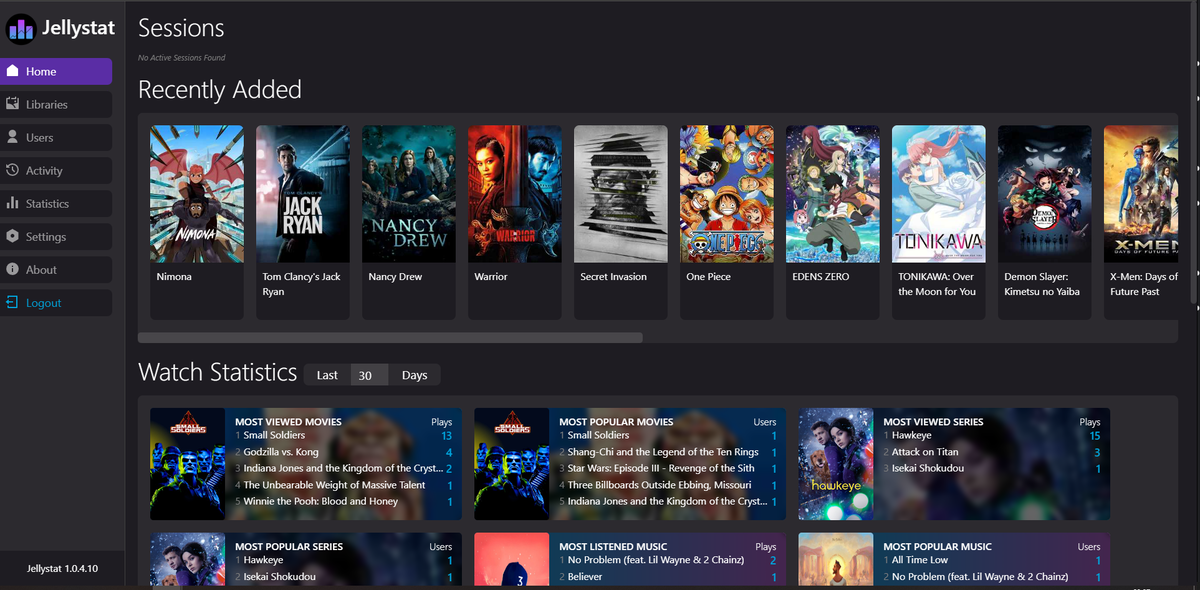
Live TV streams are real-time - buffering affects the experience immediately. Monitoring active sessions during live TV is essential.
JellyWatch shows you every active Live TV session:
- Which channel each user is watching
- Whether the stream is Direct Play or transcoding
- CPU and GPU usage in real time
- Push notifications if the server goes offline during a live event
Running Live TV on Jellyfin? Monitor every session in real time. Download JellyWatch on Google Play - active sessions, transcoding status, and CPU alerts for your Jellyfin server on Android.
On Emby? Download EmbyWatch on Google Play - the same Live TV monitoring experience for Emby.


Comments 1
I paid the monthly fee and see no channels.
Leave a comment