
Jellyfin Quality-of-Life Plugins in 2026: Intro Skipper, Chapter Images & More
Jellyfin's plugin ecosystem has matured significantly. Beyond the well-known plugins (OpenSubtitles, Trakt), there is a second tier of quality-of-life plugins that dramatically improve the daily experience for both admins and viewers.
This guide covers the best QoL plugins, how to install them, and how to configure each one.
How to Install Plugins in Jellyfin
From the official catalog
- Dashboard → Plugins → Catalog
- Find the plugin → Install
- Restart Jellyfin
From a third-party repository
Some plugins are not in the official catalog:
- Dashboard → Plugins → Repositories → Add
- Enter the repository URL
- The repository's plugins appear in the Catalog
Plugin 1: Intro Skipper
What it does: Automatically detects TV show intro sequences and adds a "Skip Intro" button - just like Netflix. It is the most widely installed Jellyfin plugin in 2026.
Intro Skipper uses audio chromaprint fingerprinting (the same technology behind Shazam and AcoustID) to detect repeated audio segments across episodes of the same series. When it finds a match, it marks the exact timestamps and presents a skip button in the player UI. It also detects credit sequences at the end of episodes.
Warning: The actively maintained version in 2026 is at
intro-skipper/intro-skipper. The original by ConfusedPolarBear is no longer maintained.
Repository: https://raw.githubusercontent.com/intro-skipper/intro-skipper/master/manifest.json
Installation
- Dashboard → Plugins → Repositories → Add the repository URL above
- Install Intro Skipper from the Catalog
- Restart Jellyfin
Configuration
Dashboard → Plugins → Intro Skipper:
| Setting | Recommended Value | Why |
|---|---|---|
| Analyze after library scan | Enabled | Automatically processes new episodes |
| Minimum intro duration | 15 seconds | Filters out false positives (short bumpers) |
| Maximum intro duration | 120 seconds | Most TV intros are under 2 minutes |
| Show skip intro button | Enabled | The core feature |
| Show skip credits button | Enabled | Triggers "Next Episode" prompt |
| Auto skip intros | Disabled | Let users choose - auto-skip can be jarring |
| Fingerprint cache | Enabled | Avoids re-analyzing already processed episodes |
Initial analysis and CPU impact
The first analysis scans your entire TV library. This is the most CPU-intensive part:
| Library size | Approximate time | CPU impact |
|---|---|---|
| 100 episodes | 10-30 minutes | Moderate |
| 1,000 episodes | 2-6 hours | High |
| 5,000 episodes | 12-24 hours | Very high |
The initial analysis is a one-time cost. After the first run, only new episodes are analyzed incrementally.
Managing CPU usage:
- Schedule analysis during off-peak hours (Dashboard → Scheduled Tasks → Detect Introductions → set to 3 AM)
- Limit analysis threads to 2 on low-power hardware (N100, Raspberry Pi)
- Exclude non-TV libraries (movies, music) in plugin settings
Client compatibility
| Client | Skip Intro | Skip Credits | Auto-Skip |
|---|---|---|---|
| Jellyfin Web | ✅ | ✅ | ✅ |
| Jellyfin Android | ✅ | ✅ | ✅ |
| Jellyfin Android TV | ✅ | ✅ | ✅ |
| Jellyfin iOS (Swiftfin) | ✅ (1.4+) | ✅ | Partial |
| Jellyfin Media Player | ✅ | ✅ | ✅ |
| Findroid | Partial | Partial | ❌ |
| Infuse | ❌ | ❌ | ❌ |
| Kodi + Jellyfin addon | ❌ (Kodi has its own skip) | ❌ | ❌ |
Infuse users: Infuse does not support Jellyfin server-side plugins. The skip button will not appear.
Manual overrides
For shows where automatic detection fails (cold opens, variable anime intros):
- Navigate to the episode → Edit → Intro Skipper section
- Set the intro start and end timestamps manually
- Manual overrides take priority over automatic detection
Intro Skipper vs Jellyfin Native Media Segments
Jellyfin 10.10 introduced Media Segments - a server-side API for defining typed time-spans. The official chapter-based segment plugin uses chapter names to detect intros.
| Feature | Intro Skipper | Native Media Segments |
|---|---|---|
| Detection method | Audio fingerprinting | Chapter name matching |
| Accuracy | Very high | Depends on chapter quality |
| Works without chapters | Yes | No |
| CPU cost | High (initial scan) | Low |
For most users, Intro Skipper is the better choice because it works regardless of whether your files have chapter markers.
Troubleshooting
| Problem | Fix |
|---|---|
| Skip button not appearing | Use a compatible client (see table above) |
| No intros detected | Run "Detect Introductions" manually |
| Wrong intro timestamps | Increase minimum intro duration to 20-25s |
| CPU at 100% for hours | Normal for first run - schedule during off-peak |
| Plugin not in catalog | Verify the repository URL is correct |
Plugin 2: Chapter Images
What it does: Generates thumbnail images for each chapter in your videos. These appear in the seek bar when scrubbing - exactly like YouTube chapter previews.
Source: Official Jellyfin catalog
Installation
Dashboard → Plugins → Catalog → Chapter Image Extractor → Install → Restart
Configuration
Dashboard → Plugins → Chapter Image Extractor:
- Extract chapter images during library scan: Enabled
- Image resolution: 320×180 (good balance of quality and storage)
Storage impact
Chapter images are stored in /config/metadata/. For a large library:
- Average movie (10 chapters): ~3 MB of thumbnails
- 1000 movies: ~3 GB additional metadata storage
Worth it for the scrubbing experience.
Plugin 3: Merge Versions
What it does: Merges duplicate versions of the same movie (e.g., 1080p and 4K copies) into a single library entry. Users see one item and can choose their preferred version at playback.
Source: Official Jellyfin catalog
Installation
Dashboard → Plugins → Catalog → Merge Versions → Install → Restart
How to use
After installation, run the merge task:
Dashboard → Scheduled Tasks → Merge all movie versions → Run Now
Jellyfin identifies duplicates by TMDB ID and merges them automatically.
File naming for multiple versions
The Dark Knight (2008)/
  The Dark Knight (2008) - 1080p.mkv
  The Dark Knight (2008) - 4K.mkv
  The Dark Knight (2008) - 4K DV.mkv
Jellyfin shows one entry with a version selector at playback.
Plugin 4: Playback Reporting
What it does: Records detailed playback statistics - who watched what, when, for how long, on which device, and with what playback method.
Source: Official Jellyfin catalog
Installation
Dashboard → Plugins → Catalog → Playback Reporting → Install → Restart
What it tracks
- Every play event (start, pause, stop, seek)
- User, device, client app
- Playback method (Direct Play / Transcode)
- Duration watched
- Item played (title, season, episode)
Viewing reports
Dashboard → Plugins → Playback Reporting → Reports:
- User activity: Who watches the most
- Popular content: Most-watched movies and shows
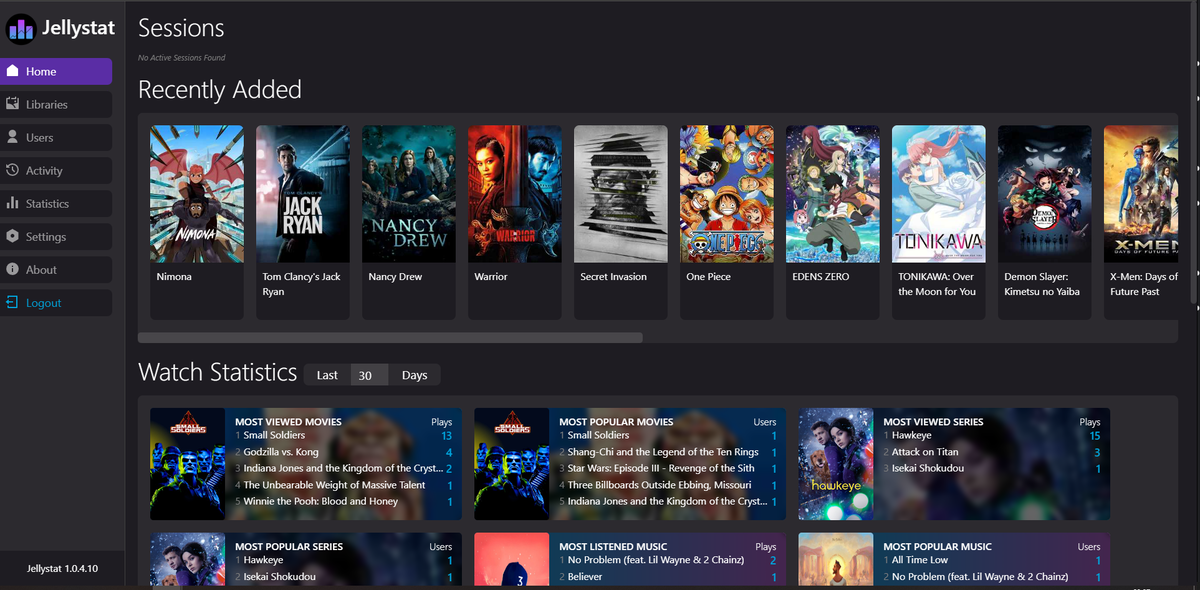
- Playback methods: Direct Play vs Transcode ratio
- Device breakdown: Which clients are used most
Export data
Playback Reporting stores data in a SQLite database that can be exported for external analysis (Grafana, Excel, etc.).
Plugin 5: Skin Manager
What it does: Applies custom CSS themes to the Jellyfin web interface with one click - no manual CSS editing required.
Source: Official Jellyfin catalog
Installation
Dashboard → Plugins → Catalog → Skin Manager → Install → Restart
Available themes
| Theme | Style |
|---|---|
| Ultrachromic | Dark, vibrant, Netflix-like |
| Jellyfin Reborn | Clean, modern redesign |
| Noir | Minimal dark theme |
| Kaleidochromic | Colorful, playful |
Dashboard → Plugins → Skin Manager → Select theme → Apply
Plugin 6: Jellyscrub
What it does: Generates video preview thumbnails that appear when hovering over the seek bar - the "trickplay" feature you see on Netflix and YouTube.
Repository: https://raw.githubusercontent.com/nicknsy/jellyscrub/main/manifest.json
Installation
- Add the repository
- Install Jellyscrub
- Restart Jellyfin
- Run the scheduled task: Generate Trickplay Images
Storage impact
Trickplay images are larger than chapter images:
- Average movie: ~50-100 MB of trickplay images
- 1000 movies: ~50-100 GB
Consider storage before enabling for large libraries. Store trickplay data on a fast drive for best performance.
Note: Jellyfin 10.9+ includes native trickplay support - check if your version already has it before installing Jellyscrub.
Plugin Compatibility Matrix
| Plugin | Jellyfin 10.8 | Jellyfin 10.9 | Performance impact |
|---|---|---|---|
| Intro Skipper | ✅ | ✅ | Low (background task) |
| Chapter Images | ✅ | ✅ | Low |
| Merge Versions | ✅ | ✅ | None |
| Playback Reporting | ✅ | ✅ | Very low |
| Skin Manager | ✅ | ✅ | None |
| Jellyscrub | ✅ | ⚠️ (use native) | Medium (generation) |
Recommended Plugin Stack
For a well-rounded Jellyfin setup:
- Intro Skipper - skip intros like Netflix
- Chapter Image Extractor - visual scrubbing
- Merge Versions - clean library with multiple quality options
- Playback Reporting - understand your server usage
- OpenSubtitles - subtitle downloads
- Trakt - watch history sync and backup
- Skin Manager - beautiful UI
Monitor Plugin Performance Impact
Some plugins run background tasks that can spike CPU usage - especially Intro Skipper analysis and Jellyscrub generation. Schedule these tasks during off-peak hours.
JellyWatch shows you CPU usage in real time - you can see exactly when a background plugin task is running and how much it impacts your server.
Great plugins installed - now monitor your server from your phone. Download JellyWatch on Google Play - real-time CPU monitoring, session tracking, and server health for Jellyfin on Android.
On Emby? Download EmbyWatch on Google Play - the same monitoring experience for Emby servers.


Comments 2
Merge Versions plugin is a must-have if you keep both 1080p and 4K copies. One library entry, version selector at playback. Clean.
Intro Skipper + Chapter Images + Skin Manager = Netflix-level experience on a self-hosted server. The future is here.
Leave a comment