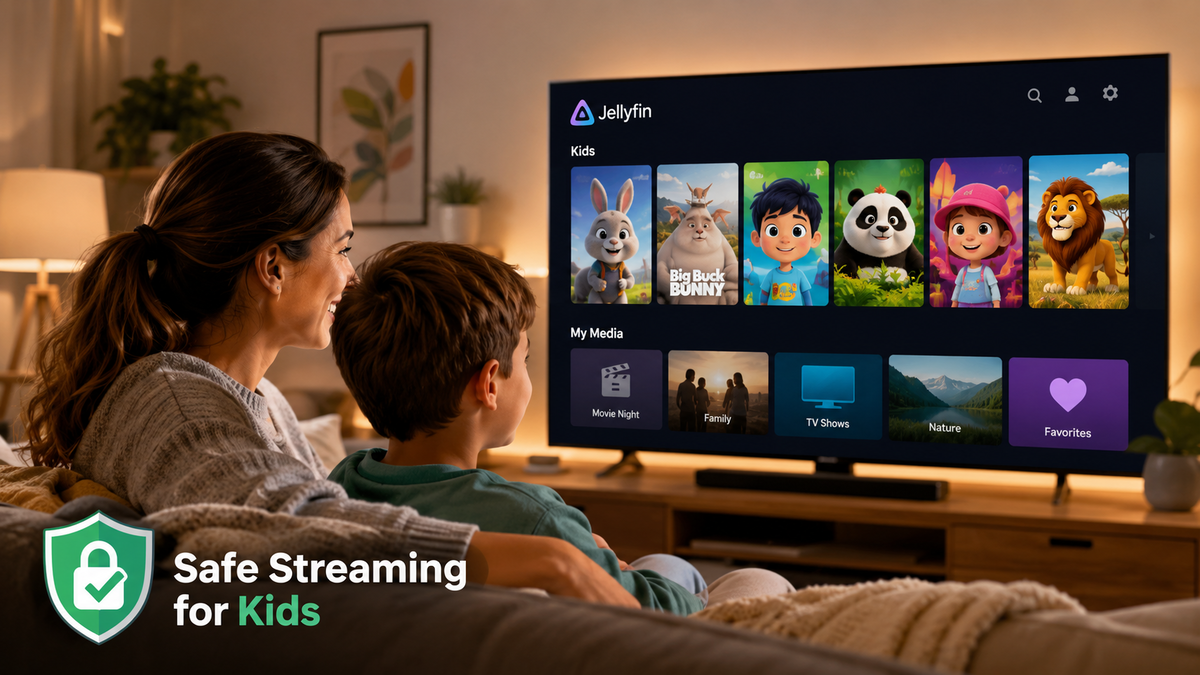
Jellyfin for Kids 2026: Build a Safe, Ad-Free Streaming Platform
Netflix has ads now. YouTube Kids is a surveillance machine. Disney+ costs $14/month and still shows content you would rather your kids did not see. What if you could build a streaming platform specifically for your children: no ads, no tracking, no inappropriate content, and completely under your control?
Jellyfin does exactly this. With the right configuration, your kids get their own streaming experience that looks and feels like a real platform, while you maintain complete control over what they can access.
What Kids Get
- A clean, simple interface with only their content visible
- Big poster artwork they can browse with a TV remote
- No ads, no autoplay of unrelated content, no algorithm pushing boundaries
- Their own watch history and "Continue Watching" section
- Access only during hours you define
- Content filtered by age rating automatically
What Parents Get
- Complete control over what content is available
- Time-based access restrictions
- No external accounts or data collection
- Ability to monitor what kids watch (via JellyWatch)
- Zero monthly cost
Step 1: Create Dedicated Kids Libraries
The most important step: separate kids content into its own libraries.
Folder structure
/mnt/media/
  kids-movies/        <- Only age-appropriate movies
  kids-tv/            <- Only age-appropriate TV shows
  kids-music/         <- Children songs, audiobooks
  movies/             <- Adult library (kids cannot see this)
  tv/                 <- Adult library (kids cannot see this)
Add kids libraries in Jellyfin
- Dashboard > Libraries > Add Media Library
- Create:
- "Kids Movies" (type: Movies, folder: /media/kids-movies)
- "Kids TV" (type: Shows, folder: /media/kids-tv)
- "Kids Music" (type: Music, folder: /media/kids-music)
Curating content
What goes in the kids libraries:
- Animated movies (Pixar, Disney, Ghibli, DreamWorks)
- Age-appropriate live action (Harry Potter, Paddington)
- Educational shows (Bluey, Sesame Street, Magic School Bus)
- Music (children songs, movie soundtracks)
What stays OUT:
- Anything rated above your threshold (PG-13, TV-14)
- Horror, violence, adult themes
- Content you have not personally reviewed
Step 2: Create Kids User Accounts
Dashboard > Users > Add User
Configuration for a kids account
| Setting | Value | Why |
|---|---|---|
| Username | Their name ("Emma") | Easy to identify |
| Password | Simple PIN (1234) or none | Kids need easy access |
| Library access | Kids Movies, Kids TV, Kids Music ONLY | Cannot see adult content |
| Allow media playback | Yes | Core functionality |
| Allow media downloads | No | Prevent filling devices |
| Allow remote connections | Your choice | For tablets outside home |
| Allow SyncPlay | No | Avoid joining adult sessions |
Parental Rating Limit
Dashboard > Users > [Kids Account] > Parental Control:
- Maximum parental rating: Set to G, PG, or TV-Y7 depending on age
- Content rated above this threshold is hidden even if it somehow ends up in their library
Access Schedule
Dashboard > Users > [Kids Account] > Access Schedule:
- Weekdays: 16:00 - 20:00 (after school, before bedtime)
- Weekends: 08:00 - 20:00
- Outside these hours: Account cannot stream
This is built into Jellyfin. No external tools needed.
Step 3: Make the Interface Kid-Friendly
Simplify the home screen
For kids accounts, reduce the home screen to essentials:
Dashboard > Display > Home Screen Sections (per user):
- Continue Watching (so they can resume)
- Latest Kids Movies
- Latest Kids TV
Remove: Favorites, Recently Added (confusing for young kids), Live TV, etc.
Custom CSS for kids (optional)
Make the interface more colorful and kid-friendly with custom CSS:
/* Larger, more colorful cards */
.card .cardContent {
    border-radius: 16px !important;
}

/* Bigger text */
.cardText {
    font-size: 1.2em !important;
}

/* Fun accent color */
:root {
    --accent: #FF6B35; /* Warm orange */
}
Apply per-user: User Settings > Display > Custom CSS.
Collections for easy browsing
Create collections that make sense for kids:
- "Disney Classics"
- "Superhero Movies"
- "Bedtime Stories" (short episodes)
- "Rainy Day Movies" (longer films)
- "Learning Time" (educational content)
Step 4: Device Setup for Kids
Dedicated tablet
Install Findroid or the official Jellyfin app. Log in with the kids account. The app only shows their libraries.
Tip: Use Android's restricted user profiles or iOS Screen Time to prevent kids from accessing other apps or changing Jellyfin settings.
TV in the kids room
Install Jellyfin on a Fire TV Stick or Chromecast with Google TV. Log in with the kids account. They navigate with the remote and only see their content.
Tip: Set the Fire TV Stick to open Jellyfin on boot (via a launcher app) so kids do not need to navigate the Fire TV home screen.
Shared family TV
On the family TV, set up multiple Jellyfin profiles. Kids select their profile (with a simple PIN or no PIN). Adults select theirs (with a PIN).
Step 5: PIN Protection for Adult Profiles
Prevent kids from accessing adult accounts:
- Dashboard > Users > [Adult Account]
- Set a strong password
- On the TV client: the login screen shows all profiles. Kids tap theirs (no PIN). Adults enter their PIN.
Alternatively, use the Easy PIN feature in some Jellyfin clients that allows a short numeric PIN instead of a full password.
Step 6: Monitor What Kids Watch
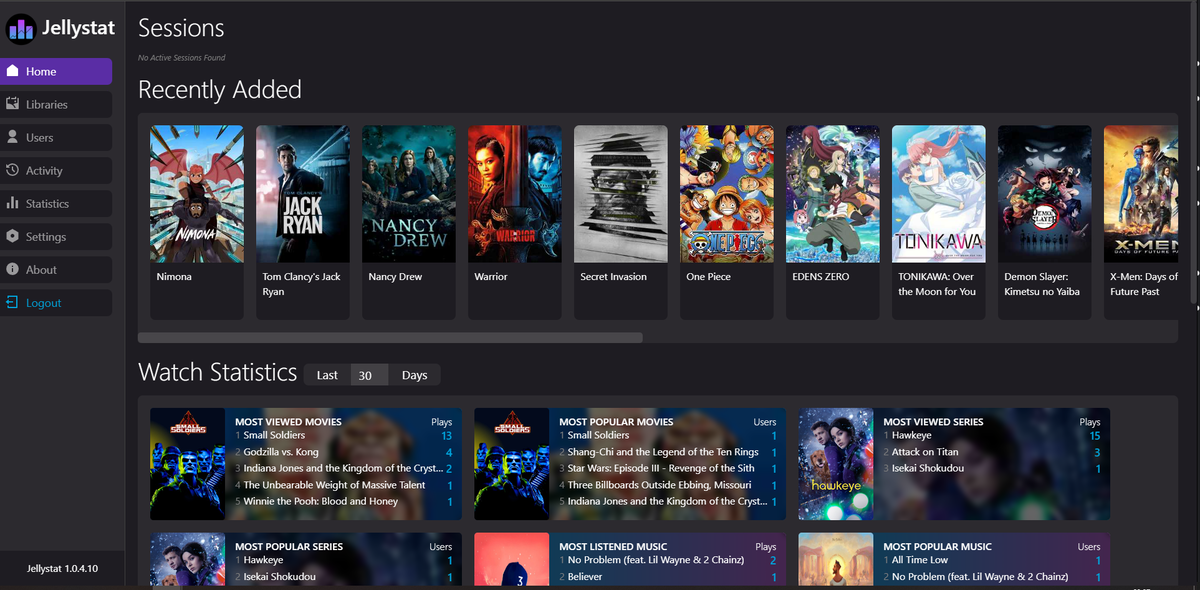
JellyWatch shows you exactly what your kids are watching:
- Real-time: see the active session with title and progress
- History: review what they watched this week
- Time tracking: see total screen time per day
This is not surveillance. It is parenting. You know what content your children consume without hovering over their shoulder.
Content Acquisition for Kids
Legal sources for kids content
- Your own DVD/Blu-ray collection - rip with MakeMKV
- Digital purchases - strip DRM and add to library
- Public domain - classic cartoons, educational content
- Creative Commons - independent animated shorts
Organizing with Radarr/Sonarr
Create a separate Radarr instance for kids content:
- Root folder: /mnt/media/kids-movies/
- Quality profile: 1080p (no need for 4K on a tablet)
- Tags: "kids" for easy filtering
Same for Sonarr with kids TV shows.
Age-Based Library Strategy
| Age group | Libraries | Rating limit | Access hours |
|---|---|---|---|
| 2-5 years | Toddler TV, Toddler Movies | TV-Y, G | 08:00-18:00 |
| 6-9 years | Kids TV, Kids Movies | TV-Y7, PG | 07:00-20:00 |
| 10-12 years | Kids + Tween content | TV-PG, PG | 07:00-21:00 |
| 13+ | Most content except adult | TV-14, PG-13 | 07:00-22:00 |
Create separate user accounts for each age group. As kids grow, move them to the next tier.
Jellyfin Kids vs Commercial Platforms
| Feature | Jellyfin Kids | Disney+ | YouTube Kids | Netflix Kids |
|---|---|---|---|---|
| Monthly cost | $0 | $14/month | $0 (ads) | $7-23/month |
| Ads | Never | Yes (ad tier) | Yes (heavy) | Yes (ad tier) |
| Tracking/data collection | None | Extensive | Extensive | Extensive |
| Content control | Complete | None (Disney decides) | Algorithmic | Limited |
| Access schedule | Built-in | No | Limited | No |
| Offline access | Yes (client-dependent) | Yes | Yes | Yes |
| Custom libraries | Yes | No | No | No |
| Works without internet | Yes (local network) | No | No | No |
FAQ
Can kids accidentally access adult content? No, if configured correctly. Library access restrictions are server-side. Even if a child somehow navigates to an adult library URL, the server refuses to serve content they do not have access to.
What if my kid shares the PIN with friends? The kids account only has access to kids content. Even if shared, the worst case is someone watches Bluey on your server.
Can I see how much time my kids spend watching? Yes. JellyWatch shows per-user viewing time. The Playback Reporting plugin also tracks this data.
Does the access schedule work on all clients? Yes. Access schedules are enforced server-side. The client cannot override them regardless of which app is used.
Can kids request new content? If you set up Seerr with a kids user, they can request content. You approve or deny from JellyWatch. This teaches them to ask rather than just consuming whatever an algorithm serves.
Know what your kids are watching. Monitor from your phone. Download JellyWatch on Google Play - see active sessions, viewing history, and screen time for every user on your Jellyfin server.
On Emby? Download EmbyWatch on Google Play


Comments
No comments yet. Be the first to share your thoughts.
Leave a comment