How to Install Jellyfin on Fire TV Stick in 2026: Setup, 4K Playback, and the Vega OS Problem
The Amazon Fire TV Stick is the most popular budget streaming device in the world. At $30-60, it puts Jellyfin on any TV with an HDMI port. But 2026 brought a curveball: Amazon is shipping new Fire TV devices with Vega OS, a proprietary operating system that blocks sideloading entirely.
This guide covers every Fire TV model, the correct installation method for each, codec support, 4K HDR optimization, and what to do if you are stuck on Vega OS.
Fire TV Models and Jellyfin Compatibility (2026)
| Model | OS | Jellyfin install | 4K | HDR10 | HDR10+ | Dolby Vision | AV1 |
|---|---|---|---|---|---|---|---|
| Fire TV Stick Lite (2022) | Fire OS | Appstore | No (1080p) | No | No | No | No |
| Fire TV Stick (2024) | Fire OS | Appstore | No (1080p) | Yes | Yes | No | No |
| Fire TV Stick 4K (2023) | Fire OS | Appstore | Yes | Yes | Yes | Yes (P5) | Yes |
| Fire TV Stick 4K Max (2023) | Fire OS | Appstore | Yes | Yes | Yes | Yes (P5/P8) | Yes |
| Fire TV Stick HD (2026) | Vega OS | Appstore only | No (1080p) | No | No | No | No |
| Fire TV Stick 4K (2026) | Vega OS | Appstore only | Yes | Yes | Yes | TBD | Yes |
The critical distinction: Fire OS devices support both Appstore installation and APK sideloading. Vega OS devices only support the Amazon Appstore. No sideloading, no Downloader app, no ADB install.
The Vega OS Problem
In late 2025, Amazon began shipping Fire TV devices with Vega OS instead of Fire OS (which was Android-based). Vega OS is Amazon's proprietary operating system that:
- Blocks all sideloading of APK files
- Does not support ADB installation
- Does not allow the Downloader app to install APKs
- Only permits apps from the Amazon Appstore
How to check if your Fire TV runs Vega OS
- Go to Settings, My Fire TV, About
- Look at the Software Version
- If it says "Vega" or the OS version starts with "Vega", you are on Vega OS
- If it shows "Fire OS 7.x" or similar, you are on the Android-based Fire OS
What this means for Jellyfin
The good news: Jellyfin is available in the Amazon Appstore. Whether your device runs Fire OS or Vega OS, you can install Jellyfin directly from the store. Sideloading is only needed if you want a specific APK version or if the Appstore listing is unavailable in your region.
If you are buying a new Fire TV device specifically for Jellyfin, check the OS before purchasing. The Fire TV Stick 4K Max (2023) running Fire OS remains the best option for flexibility.
Method 1: Amazon Appstore (All Models)
This works on every Fire TV device, including Vega OS.
- From the Fire TV home screen, navigate to Find, Search
- Type Jellyfin
- Select the official Jellyfin app from the results
- Click Get (free, no purchase required)
- Wait for the download (~30 MB)
- Open the app
Total time: under 2 minutes.
Method 2: Sideload via Downloader (Fire OS Only)
If the Appstore version is outdated or unavailable in your region:
Enable sideloading
- Go to Settings, My Fire TV, Developer Options
- If Developer Options is not visible: go to Settings, My Fire TV, About, click on the device name 7 times to unlock it
- Toggle Install Unknown Apps to ON for the Downloader app
Install via Downloader
- Install Downloader from the Amazon Appstore
- Open Downloader
- Enter the Jellyfin APK URL from the official GitHub releases page
- Download and install the APK
- Open Jellyfin
First-Time Setup
Connect to your Jellyfin server
- Open the Jellyfin app
- Enter your server URL:
- Local:
http://192.168.1.100:8096 - Remote:
https://jellyfin.yourdomain.com
- Local:
- Enter your username and password
- The app loads your library
Critical settings for best quality
After connecting, go to the app Settings, Playback:
| Setting | Recommended value | Why |
|---|---|---|
| Max streaming bitrate | Original / Maximum | Prevents unnecessary transcoding |
| Preferred media player | ExoPlayer | Best codec support on Fire TV |
| Direct Play | Enabled | Sends file as-is to the device |
| Direct Stream | Enabled | Allows container remux without video transcode |
Setting bitrate to Original is the single most important change. The default is often a conservative limit that forces your server to transcode high-quality content.
Codec Support by Fire TV Model
Fire TV Stick 4K Max (2023) - Best for Jellyfin
| Codec | Support |
|---|---|
| H.264 (AVC) | Direct Play |
| H.265 (HEVC) Main 10 | Direct Play |
| AV1 | Direct Play |
| VP9 | Direct Play |
| HDR10 | Yes |
| HDR10+ | Yes |
| Dolby Vision (Profile 5/8) | Yes |
| Dolby Digital (AC3) | Yes |
| Dolby Digital Plus (EAC3) | Yes |
| Dolby Atmos (via DD+) | Yes |
| TrueHD | No (transcoded to EAC3) |
| DTS / DTS-HD MA | No (transcoded to EAC3) |
Fire TV Stick 4K (2023)
Same codec support as the 4K Max, slightly slower processor. Handles 4K Direct Play well for single streams.
Fire TV Stick Lite / Standard (1080p models)
| Codec | Support |
|---|---|
| H.264 | Direct Play |
| H.265 (HEVC) | Direct Play |
| AV1 | No (server transcodes) |
| VP9 | Partial |
| HDR | No (SDR only) |
The Audio Limitation
No Fire TV Stick model supports TrueHD or DTS audio passthrough. If your media files have TrueHD or DTS as the only audio track, Jellyfin transcodes the audio to EAC3 or AAC. The video remains untouched (Direct Stream).
Fix: When encoding your library, always include an EAC3 or AAC audio track alongside any lossless track. This eliminates audio transcoding on Fire TV.
Optimizing 4K HDR on Fire TV
Enable Match Content
Fire TV Settings, Display and Sounds:
- Match Original Frame Rate: On
- Dynamic Range Settings: Adaptive (or Always HDR if your TV supports it)
This ensures the Fire TV switches to the correct frame rate and HDR mode for each video.
Use Ethernet (Recommended for 4K)
The Fire TV Stick 4K Max supports the Amazon Ethernet Adapter (USB to Ethernet, ~$15). For 4K remuxes at 60-80 Mbps, wired Ethernet is significantly more reliable than Wi-Fi.
Wi-Fi 6E on the 4K Max handles most 4K content well, but high-bitrate remuxes can stutter during network congestion.
Disable Dolby Vision if Problematic
Some users report Dolby Vision playback issues with specific Jellyfin file types on Fire TV. If DV content looks wrong:
- Fire TV Settings, Display and Sounds, Display
- Set Dynamic Range to HDR10 instead of Dolby Vision
- Test playback
This forces HDR10 fallback, which is universally reliable.
Fire TV Stick vs Other Streaming Devices for Jellyfin
| Device | Price | 4K HDR | DV | TrueHD | Best for |
|---|---|---|---|---|---|
| Fire TV Stick 4K Max | ~$60 | Yes | Yes | No | Budget 4K with HDR10+ |
| Chromecast with Google TV 4K | ~$50 | Yes | Yes | No | Google ecosystem |
| Onn 4K Pro | ~$50 | Yes | Yes | No | Best value 4K |
| Apple TV 4K | ~$129 | Yes | Yes | No | Best polish, DV all profiles |
| Nvidia Shield Pro | ~$200 | Yes | Partial | Yes | TrueHD passthrough |
The Fire TV Stick 4K Max is the best budget option for Jellyfin 4K streaming. It only loses to the Shield Pro on lossless audio passthrough.
Troubleshooting Fire TV Issues
| Problem | Cause | Fix |
|---|---|---|
| App not in Appstore | Regional restriction | Sideload via Downloader (Fire OS only) |
| Cannot sideload | Vega OS device | Use Appstore version only |
| Buffering on 4K | Bitrate limit too low | Set to Original in app settings |
| No HDR / washed colors | Dynamic Range set to SDR | Enable Adaptive or Always HDR |
| No audio | TrueHD/DTS not supported | Server transcodes audio automatically |
| App crashes | Outdated app version | Update from Appstore |
| Cannot find server | Firewall blocking port 8096 | Open port or use same network |
| Subtitles cause buffering | PGS subtitle burn-in | Switch to SRT subtitles |
| Remote control laggy | Fire TV memory pressure | Close background apps |
| Dolby Vision not working | DV profile incompatible | Force HDR10 in display settings |
Using Fire TV as a Dedicated Jellyfin Device
For the best experience, configure your Fire TV as a dedicated media device:
Disable Amazon bloatware
- Settings, Preferences, Privacy Settings: disable all tracking options
- Settings, Preferences, Featured Content: disable autoplay and recommendations
- Settings, Notifications: disable promotional notifications
Set Jellyfin as the default app
Fire TV does not natively support changing the default launcher, but you can:
- Pin Jellyfin to the first position on your home screen
- Use the "Recent" row to quickly access Jellyfin
- On Fire OS devices, sideload a custom launcher like Wolf Launcher
Screensaver
Fire TV Settings, Display and Sounds, Screensaver: set to activate after 5 minutes of inactivity to prevent burn-in on OLED TVs.
FAQ
Is Jellyfin free on Fire TV? Yes. The Jellyfin app is completely free on the Amazon Appstore with no in-app purchases.
Does Fire TV Stick support 4K Jellyfin streaming? Yes, on the 4K and 4K Max models. The Lite and standard models are limited to 1080p.
Can I use Jellyfin on a Vega OS Fire TV? Yes, through the Amazon Appstore. Sideloading is not possible on Vega OS, but the Appstore version works.
Why is my Fire TV transcoding instead of Direct Playing? Most likely the bitrate limit is set too low. Go to Jellyfin app Settings, Playback, and set Max Streaming Bitrate to Original.
Does Fire TV support Dolby Atmos with Jellyfin? Yes, via Dolby Digital Plus. TrueHD Atmos is not supported (no passthrough). The Atmos spatial metadata is preserved in the DD+ stream.
Should I buy a Fire TV Stick or a Chromecast for Jellyfin? Both work well. Fire TV has a dedicated Jellyfin app with remote control navigation. Chromecast with Google TV also has a native Jellyfin app. Choose based on your ecosystem preference.
What happens if Amazon removes Jellyfin from the Appstore? On Fire OS devices, you can sideload the APK. On Vega OS devices, you would need to use a different streaming device. This has not happened and is unlikely given Jellyfin's open-source nature.
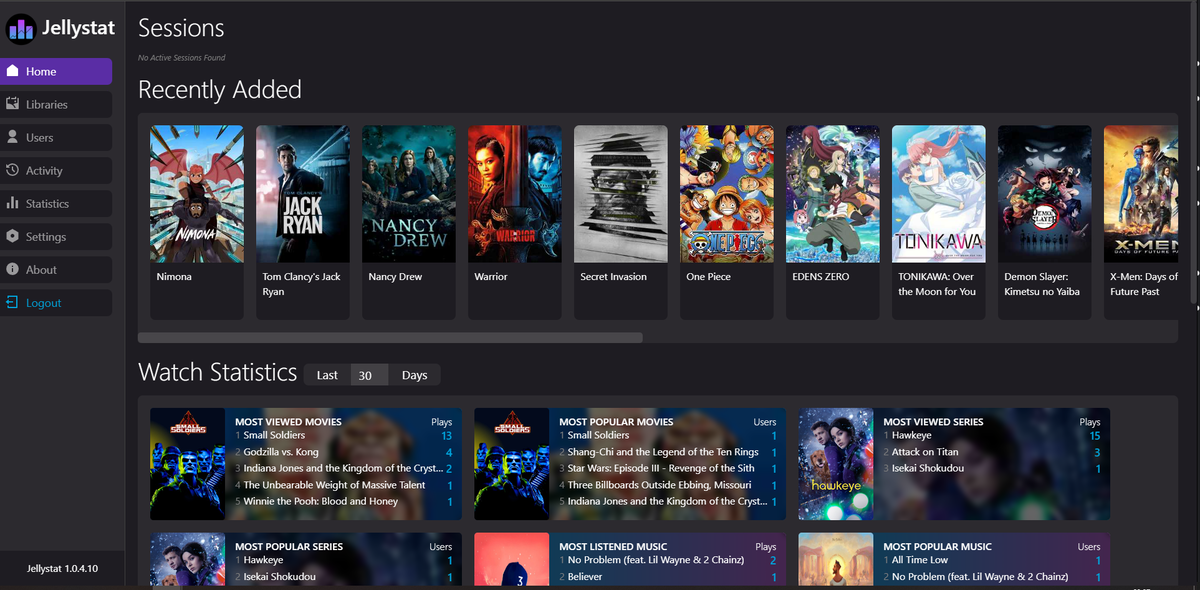
Fire TV streaming Jellyfin? Monitor every session from your phone. Download JellyWatch on Google Play - see what is playing on every Fire TV client, verify Direct Play, and get alerts when transcoding spikes your CPU.
On Emby? Download EmbyWatch on Google Play - the same monitoring experience for Emby servers.


Comments 1
Small update for the Vega OS section: the official Jellyfin Android TV app still doesn't run on Vega OS.
There is a native Vega OS client now called Astra that's available directly through the Amazon Appstore. I built it specifically for the new Vega Fire TV devices after running into this problem myself.
You actually already have Astra listed in the JellyWatch Community Hub, but I noticed this article still says the official Jellyfin app works on Vega.
Full disclosure, I'm the Astra developer. Just wanted to flag it since people finding this article after buying a new Vega stick may otherwise spend a while looking for an app that isn't there.
https://watchastra.com
Leave a comment