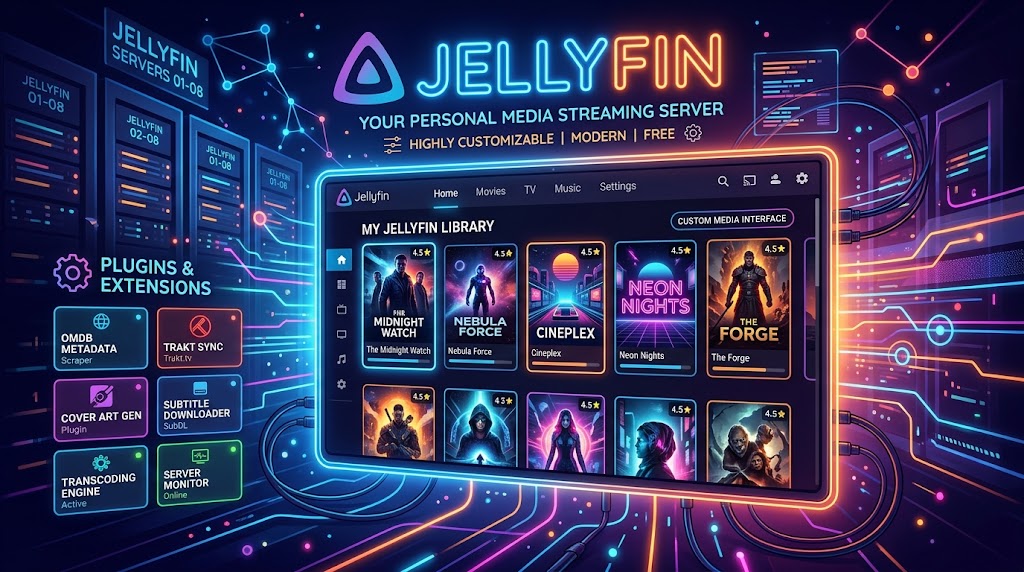
What Is Jellyfin Enhanced?
Jellyfin Enhanced is a community plugin that injects quality of life features directly into the Jellyfin web client. The stock web interface is functional but minimal, and Jellyfin Enhanced closes that gap without requiring you to switch to a third party client or maintain custom CSS by hand.
Unlike a full theme, Jellyfin Enhanced focuses on behavior and usability rather than pure visual styling. Think of it as the set of small conveniences long time users of commercial streaming platforms expect by default.
Key Features
| Feature | What it does |
|---|---|
| Keyboard shortcuts | Navigate, play, pause, and skip using your keyboard instead of the mouse |
| Auto skip intro and credits | Works alongside Intro Skipper to automatically skip detected segments |
| Quality toggle | Quickly force a specific resolution or bitrate from the player controls |
| Pause screen info | Shows technical playback details (codec, bitrate, direct play status) when paused |
| Random item button | Jump to a random unwatched title in your library |
| Subtitle style presets | Save and switch between subtitle appearance presets |
| Auto next episode | Configurable auto play behavior between episodes |
Not every installation needs every feature. Most admins enable the shortcuts, pause screen info, and auto skip integration, then leave the rest at their defaults.
Before You Install
Jellyfin Enhanced depends on your Jellyfin server exposing its plugin catalog correctly. Confirm the following first:
- Your Jellyfin server is on a reasonably recent 10.x release
- You have administrator access to the Dashboard
- If you plan to use the auto skip feature, Intro Skipper is already installed and has finished its initial analysis
Installation Steps
- Open the Jellyfin Dashboard and go to Plugins > Repositories.
- Add the Jellyfin Enhanced repository URL from the project page.
- Go to Plugins > Catalog, find Jellyfin Enhanced, and click Install.
- Restart your Jellyfin server so the plugin registers correctly.
- Reload the web client in your browser. A new settings icon or menu entry for Jellyfin Enhanced should appear.
If the plugin does not appear after a restart, clear your browser cache. The web client aggressively caches its JavaScript bundles, and a stale cache is the most common reason a newly installed client side plugin appears to be missing.
Configuration Walkthrough
Once installed, open the Jellyfin Enhanced settings panel from the user menu:
- Shortcuts: review the default key bindings and remap anything that conflicts with your browser or OS shortcuts.
- Playback: toggle auto skip, auto next episode, and the quality switcher.
- Pause screen: choose which technical details to display (codec, container, bitrate, direct play or transcode status).
- Subtitles: create a style preset (font size, background, edge style) so every session opens with your preferred look.
Settings are typically stored per browser profile, so if you use Jellyfin from multiple devices, expect to configure each one separately unless the plugin supports server side sync in your version.
Common Issues
The plugin installed but nothing changed in the web UI. Hard refresh the page and make sure you are not viewing a cached service worker version of the client. Some browsers need a full cache clear, not just a refresh.
Auto skip is not triggering. Auto skip in Jellyfin Enhanced relies on data from Intro Skipper. If Intro Skipper has not finished analyzing a title yet, there is nothing for Jellyfin Enhanced to act on. Check the Intro Skipper dashboard for analysis progress.
Keyboard shortcuts do not work on my TV client. Jellyfin Enhanced only affects the web client running in a browser. Android TV, Samsung Tizen, LG webOS, and other native apps use their own separate codebase and are not affected by this plugin.
Settings reset after a server update. This is usually a browser storage issue rather than a server side one. Confirm your browser is not set to clear site data automatically on close.
Jellyfin Enhanced vs a Full Custom Theme
| Jellyfin Enhanced | Custom CSS theme | |
|---|---|---|
| Changes layout and colors | No | Yes |
| Adds new functionality | Yes | No |
| Setup complexity | Low | Low to moderate |
| Combine with other plugins | Yes | Yes |
The two are not mutually exclusive. Many admins run Jellyfin Enhanced for functionality alongside a Netflix style CSS theme for visuals. If you want to go further on the visual side, see our guide on custom CSS snippets and themes.
Frequently Asked Questions
Is Jellyfin Enhanced free? Yes, it is a free, community maintained plugin.
Does it work on mobile apps? No, it only affects the browser based web client, not native mobile or TV apps.
Will it break with a Jellyfin update? Client side plugins can occasionally lag behind major Jellyfin releases while maintainers catch up. Check the plugin repository for compatibility notes before updating your server to a new major version.
Can I use it alongside Intro Skipper and Skin Manager? Yes. These three plugins are commonly used together and do not conflict.
Final Thoughts
Jellyfin Enhanced is one of the fastest ways to make the stock Jellyfin web client feel closer to a commercial streaming platform without touching a single line of CSS. If you already run Intro Skipper, adding Jellyfin Enhanced on top takes only a few minutes and immediately improves daily use for every household member.
Keep track of every plugin running on your server, right from your phone. Download JellyWatch on Google Play - monitor server health and manage your Jellyfin setup on Android.


Comments
No comments yet. Be the first to share your thoughts.
Leave a comment