
Jellyfin Docker GPU Passthrough: Intel QSV, NVIDIA NVENC, and AMD (2026)
Hardware transcoding is the single most impactful optimization for a Jellyfin server. Without it, a single 4K transcode can saturate your CPU. With it, the same transcode uses 5-10% CPU.
But getting GPU passthrough working inside Docker trips up even experienced admins. The container cannot see your GPU unless you explicitly map it - and the exact method differs between Intel, NVIDIA, and AMD.
This guide gives you verified, copy-paste Docker Compose configurations for each GPU vendor.
Why GPU Passthrough Matters
| Playback method | CPU usage (no GPU) | CPU usage (with GPU) |
|---|---|---|
| Direct Play | ~0% | ~0% |
| 1080p transcode | 40-60% | 3-5% |
| 4K HDR transcode | 80-100% | 5-15% |
| 4K HDR tone mapping | 100%+ (unusable) | 8-15% |
Without GPU passthrough, your Docker container falls back to software transcoding - slow, hot, and limited to 1-2 simultaneous streams on most hardware.
Intel QSV (Quick Sync Video)
Intel QSV is the most popular choice for Jellyfin because it is built into every Intel CPU with integrated graphics - including the community-favorite N100, N150, and N305 mini PCs.
Step 1: Verify the GPU is available on the host
ls -la /dev/dri/
# Expected output:
# crw-rw---- 1 root video  226,   0 ... card0
# crw-rw---- 1 root render 226, 128 ... renderD128
If /dev/dri/ does not exist or is empty, your Intel iGPU drivers are not loaded. Install them:
# Ubuntu/Debian
sudo apt install -y intel-media-va-driver-non-free vainfo
vainfo
# Should list VA-API profiles: VAProfileH264, VAProfileHEVC, etc.
Step 2: Find the render group GID
getent group render
# Example output: render:x:109:
# The GID is 109 - you need this for Docker
Step 3: Docker Compose for Intel QSV
services:
  jellyfin:
    image: jellyfin/jellyfin:latest
    container_name: jellyfin
    user: "1000:1000"
    group_add:
      - "109"  # render group GID from step 2
    devices:
      - /dev/dri/renderD128:/dev/dri/renderD128
    volumes:
      - ./config:/config
      - ./cache:/cache
      - /mnt/media:/media:ro
    network_mode: host
    restart: unless-stopped
Step 4: Enable QSV in Jellyfin
- Dashboard → Playback → Transcoding
- Hardware acceleration: Intel QuickSync (QSV)
- Enable: H.264, HEVC, VP9 decode
- Enable: AV1 decode (12th Gen+ only)
- Enable: Hardware Tone Mapping
- Save
Step 5: Verify it works
Play a file that forces transcoding (set client quality to 720p). On the host:
sudo intel_gpu_top
# Should show Video/0 and Video/1 engines active
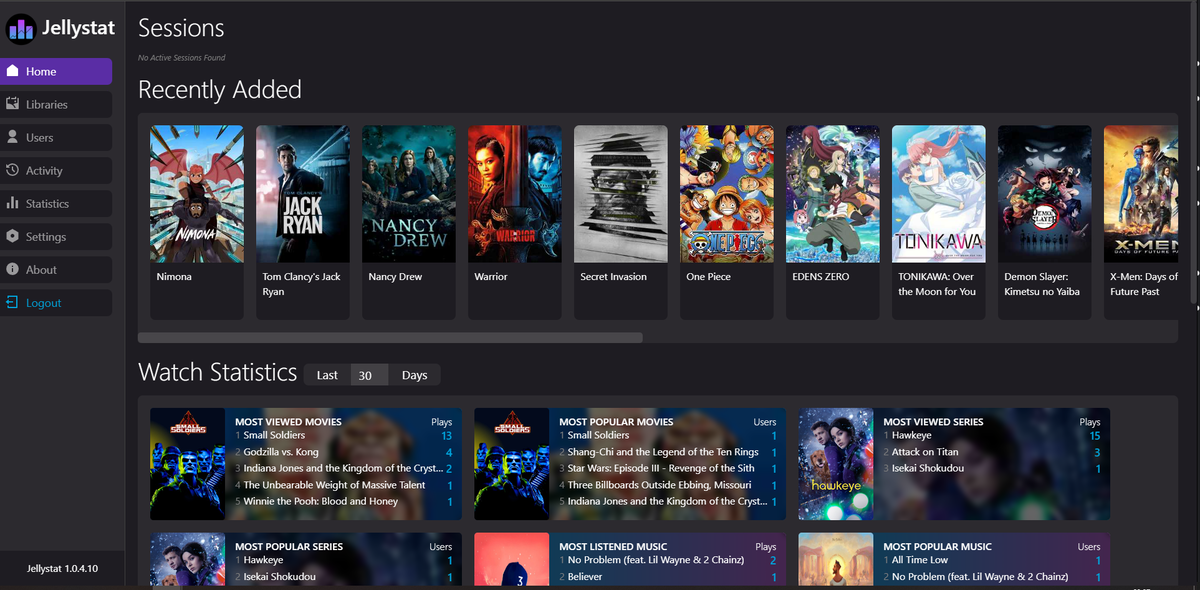
In JellyWatch or the Jellyfin dashboard, the active session should show HW badge for hardware transcode.
NVIDIA NVENC
NVIDIA GPUs require the NVIDIA Container Toolkit to expose the GPU inside Docker containers.
Step 1: Install NVIDIA drivers on the host
# Ubuntu/Debian
sudo apt install -y nvidia-driver-550
sudo reboot
nvidia-smi
# Should show your GPU model, driver version, and CUDA version
Step 2: Install NVIDIA Container Toolkit
curl -fsSL https://nvidia.github.io/libnvidia-container/gpgkey |
  sudo gpg --dearmor -o /usr/share/keyrings/nvidia-container-toolkit-keyring.gpg

curl -s -L https://nvidia.github.io/libnvidia-container/stable/deb/nvidia-container-toolkit.list |
  sed "s#deb https://#deb [signed-by=/usr/share/keyrings/nvidia-container-toolkit-keyring.gpg] https://#g" |
  sudo tee /etc/apt/sources.list.d/nvidia-container-toolkit.list

sudo apt update
sudo apt install -y nvidia-container-toolkit
sudo nvidia-ctk runtime configure --runtime=docker
sudo systemctl restart docker
Step 3: Docker Compose for NVIDIA NVENC
services:
  jellyfin:
    image: jellyfin/jellyfin:latest
    container_name: jellyfin
    runtime: nvidia
    environment:
      - NVIDIA_VISIBLE_DEVICES=all
      - NVIDIA_DRIVER_CAPABILITIES=compute,video,utility
    volumes:
      - ./config:/config
      - ./cache:/cache
      - /mnt/media:/media:ro
    ports:
      - "8096:8096"
    restart: unless-stopped
Step 4: Enable NVENC in Jellyfin
- Dashboard → Playback → Transcoding
- Hardware acceleration: NVIDIA NVENC
- Enable: H.264, HEVC encode and decode
- Enable: Hardware Tone Mapping
- Save
Step 5: Verify
nvidia-smi
# During a transcode, you should see a jellyfin process using GPU memory
# and the "Enc" column showing activity
NVIDIA Session Limits
Consumer NVIDIA GPUs (GTX series) have a 3-5 concurrent NVENC session limit enforced by the driver. RTX cards have no limit.
On Linux, the community NVENC patch removes this limit for consumer cards:
git clone https://github.com/keylase/nvidia-patch.git
cd nvidia-patch
sudo bash patch.sh
On Windows, this patch does not work - the session limit is enforced.
AMD VAAPI
AMD GPUs use VAAPI (Video Acceleration API) on Linux. Support has improved significantly in 2025-2026 but remains less documented than Intel or NVIDIA.
Step 1: Install AMD drivers
# Ubuntu/Debian - Mesa VAAPI drivers
sudo apt install -y mesa-va-drivers vainfo
vainfo
# Should list AMD VAAPI profiles
Step 2: Verify the render device
ls -la /dev/dri/
# Should show renderD128 (or renderD129 if you have multiple GPUs)
Step 3: Docker Compose for AMD VAAPI
services:
  jellyfin:
    image: jellyfin/jellyfin:latest
    container_name: jellyfin
    devices:
      - /dev/dri/renderD128:/dev/dri/renderD128
    group_add:
      - "109"  # render group GID
    volumes:
      - ./config:/config
      - ./cache:/cache
      - /mnt/media:/media:ro
    ports:
      - "8096:8096"
    restart: unless-stopped
Step 4: Enable VAAPI in Jellyfin
- Dashboard → Playback → Transcoding
- Hardware acceleration: Video Acceleration API (VAAPI)
- VA-API Device:
/dev/dri/renderD128 - Enable: H.264, HEVC decode
- Enable: Hardware Tone Mapping (RDNA2+ only)
- Save
Troubleshooting GPU Passthrough
| Problem | Cause | Fix |
|---|---|---|
/dev/dri not visible in container | Device not mapped | Add devices: - /dev/dri:/dev/dri |
vainfo shows no profiles | Wrong driver or missing package | Install intel-media-va-driver-non-free or mesa-va-drivers |
| Permission denied on renderD128 | Container user not in render group | Add group_add: ["109"] (your render GID) |
| NVIDIA GPU not detected | Container Toolkit not installed | Install nvidia-container-toolkit and restart Docker |
| Transcoding falls back to CPU | GPU not configured in Jellyfin | Check Dashboard → Transcoding settings |
| Tone mapping washed out | Hardware tone mapping disabled | Enable it in transcoding settings |
intel_gpu_top shows no activity | Wrong device mapped | Map renderD128 specifically, not just card0 |
The Nuclear Debug Option
If nothing works, run the container in privileged mode temporarily to confirm the GPU is functional:
privileged: true
devices:
  - /dev/dri:/dev/dri
If transcoding works in privileged mode but not in normal mode, the issue is permissions or device mapping - not the GPU itself. Never run privileged in production.
GPU Comparison for Jellyfin Docker
| GPU | 4K Transcodes | AV1 Decode | AV1 Encode | Tone Mapping | Docker Setup |
|---|---|---|---|---|---|
| Intel N100 iGPU | 3-4 | Yes | No | Yes | Easy (device map) |
| Intel i5-12400 iGPU | 5-7 | Yes | Limited | Yes | Easy |
| Intel Arc A380 | 6-8 | Yes | Yes | Yes (3D LUT) | Easy |
| NVIDIA GTX 1650 | 3-4 | No | No | Yes | Medium (toolkit) |
| NVIDIA RTX 3060 | 8-10 | Yes | No | Yes | Medium |
| NVIDIA RTX 4060 | 10-12 | Yes | Yes | Yes | Medium |
| AMD RX 6600 | 4-6 | Yes | No | Yes | Easy (device map) |
| AMD RX 7600 | 6-8 | Yes | Yes | Yes | Easy |
FAQ
Do I need to install GPU drivers inside the Docker container? No. The Jellyfin Docker image includes FFmpeg with all necessary codec libraries. Drivers are installed on the host only - Docker passes the GPU device through.
Can I use the GPU for both Jellyfin and gaming simultaneously? Yes. Jellyfin uses the video encode/decode engine, not the 3D engine. Both can run at the same time without conflict.
Does GPU passthrough work on Docker Desktop (Windows/Mac)? On Windows with WSL2, NVIDIA GPU passthrough works but requires additional configuration. On macOS, GPU passthrough is not supported in Docker. Use Linux for the best experience.
What if I have both an Intel iGPU and an NVIDIA dGPU? Map the specific device you want Jellyfin to use. For Intel: /dev/dri/renderD128. For NVIDIA: use the runtime: nvidia approach. You can even use both simultaneously for different purposes.
Is there a performance difference between Docker and bare metal for transcoding? Negligible. Docker adds less than 1% overhead for GPU operations. The GPU does the heavy lifting regardless of containerization.
GPU passthrough configured? See your transcoding sessions in real time. Download JellyWatch on Google Play - verify hardware transcoding is active, monitor GPU usage, and get alerts when sessions fall back to CPU.
On Emby? Download EmbyWatch on Google Play - the same GPU monitoring experience for Emby servers.


Comments 3
The render group GID tip saved me hours. I kept getting permission denied on renderD128 inside the container. Adding group_add with the correct GID fixed it instantly.
For anyone on Ubuntu 24.04: the package is now called intel-media-va-driver-non-free. The old intel-media-va-driver does NOT include HEVC encoding support. Cost me an afternoon figuring that out.
The NVIDIA patch for removing the session limit on GTX cards still works perfectly in 2026. Running 8 simultaneous transcodes on my GTX 1660 Super. Just make sure to re-apply after driver updates.
Leave a comment