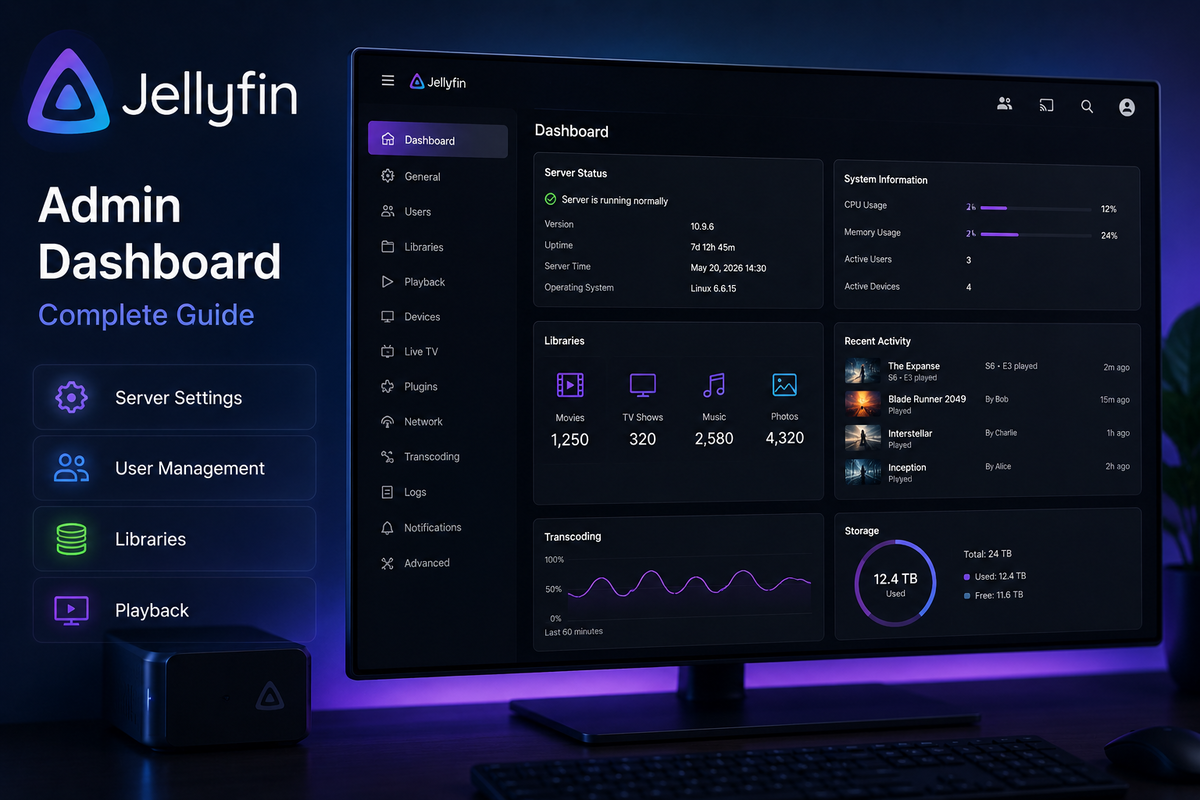
The Complete Jellyfin Dashboard Guide: Every Admin Setting Explained (2026)
The Jellyfin dashboard is where everything happens - users, libraries, plugins, transcoding, scheduled tasks, networking, security. For a new admin, it can feel overwhelming. For an experienced admin, half the settings are still mysteries that nobody documents.
This guide is the comprehensive reference: what every dashboard section does, which settings actually matter, and how to configure each one for a real-world setup.
How to Access the Dashboard
The dashboard is only accessible to administrator accounts. Regular users will not see it.
- Log into Jellyfin via web browser
- Click your avatar in the top-right
- Select Dashboard
Direct URL: http://your-server:8096/web/index.html#!/dashboard.html
If "Dashboard" does not appear, the user account is not an administrator. Check Dashboard → Users on another admin account to grant rights.
Dashboard Section 1: Server
The landing page when you open the dashboard. This is your overview screen.
What it shows
- Active sessions - who is currently streaming
- Server CPU usage - real-time graph
- System info - Jellyfin version, OS, architecture
- Recently logged events - last 10 activity log entries
- Server uptime
Pro tip: monitor in real time from your phone
The dashboard updates every few seconds when open. For mobile monitoring, JellyWatch delivers the same data as a native Android app with push notifications - more practical than keeping a browser tab open.
Dashboard Section 2: Libraries
This is where you define the content Jellyfin scans and serves.
Adding a library
- Click Add Media Library
- Choose content type: Movies, TV Shows, Music, Books, Photos, Home Videos, Mixed
- Add folder paths (must be accessible to the Jellyfin process)
- Configure metadata providers and image fetchers
- Save
Critical library settings
| Setting | Recommendation | Why |
|---|---|---|
| Real-time monitoring | Off (or library-specific) | Causes constant scanning; rely on Radarr/Sonarr Connect instead |
| Save artwork into media folders | Off (default) | Keeps your media folders clean |
| Save metadata as NFO | Optional | Useful for Plex/Emby cross-compatibility |
| Extract chapter images | Off | Heavy CPU task, rarely worth it |
| Generate Trickplay images | On (overnight) | Improves seek bar UX significantly |
| Enable advanced subtitle search | On (if using Bazarr) | Better matching |
Metadata language
Set your preferred metadata language per library. For multi-language households, the user-level language preference overrides this.
Dashboard Section 3: Users
User management is more granular in Jellyfin than in Plex or Emby.
Per-user permissions worth knowing
- Allow remote connections - off for kids accounts, on for adults
- Allow library deletion - never on for non-admins
- Allow downloads - off for shared family servers (saves bandwidth)
- Allow Live TV access - per-user
- Allow management of own library access - off (admins should control this)
- Maximum parental rating - PG, PG-13, etc.
- Block unrated - on for kids, off for adults
- Allow login with name - prevents auto-fill of admin usernames
Library access per user
For each user you can specify which libraries they see. Common pattern:
| User type | Movies | Kids Movies | TV | 4K | Adult |
|---|---|---|---|---|---|
| Admin | Yes | Yes | Yes | Yes | Yes |
| Partner | Yes | Yes | Yes | Yes | No |
| Kids | No | Yes | No | No | No |
| Guest | Yes | No | Yes | No | No |
Access schedules
Per-user time-based access. Useful for kids accounts:
- Weekdays: 16:00 - 20:00
- Weekends: 08:00 - 21:00
- Outside these hours: account cannot stream
This is server-side enforced - works across all clients.
Dashboard Section 4: Playback
The most important dashboard section for performance.
Transcoding
This is where you configure hardware acceleration. Setting this correctly is the difference between 100% CPU and 5% CPU during a 4K transcode.
Hardware acceleration: choose your GPU type
- Intel QSV (any Intel CPU with iGPU)
- NVIDIA NVENC (any NVIDIA GPU)
- AMD AMF (modern AMD GPUs)
- VAAPI (Linux generic)
- Apple VideoToolbox (Mac builds)
Codecs to enable: H.264, HEVC, VP9, AV1 decode (depending on GPU support)
Hardware tone mapping: enable on supported GPUs (Intel 11th Gen+, NVIDIA RTX, modern AMD) for HDR-to-SDR conversion
Allow encoding in HEVC format: enable to allow transcoding to H.265 (saves bandwidth for remote users)
Transcoding temporary path: point to a fast SSD or tmpfs - transcoding does heavy disk I/O
Stream limits
- Max simultaneous transcodes - set based on your hardware (3-4 for Intel N100, 8+ for RTX 3060)
- Max simultaneous remote streams per user - useful for shared servers
Direct play settings
- Default audio language - your language code (en, fr, de)
- Default subtitle mode - "None" or "Always" depending on preference
- Burn subtitles - leave at default (Auto)
Dashboard Section 5: Plugins
Where the Jellyfin ecosystem comes alive.
Catalog tab
Browse and install plugins from configured repositories. The default repository contains official plugins (Trakt, OpenSubtitles, Webhook, etc.).
Repositories tab
Add custom repositories for community plugins. Common ones:
- Awesome Jellyfin Catalog - curated list with Skin Manager, Intro Skipper, more
- Plugin-specific repos - many plugins distribute their own manifest URLs
My Plugins tab
Installed plugins. Click any to access settings or uninstall.
Recommended plugin stack
| Plugin | Why |
|---|---|
| Intro Skipper | Skip TV intros automatically |
| Trakt | Watch history backup and sync |
| OpenSubtitles | Automatic subtitle downloads |
| Webhook | Notification integrations (Discord, Ntfy) |
| Skin Manager | Easy theme installation |
| TMDB Box Sets | Auto-create movie collections |
| Playback Reporting | Per-user statistics |
Dashboard Section 6: Scheduled Tasks
The hidden performance setting. Mismanaged scheduled tasks are responsible for most "Jellyfin is slow at random times" complaints.
Critical scheduled tasks
| Task | Default schedule | Recommendation |
|---|---|---|
| Scan media library | Every 12 hours | Manual only (let Radarr/Sonarr trigger) |
| Refresh metadata | Daily | Weekly off-peak |
| Generate Trickplay | When library scans | Schedule overnight |
| Detect intros | When library scans | Schedule overnight (3 AM) |
| Database optimization | Weekly | Keep default |
| Clean activity log | Default | Set 30-day retention |
| Backup | Default | Weekly to external storage |
How to reschedule a task
- Click the task name
- Triggers tab → Add Trigger
- Choose: Daily, Weekly, Time of day, or Interval
- Save
Pro tip: Schedule heavy tasks (Trickplay, Intro detection) sequentially overnight rather than overlapping. This avoids competing for CPU during peak streaming hours.
Dashboard Section 7: Networking
The most security-relevant section.
Server addresses
- Local network address - your LAN IP (192.168.x.x)
- Published server URL - your public domain if remote access is configured
Remote access
- Allow remote connections - on if exposing the server externally
- Bind to network interface - leave at default
- Public HTTP port number - 8096 (default, behind reverse proxy)
- Public HTTPS port number - 8920 (rarely used; reverse proxy handles HTTPS)
Known proxies
This is critical for reverse proxy users. If your server is behind Caddy, Nginx, Traefik, or Cloudflare, you must add their IP ranges here. Otherwise, all logs will show the proxy IP instead of the real client IP.
For Cloudflare:
173.245.48.0/20
103.21.244.0/22
103.22.200.0/22
103.31.4.0/22
141.101.64.0/18
108.162.192.0/18
190.93.240.0/20
188.114.96.0/20
197.234.240.0/22
198.41.128.0/17
162.158.0.0/15
104.16.0.0/13
104.24.0.0/14
172.64.0.0/13
131.0.72.0/22
For local reverse proxy (Caddy on same Docker network):
172.17.0.0/16
Dashboard Section 8: API Keys
Generate API keys for external integrations.
When to create an API key
- JellyWatch - to monitor your server from Android
- Radarr / Sonarr - to trigger library refresh after import
- Jellyseerr - to authenticate users
- Custom scripts - for automation
Best practice
- One API key per integration (so you can revoke individually)
- Name keys descriptively (
jellywatch-mobile,radarr-import) - Rotate keys quarterly
Dashboard Section 9: Activity Log
Logs everything that happens on the server: logins, playback events, library changes, errors.
What to look for
- Authentication failures - signs of brute-force attempts
- Failed playback errors - codec or transcode issues
- Plugin errors - usually after updates
- Library scan results - confirms files were imported correctly
Activity log retention
By default, the log grows indefinitely. The "Clean Activity Log" scheduled task can prune old entries. Set retention to 30 days for most servers.
Dashboard Section 10: Server Logs
Raw application logs from Jellyfin itself. Different from the activity log - these are technical (FFmpeg output, plugin stack traces, database queries).
When you need server logs
- Diagnosing transcoding failures
- Plugin crashes
- Database issues after upgrades
- FFmpeg errors
Click any log file to view inline. Filter by date.
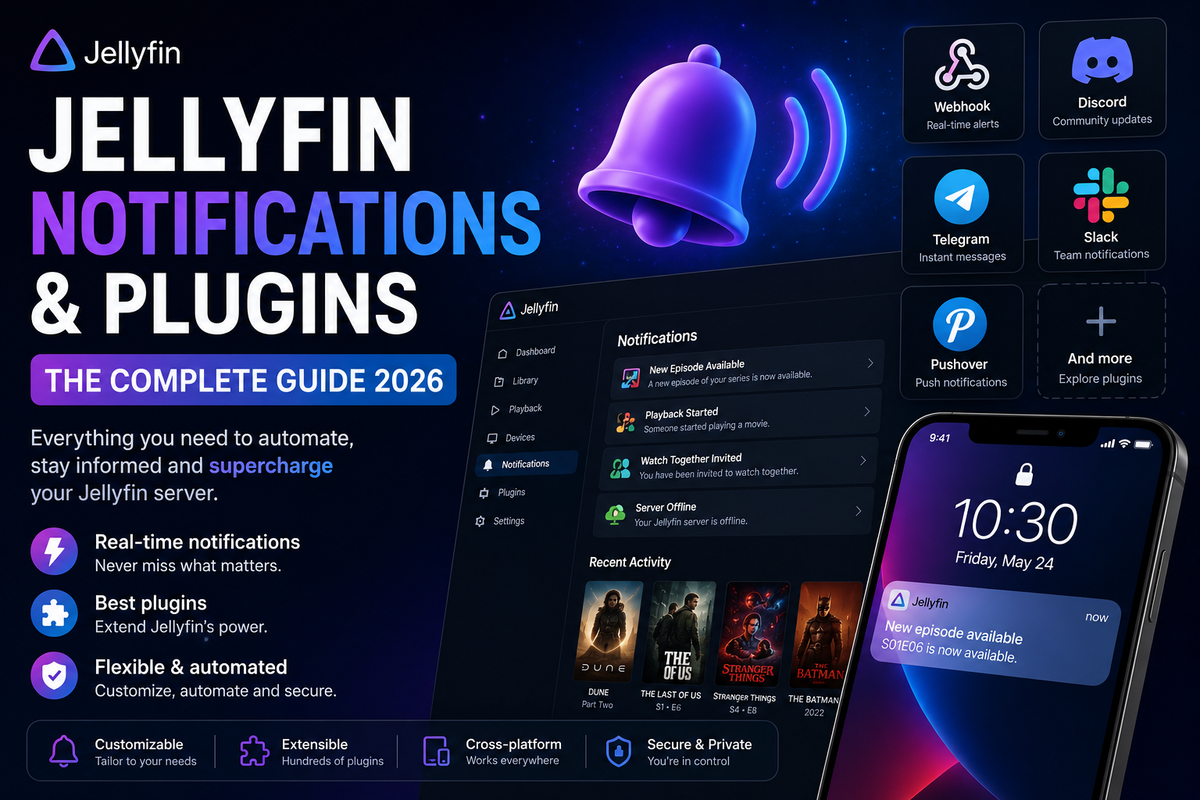
Dashboard Section 11: Notifications (with Webhook plugin)
When the Webhook plugin is installed, this section lets you configure event-based notifications:
- New media added
- Playback started / stopped
- Authentication failures
- Server lifecycle events
Targets can be Discord webhooks, Telegram bots, Ntfy/Gotify endpoints, or any HTTP webhook.
Dashboard Section 12: Live TV
Configuration for IPTV and DVR. Even without Live TV use, glance at this section to confirm you have not accidentally enabled something.
- TV Sources - your M3U or HDHomeRun tuners
- TV Guide Data Providers - XMLTV or Schedules Direct
- DVR - recording path, padding, retention
Dashboard Section 13: General
Miscellaneous server settings.
Display
- Custom CSS code - paste theme CSS here (the JellyFlix or Ultrachromic equivalents)
- Server name - shown to clients
- Preferred metadata language
- Cache path - rarely changed
DLNA
- Enable DLNA server - off for security unless specifically needed
Port mapping
- Enable automatic port mapping - off (use manual port forwarding or reverse proxy instead)
Dashboard Section 14: SSL Certificate
Built-in HTTPS. Most self-hosters skip this and use a reverse proxy (Caddy, Nginx Proxy Manager) instead - reverse proxy SSL is easier to manage and provides better certificate automation.
If you do use built-in SSL, point this section to a PFX certificate file generated from Let's Encrypt or another CA.
Dashboard Section 15: Quick Connect
Quick Connect lets users authenticate from a TV by typing a 6-digit code generated on a phone. Eliminates typing passwords with a remote.
- Enable Quick Connect - on (best UX for Apple TV / Android TV / Smart TV setups)
- Codes expire after 10 minutes by default
Common Dashboard Mistakes
| Mistake | Consequence | Fix |
|---|---|---|
| Real-time library monitoring on | Constant CPU spikes | Off, rely on Radarr/Sonarr Connect |
| No reverse proxy IPs in Known Proxies | All client IPs show as proxy | Add Cloudflare/local ranges |
| Hardware acceleration disabled | 4K transcodes peg CPU | Enable QSV/NVENC |
| Activity log never cleaned | Database bloats over months | Schedule cleanup |
| All scheduled tasks at default times | Competing CPU usage | Stagger overnight |
| API keys never rotated | Compromised key = persistent access | Quarterly rotation |
| DLNA enabled | Security exposure on LAN | Disable unless needed |
| Public HTTP port forwarded directly | Unencrypted, no rate limiting | Use reverse proxy |
Mobile Dashboard Alternative: JellyWatch
The web dashboard is comprehensive but built for desktop. For day-to-day monitoring, a mobile-native interface is faster:
- Real-time session monitoring
- Push notifications for new sessions, failed logins, server offline
- CPU and storage alerts
- One-tap session management
- Arr stack integration (Radarr, Sonarr, Jellyseerr)
This complements the web dashboard rather than replacing it. Use the dashboard for configuration, JellyWatch for monitoring.
FAQ
How do I become an administrator? The first user created during setup is automatically an admin. To grant admin rights to another user, log in as the existing admin and toggle "Allow this user to manage the server" in their user profile.
Can I have multiple admins? Yes. Multiple users can have admin permissions simultaneously.
Where is the dashboard configuration stored? In /config/system.xml (Docker) or equivalent path on native installs. Back this up regularly.
Why is the dashboard slow to load? Usually the activity log table is too large. Run "Optimize Database" and "Clean Activity Log" scheduled tasks.
Can I customize what users see in their dashboard? Non-admin users do not see the dashboard at all. They see the home screen, which is configured per-user under their account preferences.
Is there a mobile app for the dashboard? Not officially. JellyWatch is the dedicated Android admin companion - it provides session monitoring, user management, plugin overview, and Arr stack integration.
Manage your Jellyfin dashboard from anywhere. Download JellyWatch on Google Play - real-time sessions, server health, push notifications, and Arr stack management on Android.
On Emby? Download EmbyWatch on Google Play - the same admin experience for Emby servers.


Comments
No comments yet. Be the first to share your thoughts.
Leave a comment