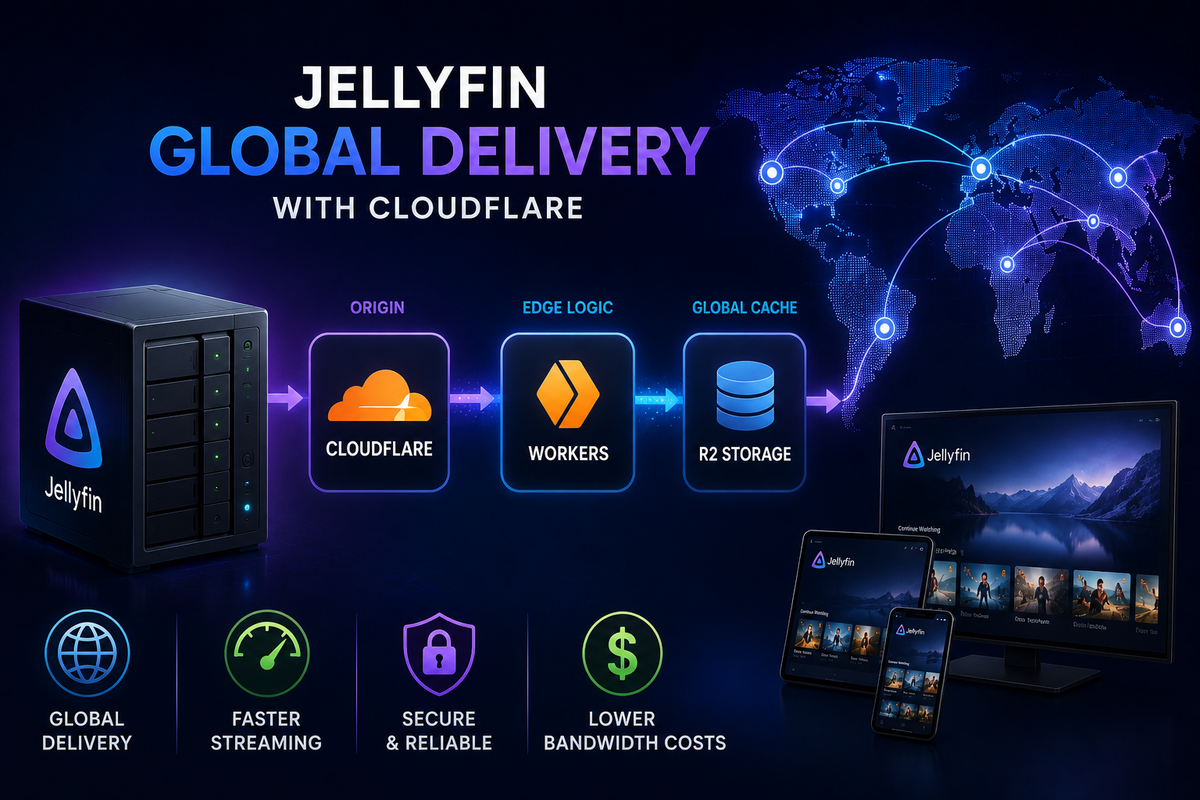
Building a Jellyfin CDN with Cloudflare R2: Global Media Delivery (2026)
Your Jellyfin server is in Paris. Your friend in Tokyo experiences 3 seconds of buffering at the start of every video because the data travels 10,000 km. A CDN (Content Delivery Network) solves this by placing your content closer to your users.
Cloudflare R2 is an S3-compatible object storage with zero egress fees. Combined with Cloudflare Workers (edge compute), you can build a global media delivery system that serves your Jellyfin library from the nearest Cloudflare edge location to each user.
This is an advanced architecture. It is not for everyone. But for admins with users on multiple continents, it eliminates geographic latency entirely.
How It Works
User in Tokyo requests a movie
  |
  v
[Cloudflare Worker (Tokyo edge)] -- checks auth, serves from R2
  |
  v
[Cloudflare R2 (global)] -- stores the actual media file
  |
  v
User receives data from Tokyo edge (low latency)
Meanwhile, your Jellyfin server (in Paris) handles:
- Library browsing and metadata
- User authentication
- Watch state tracking
- Transcoding (if needed)
The media FILES are served from R2 via Workers, not from your home server. Your home upload speed is no longer the bottleneck for remote users.
The Architecture
Component 1: Cloudflare R2 (Storage)
R2 is S3-compatible object storage with a critical advantage: zero egress fees. You pay only for storage ($0.015/GB/month) and operations (reads/writes), not for bandwidth.
For a 5 TB media library:
- Storage cost: 5,000 GB x $0.015 = $75/month
- Egress: $0 (unlimited bandwidth)
Compare to AWS S3: 5 TB storage ($115/month) + egress at $0.09/GB = potentially thousands per month.
Component 2: Cloudflare Workers (Edge Logic)
Workers run JavaScript/TypeScript at Cloudflare edge locations worldwide (~300 cities). They handle:
- Authentication (verify the request is from a valid Jellyfin user)
- Range request handling (video players request byte ranges for seeking)
- Serving files from R2 with proper headers
Component 3: Jellyfin with STRM Files
Jellyfin supports STRM files: text files containing a URL. Instead of reading a local .mkv file, Jellyfin reads the STRM file and redirects the client to the URL inside it.
# /media/movies/Dune Part Two (2024)/Dune Part Two (2024).strm
https://media.yourdomain.com/movies/dune-part-two-2024.mkv?token=xyz
The client fetches the video directly from R2 via the Worker, bypassing your home server entirely for the actual media data.
Step 1: Upload Media to R2
Create an R2 bucket
- Cloudflare Dashboard > R2 > Create Bucket
- Name:
jellyfin-media - Location: Auto (Cloudflare distributes globally)
Upload with Rclone
# Configure Rclone for R2
rclone config
# Type: s3
# Provider: Cloudflare
# Access Key ID: from R2 API tokens
# Secret Access Key: from R2 API tokens
# Endpoint: https://<account-id>.r2.cloudflarestorage.com

# Sync your media library to R2
rclone sync /mnt/media/movies r2:jellyfin-media/movies --progress
rclone sync /mnt/media/tv r2:jellyfin-media/tv --progress
Initial upload depends on your upload speed. A 5 TB library at 100 Mbps upload takes ~4.5 days.
Ongoing sync
Schedule incremental sync after new content arrives:
# Cron: sync new content daily at 2 AM
0 2 * * * rclone sync /mnt/media r2:jellyfin-media --progress --log-file /var/log/r2-sync.log
Step 2: Create the Cloudflare Worker
The Worker authenticates requests and serves files from R2:
// worker.js
export default {
  async fetch(request, env) {
    const url = new URL(request.url);
    const path = url.pathname.slice(1); // Remove leading /

    // Simple token authentication
    const token = url.searchParams.get("token");
    if (!token || token !== env.AUTH_TOKEN) {
      return new Response("Unauthorized", { status: 401 });
    }

    // Fetch from R2
    const object = await env.MEDIA_BUCKET.get(path);
    if (!object) {
      return new Response("Not Found", { status: 404 });
    }

    // Handle range requests (essential for video seeking)
    const range = request.headers.get("Range");
    if (range) {
      const [start, end] = range.replace("bytes=", "").split("-").map(Number);
      const objectSize = object.size;
      const actualEnd = end || objectSize - 1;
      const chunk = await env.MEDIA_BUCKET.get(path, {
        range: { offset: start, length: actualEnd - start + 1 }
      });

      return new Response(chunk.body, {
        status: 206,
        headers: {
          "Content-Range": `bytes ${start}-${actualEnd}/${objectSize}`,
          "Content-Length": actualEnd - start + 1,
          "Content-Type": object.httpMetadata?.contentType || "video/x-matroska",
          "Accept-Ranges": "bytes",
        },
      });
    }

    // Full file response
    return new Response(object.body, {
      headers: {
        "Content-Type": object.httpMetadata?.contentType || "video/x-matroska",
        "Content-Length": object.size,
        "Accept-Ranges": "bytes",
      },
    });
  },
};
Deploy with Wrangler:
npx wrangler deploy
Bind the R2 bucket to the Worker in wrangler.toml:
[[r2_buckets]]
binding = "MEDIA_BUCKET"
bucket_name = "jellyfin-media"
Step 3: Generate STRM Files
Create a script that generates STRM files for your Jellyfin library:
#!/bin/bash
# generate-strm.sh
BASE_URL="https://media.yourdomain.com"
TOKEN="your_secret_token"
MEDIA_DIR="/mnt/media/movies"
STRM_DIR="/mnt/jellyfin-strm/movies"

find "$MEDIA_DIR" -name "*.mkv" -o -name "*.mp4" | while read file; do
  relative="${file#$MEDIA_DIR/}"
  strm_path="$STRM_DIR/${relative%.*}.strm"
  mkdir -p "$(dirname "$strm_path")"
  echo "${BASE_URL}/${relative}?token=${TOKEN}" > "$strm_path"
done
Point Jellyfin at the STRM directory instead of (or alongside) your local media.
Step 4: Configure Jellyfin
- Add a new library pointing to the STRM directory
- Jellyfin reads the STRM files and fetches metadata normally
- When a user plays content, the client is redirected to the R2 URL
- The video streams from the nearest Cloudflare edge
Cost Analysis
R2 CDN approach
| Component | Cost (5 TB library) |
|---|---|
| R2 storage | $75/month |
| Workers (free tier: 100K requests/day) | $0 (or $5/month for paid) |
| Egress bandwidth | $0 (R2 has zero egress) |
| Total | $75-80/month |
Traditional VPS approach
| Component | Cost |
|---|---|
| Hetzner VPS (CX32) | $8/month |
| Hetzner Storage Box (5 TB) | $12.50/month |
| Total | $20.50/month |
Home server approach
| Component | Cost |
|---|---|
| Electricity | $2/month |
| Domain | $1/month |
| Total | $3/month |
When This Architecture Makes Sense
| Scenario | R2 CDN worth it? |
|---|---|
| Users on one continent, good home upload | No (home server is fine) |
| Users on multiple continents | Yes (eliminates geographic latency) |
| Very large user base (50+) | Yes (unlimited bandwidth) |
| Home upload under 20 Mbps | Maybe (R2 offloads bandwidth) |
| Cost-sensitive | No ($75/month vs $3/month home) |
Limitations
- No transcoding - R2 serves files as-is. If a client needs transcoding, it must go through your Jellyfin server
- Upload delay - new content takes time to sync to R2
- Cost - $75/month for 5 TB is significantly more than a home server
- Complexity - Workers, STRM files, and sync scripts add operational overhead
- STRM limitations - some Jellyfin clients handle STRM files differently; test your clients
- No Direct Play detection - Jellyfin cannot determine if the client can Direct Play a STRM URL the same way it can for local files
FAQ
Does this violate Cloudflare ToS? R2 is designed for serving large files. Unlike the CDN proxy (which has Section 2.8 concerns for video), R2 is explicitly a storage product with no content-type restrictions.
Can I use this for transcoded streams? No. Transcoding requires real-time processing on a server. R2 only serves static files. Use this for Direct Play content only.
What about Backblaze B2 + Cloudflare? B2 has a bandwidth alliance with Cloudflare (free egress via Cloudflare CDN). Similar architecture is possible with B2 at $0.005/GB/month storage (cheaper than R2).
Does JellyWatch work with this setup? Yes. JellyWatch monitors Jellyfin sessions regardless of where the media files are stored. STRM-based playback appears as a normal session.
Global media delivery configured? Monitor every session from your phone. Download JellyWatch on Google Play - real-time sessions, bitrate monitoring, and server health.
On Emby? Download EmbyWatch on Google Play


Comments
No comments yet. Be the first to share your thoughts.
Leave a comment