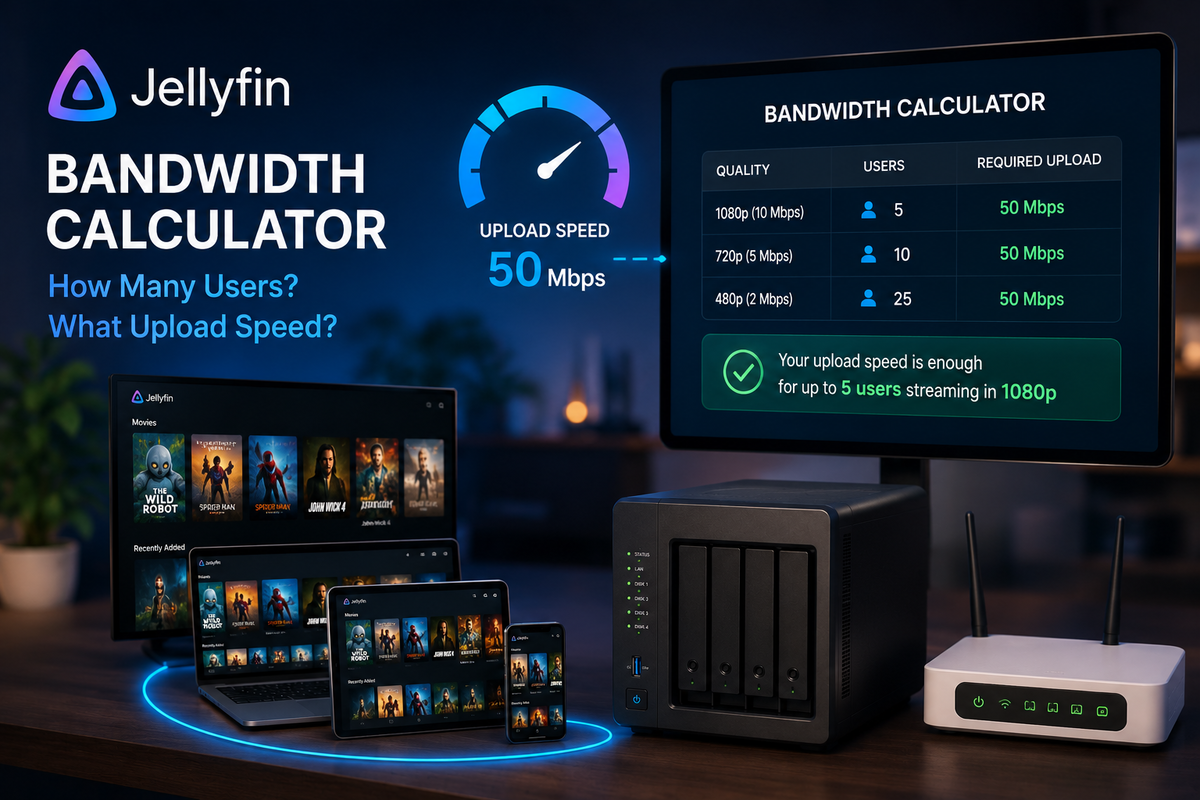
The Jellyfin Bandwidth Calculator: How Many Users Can Your Upload Speed Handle? (2026)
You built the perfect Jellyfin server. Hardware transcoding works. Your library is organized. Then you share it with 5 friends and everyone buffers simultaneously. The problem is not your server. It is your internet upload speed.
This guide gives you the exact math to calculate how many remote users your connection can support.
The Formula
Maximum concurrent remote streams = Upload speed (Mbps) / Bitrate per stream (Mbps)
That is it. Your upload speed divided by the bitrate each stream consumes.
Bitrate by Content Type
| Content type | Typical bitrate | Range |
|---|---|---|
| 1080p encode (H.264, CRF 20) | 8-12 Mbps | 5-20 Mbps |
| 1080p encode (H.265, CRF 20) | 5-8 Mbps | 3-15 Mbps |
| 1080p Blu-ray remux | 20-35 Mbps | 15-40 Mbps |
| 4K encode (H.265, CRF 18) | 15-25 Mbps | 10-35 Mbps |
| 4K Blu-ray remux | 50-80 Mbps | 40-100 Mbps |
| Transcoded to 720p | 4-6 Mbps | 2-8 Mbps |
| Transcoded to 1080p (8 Mbps limit) | 8 Mbps | Fixed |
| Transcoded to 480p (mobile) | 2-3 Mbps | 1-4 Mbps |
| Music (FLAC) | 1-2 Mbps | 0.8-3 Mbps |
| Music (MP3 320) | 0.3 Mbps | 0.3 Mbps |
Quick Reference: Streams by Upload Speed
If your library is mostly 1080p H.265 encodes (~8 Mbps average)
| Upload speed | Max concurrent streams | Comfortable (80% rule) |
|---|---|---|
| 10 Mbps | 1 stream | 1 stream |
| 20 Mbps | 2 streams | 2 streams |
| 30 Mbps | 3 streams | 3 streams |
| 50 Mbps | 6 streams | 5 streams |
| 100 Mbps | 12 streams | 10 streams |
| 200 Mbps | 25 streams | 20 streams |
| 500 Mbps | 62 streams | 50 streams |
| 1 Gbps | 125 streams | 100 streams |
If your library is mostly 4K remuxes (~60 Mbps average)
| Upload speed | Max concurrent streams | Comfortable |
|---|---|---|
| 10 Mbps | 0 (impossible) | 0 |
| 20 Mbps | 0 (impossible) | 0 |
| 50 Mbps | 0 (barely 1, will buffer) | 0 |
| 100 Mbps | 1 stream | 1 stream |
| 200 Mbps | 3 streams | 2-3 streams |
| 500 Mbps | 8 streams | 6-7 streams |
| 1 Gbps | 16 streams | 13 streams |
If you transcode everything to 8 Mbps for remote users
| Upload speed | Max concurrent streams | Comfortable |
|---|---|---|
| 10 Mbps | 1 stream | 1 stream |
| 20 Mbps | 2 streams | 2 streams |
| 50 Mbps | 6 streams | 5 streams |
| 100 Mbps | 12 streams | 10 streams |
| 200 Mbps | 25 streams | 20 streams |
The 80% Rule
Never plan to use 100% of your upload bandwidth for Jellyfin. You need headroom for:
- Other internet usage (browsing, video calls, cloud sync)
- TCP overhead (~5-10%)
- Burst handling (scene changes spike bitrate momentarily)
- Quality of service (buffering starts before you hit the absolute limit)
Use 80% of your upload speed as the practical maximum for Jellyfin.
How to Check Your Upload Speed
# From your server
curl -s https://raw.githubusercontent.com/sivel/speedtest-cli/master/speedtest.py | python3 -
Or visit speedtest.net from a device on the same network as your server.
Important: Test from the SERVER, not from a client device. Your server's upload is what matters for remote streaming.
Strategies to Serve More Users with Limited Bandwidth
Strategy 1: Force transcoding with bitrate limits
Dashboard > Users > [Remote User] > Remote streaming bitrate limit:
| Setting | Effect | Users supported (50 Mbps upload) |
|---|---|---|
| No limit (Original) | Full quality, high bandwidth | 1-2 (4K) or 4-6 (1080p) |
| 20 Mbps | Good 1080p quality | 2 |
| 8 Mbps | Decent 1080p | 6 |
| 4 Mbps | 720p quality | 12 |
| 2 Mbps | 480p (mobile) | 25 |
This trades quality for capacity. More users can stream simultaneously at lower quality.
Strategy 2: Encode your library for lower bitrates
Use Tdarr or Handbrake to encode your library at lower bitrates:
- H.265 CRF 22-24 instead of CRF 18-20
- Target 5-8 Mbps for 1080p instead of 10-15 Mbps
- Smaller files = less bandwidth per stream = more concurrent users
Strategy 3: Separate 4K and 1080p libraries
Keep 4K content in a separate library. Only give local users access to 4K. Remote users see the 1080p library only. This prevents a remote user from requesting a 60 Mbps 4K stream over your 50 Mbps upload.
Strategy 4: Use a VPS as a relay
If your home upload is limited but you have fast local storage:
- Run Jellyfin on a VPS with 1 Gbps bandwidth
- Mount your home NAS via SSHFS or Rclone
- Your home upload only needs to serve the VPS (one connection)
- The VPS serves all remote users with its 1 Gbps pipe
Your home upload becomes the bottleneck only for the VPS connection, not for every individual user.
Strategy 5: Cloudflare Tunnel with caching
Cloudflare Tunnel can cache static assets and reduce bandwidth for repeated requests (poster images, metadata). Video streams are not cached, but the overall bandwidth savings from cached UI assets can be 10-20%.
ISP Upload Speed by Connection Type (2026 Averages)
| Connection type | Typical upload | Jellyfin viability |
|---|---|---|
| DSL | 1-5 Mbps | 0-1 remote streams (barely viable) |
| Cable (DOCSIS 3.1) | 10-35 Mbps | 1-4 streams |
| Fiber (FTTH) | 100-1000 Mbps | 10-100+ streams |
| 5G Home Internet | 20-100 Mbps | 2-12 streams |
| Starlink | 10-25 Mbps | 1-3 streams |
| VPS (Hetzner/Contabo) | 1000 Mbps | 100+ streams |
Fiber is the only home connection that comfortably supports 5+ remote users with high-quality streams.
Real-World Example Calculations
Scenario: Family of 4, 50 Mbps upload
- Parent 1 watches 4K locally (does not use upload)
- Parent 2 watches 1080p remotely at work (~8 Mbps)
- Kid 1 watches on tablet at school (~4 Mbps, transcoded)
- Kid 2 watches on phone (~3 Mbps, transcoded)
- Total remote bandwidth: 15 Mbps out of 50 Mbps available
- Verdict: Comfortable, plenty of headroom
Scenario: Shared server, 10 friends, 100 Mbps upload
- 3 friends watching 1080p encodes simultaneously (~8 Mbps each = 24 Mbps)
- 1 friend watching 4K remotely (~25 Mbps)
- Total: 49 Mbps out of 100 Mbps
- Verdict: Works, but adding more 4K users would push limits
- Fix: Set remote bitrate limit to 20 Mbps for all users
Scenario: Community server, 20 users, 30 Mbps upload (cable)
- Even 3 simultaneous 1080p streams (24 Mbps) nearly saturates the connection
- Verdict: Not viable for more than 2-3 concurrent remote users
- Fix: Move to a VPS with 1 Gbps, or upgrade to fiber
Monitoring Bandwidth Usage
JellyWatch shows you the bitrate of every active session. When users report buffering:
- Open JellyWatch
- Check active sessions
- Add up the bitrates of all remote streams
- Compare to your upload speed
- If total exceeds 80% of upload, that is your bottleneck
FAQ
Does Direct Play use more bandwidth than transcoding? Usually yes. Direct Play sends the file at its original bitrate (could be 60 Mbps for a 4K remux). Transcoding can compress it to any target bitrate (8 Mbps, 4 Mbps, etc.). For bandwidth-limited connections, transcoding to a lower bitrate actually helps.
Does local streaming use upload bandwidth? No. Local network streaming uses your LAN (typically Gigabit). Only remote/internet streaming uses your ISP upload.
Can I prioritize Jellyfin traffic over other internet usage? Yes. Configure QoS (Quality of Service) on your router to prioritize traffic from your Jellyfin server's IP address.
What upload speed do I need for one 4K remote stream? Minimum 80 Mbps upload for a 4K remux. 40 Mbps for a 4K encode. 100+ Mbps recommended for comfortable 4K remote streaming.
Is symmetric fiber worth the extra cost? For Jellyfin remote streaming, absolutely. Symmetric 500/500 Mbps fiber supports 50+ concurrent streams. Asymmetric cable (500 down / 20 up) supports only 2-3.
See exactly how much bandwidth each stream uses. Monitor from your phone. Download JellyWatch on Google Play - bitrate per session, transcode status, and server health.
On Emby? Download EmbyWatch on Google Play




Comments
No comments yet. Be the first to share your thoughts.
Leave a comment