
How to Backup and Restore Your Jellyfin Server (2026)
You have spent weeks configuring your Jellyfin server - plugins, metadata, watch history, user accounts, custom CSS. One corrupted drive or a bad Docker update, and it is all gone.
A proper backup strategy takes 15 minutes to set up and can save you days of reconfiguration. This guide covers everything.
What to Backup
Not everything on your server needs backing up. Focus on what is hard to recreate:
| Data | Location (Docker) | Priority | Why |
|---|---|---|---|
| Server config | /config/ | Critical | Users, settings, API keys |
| Metadata & images | /config/metadata/ | High | Posters, descriptions, cast info |
| Watch history | /config/data/ | High | User progress, played status |
| Plugin data | /config/plugins/ | Medium | Plugin configs and databases |
| Custom CSS | Dashboard setting | Low | Easy to re-paste |
| Media files | /media/ | Separate strategy | Large - use dedicated backup |
Key insight: Your media files (movies, shows) are large and should be backed up separately (RAID, cloud, external drives). Your Jellyfin config is small (usually under 5 GB) and should be backed up frequently.
Method 1: Manual Backup (Simplest)
Stop Jellyfin, copy the config folder, restart.
Docker
docker stop jellyfin
tar -czf jellyfin-backup-$(date +%Y%m%d).tar.gz /path/to/jellyfin/config
docker start jellyfin
Native Linux
sudo systemctl stop jellyfin
tar -czf jellyfin-backup-$(date +%Y%m%d).tar.gz /var/lib/jellyfin/
sudo systemctl start jellyfin
Store the archive on a different drive, NAS, or cloud storage.
Method 2: Automated Backup Script (Recommended)
Create a cron job that runs weekly:
#!/bin/bash
BACKUP_DIR="/backups/jellyfin"
CONFIG_DIR="/path/to/jellyfin/config"
RETENTION_DAYS=30

mkdir -p $BACKUP_DIR
docker stop jellyfin
tar -czf "$BACKUP_DIR/jellyfin-$(date +%Y%m%d-%H%M).tar.gz" "$CONFIG_DIR"
docker start jellyfin

# Clean old backups
find $BACKUP_DIR -name "jellyfin-*.tar.gz" -mtime +$RETENTION_DAYS -delete

echo "Backup completed: $(date)"
Add to crontab:
crontab -e
# Run every Sunday at 4 AM
0 4 * * 0 /home/user/scripts/backup-jellyfin.sh >> /var/log/jellyfin-backup.log 2>&1
Method 3: Docker Volume Snapshots
If you use Docker named volumes instead of bind mounts:
docker run --rm -v jellyfin_config:/source -v /backups:/target alpine \
  tar -czf /target/jellyfin-config-$(date +%Y%m%d).tar.gz -C /source .
This works without stopping the container, though stopping is safer for database consistency.
Method 4: Filesystem Snapshots (ZFS / Btrfs)
If your server runs on ZFS (TrueNAS, Proxmox) or Btrfs (Unraid):
ZFS
zfs snapshot tank/jellyfin@backup-$(date +%Y%m%d)
Btrfs
btrfs subvolume snapshot /mnt/data/jellyfin /mnt/data/.snapshots/jellyfin-$(date +%Y%m%d)
Filesystem snapshots are instant and do not require stopping the server.
How to Restore a Jellyfin Backup
Full restore (new server or after crash)
- Install Jellyfin (Docker or native)
- Stop Jellyfin
- Extract your backup over the config directory:
docker stop jellyfin
rm -rf /path/to/jellyfin/config/*
tar -xzf jellyfin-backup-20260315.tar.gz -C /path/to/jellyfin/config/
docker start jellyfin
- Verify: open the web UI - all users, settings, watch history, and plugins should be intact.
Partial restore (specific data)
Extract only what you need:
# Restore only plugins
tar -xzf jellyfin-backup.tar.gz --directory=/path/to/config/ plugins/
Backing Up Watch History Separately
Watch history is stored in the Jellyfin database. For extra safety:
- Install the Trakt plugin to sync watch history externally
- Use the Playback Reporting plugin - its database can be exported
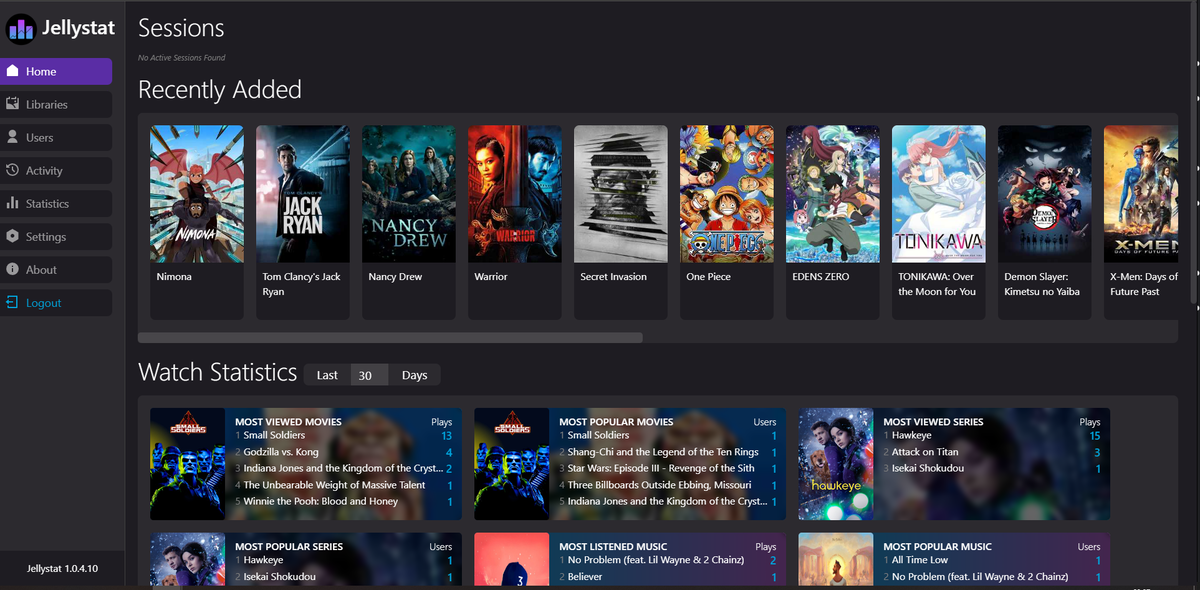
- JellyWatch displays your viewing history and statistics, giving you a visual confirmation that history is intact after a restore
Backup Checklist
| Task | Frequency | Method |
|---|---|---|
| Config folder backup | Weekly | Automated script |
| Media files backup | Monthly | RAID / external drive / cloud |
| Watch history sync | Continuous | Trakt plugin |
| Test restore | Quarterly | Manual test on spare machine |
Common Backup Mistakes
- Not stopping Jellyfin before backup - database files can be corrupted mid-write
- Backing up only media, not config - media is replaceable, config is not
- No off-site copy - if your server dies, a backup on the same machine is useless
- Never testing the restore - an untested backup is not a backup
Monitor Your Server After Restoring
After a restore, verify everything works:
- Open JellyWatch → check server health (CPU, RAM, storage)
- Verify active sessions work correctly
- Confirm all users can log in
- Check that plugins are loaded and functional
- Run a library scan to re-index any changes
Advanced Backup Methods
Method 1: Jellyfin Built-In Backup (10.11+)
Jellyfin 10.11 introduced native backup support directly from the dashboard - no plugins or scripts required.
How to use it
- Open Dashboard → Scheduled Tasks
- Find "Backup Database"
- Click the task to configure:
- Backup path: where to store backups (e.g.,
/backups/jellyfin/) - Schedule: set a recurring trigger (e.g., every Sunday at 3 AM)
- Backup path: where to store backups (e.g.,
- Click Save
What it backs up
- The unified
jellyfin.dbdatabase (users, settings, watch history, metadata references) - Server configuration files
What it does NOT back up
- Media files
- Trickplay images (regenerable)
- Plugin binaries (re-downloadable from catalog)
- Custom CSS (stored in the database, so it IS included)
Limitations
- The built-in backup is a database-level snapshot - it does not create a full
/configarchive - For a complete backup including metadata images and plugin data, use one of the methods below in addition
Method 2: Automated Shell Script with Cron (Most Popular)
The community standard: a bash script that stops Jellyfin, archives the config folder, restarts Jellyfin, and cleans old backups.
The script
#!/bin/bash
# /home/user/scripts/backup-jellyfin.sh
# Automated Jellyfin backup with retention

BACKUP_DIR="/backups/jellyfin"
CONFIG_DIR="/path/to/jellyfin/config"
CONTAINER_NAME="jellyfin"
RETENTION_DAYS=30
DATE=$(date +%Y%m%d-%H%M)
LOG_FILE="/var/log/jellyfin-backup.log"

echo "[$DATE] Starting Jellyfin backup..." >> "$LOG_FILE"

# Create backup directory
mkdir -p "$BACKUP_DIR"

# Stop Jellyfin for consistent backup
docker stop "$CONTAINER_NAME"

# Create compressed archive
tar -czf "$BACKUP_DIR/jellyfin-$DATE.tar.gz" \
  --exclude="*/trickplay/*" \
  --exclude="*/transcodes/*" \
  "$CONFIG_DIR"

# Restart Jellyfin
docker start "$CONTAINER_NAME"

# Clean old backups
find "$BACKUP_DIR" -name "jellyfin-*.tar.gz" -mtime +$RETENTION_DAYS -delete

# Log result
SIZE=$(du -sh "$BACKUP_DIR/jellyfin-$DATE.tar.gz" | cut -f1)
echo "[$DATE] Backup completed: $SIZE" >> "$LOG_FILE"

# Optional: send notification
# curl -s -d "Jellyfin backup completed: $SIZE" http://ntfy:80/jellyfin-alerts
Key features of this script
- Excludes Trickplay images - they are large and regenerable, saving significant backup size
- Excludes transcoding cache - temporary files that do not need backing up
- 30-day retention - automatically deletes backups older than 30 days
- Logging - records every backup with timestamp and size
- Optional notification - uncomment the curl line to get notified via Ntfy
Schedule with cron
crontab -e
Add:
# Jellyfin backup every Sunday at 3 AM
0 3 * * 0 /home/user/scripts/backup-jellyfin.sh
Make the script executable
chmod +x /home/user/scripts/backup-jellyfin.sh
Method 3: Docker Volume Backup (Without Stopping)
If you use Docker named volumes and cannot afford downtime:
#!/bin/bash
# Backup Docker named volume without stopping the container
# Note: database consistency is not guaranteed without stopping

docker run --rm \
  -v jellyfin_config:/source:ro \
  -v /backups:/target \
  alpine tar -czf "/target/jellyfin-$(date +%Y%m%d).tar.gz" -C /source .
Warning: Backing up a running SQLite database can produce a corrupted backup if a write occurs during the copy. For maximum safety, stop the container first. If downtime is unacceptable, use the WAL checkpoint method:
# Force WAL checkpoint before backup (flushes pending writes)
docker exec jellyfin sqlite3 /config/data/jellyfin.db "PRAGMA wal_checkpoint(TRUNCATE);"
# Then run the backup
Method 4: ZFS / Btrfs Filesystem Snapshots
If your server runs on ZFS (TrueNAS, Proxmox) or Btrfs (Unraid), filesystem snapshots are the fastest and most reliable backup method.
ZFS
# Create instant snapshot (zero downtime)
zfs snapshot tank/jellyfin@backup-$(date +%Y%m%d)

# List snapshots
zfs list -t snapshot | grep jellyfin

# Restore from snapshot
zfs rollback tank/jellyfin@backup-20260418

# Auto-cleanup: keep last 4 weekly snapshots
zfs list -t snapshot -o name -H | grep jellyfin | head -n -4 | xargs -n1 zfs destroy
Btrfs
# Create snapshot
btrfs subvolume snapshot /mnt/data/jellyfin /mnt/data/.snapshots/jellyfin-$(date +%Y%m%d)

# Restore
btrfs subvolume delete /mnt/data/jellyfin
btrfs subvolume snapshot /mnt/data/.snapshots/jellyfin-20260418 /mnt/data/jellyfin
Filesystem snapshots are instant and atomic - no need to stop Jellyfin.
Method 5: Cloud Sync with Rclone
For off-site backup protection, sync your local backups to cloud storage:
# Configure rclone (one-time setup)
rclone config
# Follow the wizard for Google Drive, Backblaze B2, S3, etc.

# Sync backups to cloud
rclone sync /backups/jellyfin remote:jellyfin-backups/ \
  --transfers 4 \
  --progress
Automate with cron
# Sync to cloud 1 hour after local backup
0 4 * * 0 rclone sync /backups/jellyfin remote:jellyfin-backups/ --quiet
Recommended cloud providers for backups
| Provider | Free tier | Cost (paid) | Best for |
|---|---|---|---|
| Backblaze B2 | 10 GB | $0.005/GB/month | Cheapest per-GB |
| Google Drive | 15 GB | $1.99/month (100 GB) | Easy setup |
| Wasabi | None | $5.99/TB/month | No egress fees |
Backup Verification: The Step Everyone Skips
An untested backup is not a backup. Verify quarterly:
# Extract backup to a temp directory
mkdir /tmp/jellyfin-test
tar -xzf /backups/jellyfin/jellyfin-20260418-0300.tar.gz -C /tmp/jellyfin-test

# Check database integrity
sqlite3 /tmp/jellyfin-test/config/data/jellyfin.db "PRAGMA integrity_check;"
# Expected output: ok

# Clean up
rm -rf /tmp/jellyfin-test
If integrity_check returns anything other than "ok", your backup is corrupted.
Complete Automated Backup Strategy
Here is the recommended setup combining multiple methods:
| Layer | Method | Frequency | Retention |
|---|---|---|---|
| Database | Jellyfin built-in backup | Daily | 7 days |
| Full config | Shell script + cron | Weekly | 30 days |
| Filesystem | ZFS/Btrfs snapshot | Daily | 4 snapshots |
| Off-site | Rclone to cloud | Weekly | 90 days |
| Verification | Integrity check script | Monthly | N/A |
This gives you:
- Daily database protection (fast recovery from corruption)
- Weekly full config archives (recover from any failure)
- Instant filesystem snapshots (zero-downtime rollback)
- Off-site cloud copies (survive hardware failure or theft)
Protect your setup - and verify it works after every restore. Download JellyWatch on Google Play - server health monitoring, user verification, and real-time diagnostics on your Android device.
On Emby? Download EmbyWatch on Google Play - the same backup verification and monitoring experience for Emby.


Comments 2
The automated backup script with cron is exactly what I needed. Running every Sunday at 4 AM, 30-day retention. Peace of mind.
ZFS snapshots are instant and free. One command and my entire Jellyfin config is backed up. Can't recommend ZFS enough.
Leave a comment