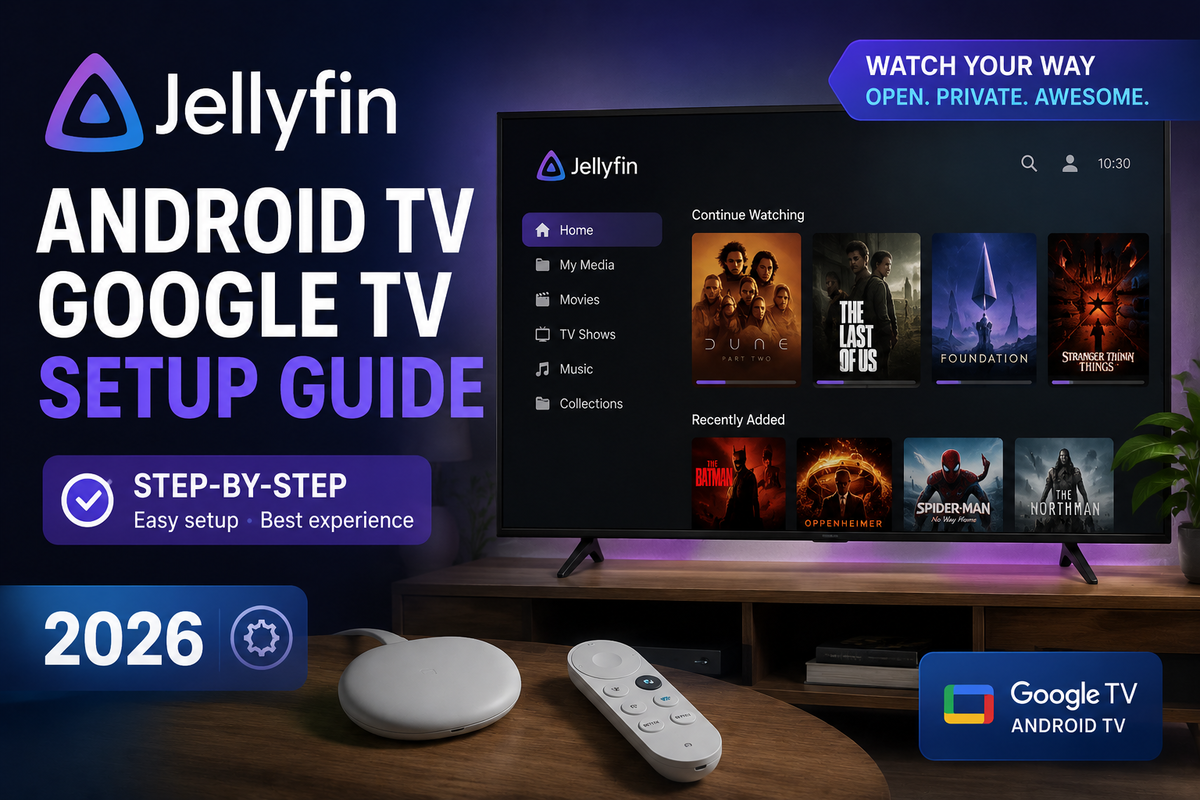
Jellyfin on Android TV and Google TV: Complete Setup Guide (2026)
Android TV and Google TV are the most popular smart TV platforms in the world - and Jellyfin has excellent support for both. Whether you have a Nvidia Shield, a Chromecast with Google TV, a Fire TV Stick, or a built-in Android TV, this guide gets you to the perfect living room setup.
Android TV vs Google TV: What's the Difference?
| Platform | Examples | Jellyfin app |
|---|---|---|
| Android TV | Nvidia Shield, Sony TVs (older), Philips | Official Jellyfin for Android TV |
| Google TV | Chromecast with Google TV, Sony TVs (2021+) | Official Jellyfin for Android TV |
| Fire TV | Fire TV Stick, Fire TV Cube | Official Jellyfin for Fire TV |
All three run the same Jellyfin Android TV app - the interface and features are identical.
Installing Jellyfin on Android TV / Google TV
Method 1: Google Play Store (easiest)
- Open the Play Store on your Android TV / Google TV
- Search for Jellyfin
- Install the official Jellyfin for Android TV app
- Open the app → Add Server → enter your Jellyfin URL
Method 2: Sideload APK (if Play Store unavailable)
Some older Android TV devices or custom ROMs may not have the Play Store:
- Enable Unknown sources in Settings → Security
- Install a file manager (e.g., FX File Explorer) from the Play Store
- Download the Jellyfin APK from jellyfin.org/downloads
- Open the APK with the file manager to install
Fire TV Stick
- Search "Jellyfin" in the Amazon Appstore
- Install the official Jellyfin app
- Alternatively, sideload via Downloader app (search "Downloader" in Amazon Appstore)
Initial Configuration
Add your server
- Open Jellyfin → Add Server
- Enter your server URL:
- Local:
http://192.168.1.100:8096 - Remote:
https://jellyfin.yourdomain.com
- Local:
- Log in with your Jellyfin credentials
Critical settings for best performance
In the Jellyfin app → Settings → Playback:
| Setting | Recommended value |
|---|---|
| Max streaming bitrate | Original (no limit) |
| Preferred media player | ExoPlayer (default) |
| Direct play | Enabled |
| Direct stream | Enabled |
| Allow transcoding | Enabled (fallback only) |
Setting bitrate to Original is the single most important change - it prevents Jellyfin from unnecessarily transcoding high-quality content.
Device-Specific Optimization
Nvidia Shield Pro (best Android TV for Jellyfin)
The Shield Pro is the gold standard for Jellyfin on Android TV:
- Tegra X1+ chip handles H.265 Direct Play natively
- Dolby Vision and Atmos passthrough supported
- 4K HDR Direct Play for virtually all content
- Plex Media Server can run alongside Jellyfin
Optimization tips:
- Settings → Display → Match Content → Enable Match Frame Rate and Match Dynamic Range
- This switches the TV to the exact frame rate and HDR mode of each video automatically
- Enable Dolby Vision in Shield display settings
Chromecast with Google TV 4K
- Supports H.265 Direct Play and HDR10
- Dolby Vision Profile 5 and 8 supported
- Limited RAM (2 GB) - avoid running other apps simultaneously
- Set Jellyfin bitrate to Original for best quality
Fire TV Stick 4K Max (2nd gen)
- H.265 Direct Play supported
- HDR10, HDR10+, Dolby Vision supported
- No DTS audio passthrough - use AC3/EAC3 or AAC audio tracks
- Enable "Dolby Atmos" in Fire TV audio settings for Atmos passthrough
Sony Android TV / Google TV
- Built-in Android TV with Bravia Core
- H.265 Direct Play supported on most 2019+ models
- Enable HDMI Enhanced Format in TV settings for HDR passthrough
- Use the Jellyfin app from the Play Store
Xiaomi / TCL / Hisense Android TV
- Budget Android TV devices with variable codec support
- H.264 Direct Play: universal
- H.265 Direct Play: most 2020+ models
- HDR10: most 4K models
- Dolby Vision: limited (check your specific model)
Remote Control and Navigation
Standard Android TV remote
The Jellyfin Android TV app is fully optimized for D-pad navigation:
- Arrow keys to browse
- OK/Select to play
- Back to go up
- Long press for context menu
Keyboard shortcuts (USB/Bluetooth keyboard)
| Key | Action |
|---|---|
| Space | Play/Pause |
| Left/Right arrow | Seek ±10 seconds |
| Up/Down arrow | Volume |
| F | Toggle fullscreen |
Android TV remote app
Use the Google TV app on Android to control your device from your phone - useful when the physical remote is missing.
Enabling Live TV on Android TV
If you have Live TV configured on your Jellyfin server:
- Open Jellyfin → navigate to Live TV in the sidebar
- Browse the channel guide
- Tap any channel to start streaming
- DVR recordings appear under Recordings
Live TV works identically on Android TV as on other clients.
Troubleshooting Android TV Issues
| Problem | Cause | Fix |
|---|---|---|
| App crashes on launch | Outdated app version | Update from Play Store |
| Buffering on local network | Bitrate limit set too low | Set to Original |
| No HDR / washed out colors | TV not in HDR mode | Enable Match Dynamic Range |
| No audio on some files | Unsupported audio codec | Enable audio transcoding in app settings |
| Cannot find server | Wrong URL or firewall | Verify server URL and port |
| Subtitles not showing | Subtitle format issue | Switch to SRT subtitles |
Best Android TV Devices for Jellyfin in 2026
| Device | Price | 4K HDR | Dolby Vision | Best for |
|---|---|---|---|---|
| Nvidia Shield Pro | ~$199 | ✅ | ✅ | Power users, best performance |
| Chromecast with Google TV 4K | ~$49 | ✅ | ✅ | Budget 4K |
| Fire TV Stick 4K Max | ~$59 | ✅ | ✅ | Amazon ecosystem |
| Apple TV 4K (with Infuse) | ~$129 | ✅ | ✅ Full | Best overall picture quality |
| Xiaomi Mi Box S 4K | ~$59 | ✅ | ❌ | Budget Android TV |
Recommended: JellyWatch for Android TV
The official Jellyfin Android TV app covers the basics, but if you want the most complete Jellyfin experience on your TV, JellyWatch for Android TV is the client with the most features in a single app.
Get it on Google Play | Get it on Amazon Appstore (Fire TV)
What JellyWatch adds over the official app
- Trickplay thumbnails - scrub the timeline with your remote and see a live preview of the scene at the target position, no more guessing where you are in a 2-hour movie
- Theme songs - ambient background music plays automatically when browsing movie and series pages, configurable volume (Off, Low, Medium, High)
- Display rate switching - automatically matches your TV refresh rate to the video frame rate (24p, 25p, 60p), eliminates judder for cinema-quality motion
- Stats for Nerds - live overlay showing video codec, resolution, bitrate, HDR type, audio codec, dropped frames, buffer health, and display mode
- Home Screen Channels - Continue Watching and Recently Added appear directly on your Android TV launcher, resume in one click without opening the app
- Built with Jetpack Compose for TV - the UI is fast, fluid, and designed entirely around remote control navigation with no lag between screens
- Real Direct Play with hardware-accelerated ExoPlayer (Media3) and 4K HDR, HDR10+, Dolby Vision support
- Quality selection - switch between Original, 4K, 1080p, 720p, 480p during playback
- Seerr/Jellyseerr integration - request new movies and TV shows directly from your TV remote
- Up Next auto-play - when an episode ends, the next one starts with a 15-second countdown
- Admin dashboard on TV - monitor active sessions, trigger library scans, and view server stats from the couch
- Full subtitle support including styled ASS/SSA, PGS burn-in, and external subtitles
- Multi-account - switch between Jellyfin users instantly on a shared TV
Supported devices
| Device | Supported |
|---|---|
| Nvidia Shield / Shield Pro | Yes |
| Chromecast with Google TV | Yes |
| Sony Android TV / Google TV | Yes |
| TCL / Hisense / Xiaomi Android TV | Yes |
| Amazon Fire TV (Amazon Appstore) | Yes |
| Onn 4K Pro | Yes |
| Any Android TV 8.0+ device | Yes |
Setup
- Install JellyWatch from the Google Play Store or Amazon Appstore
- Open the app and enter your Jellyfin server URL
- Log in with your credentials or use QuickConnect
- Start watching - Direct Play is enabled by default, trickplay and theme songs work automatically
JellyWatch detects your device capabilities automatically and only falls back to transcoding when absolutely necessary.
Monitor Your Android TV Sessions
Once your Android TV is streaming, you want to know:
- Is it Direct Playing or transcoding?
- What codec and bitrate is being used?
- Is the server under load?
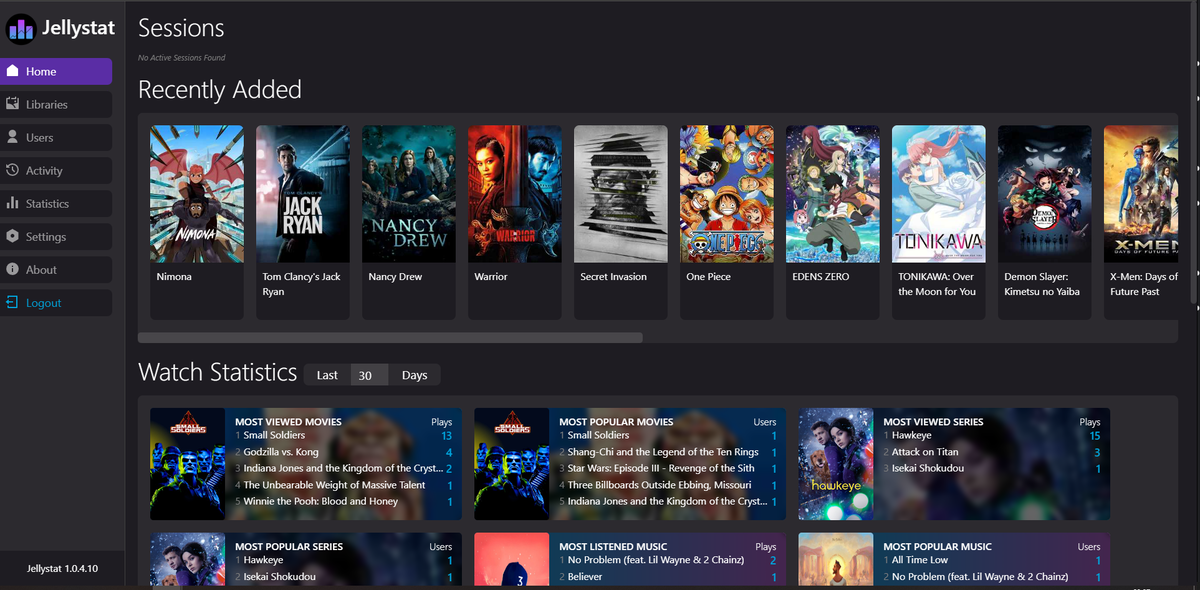
JellyWatch (the mobile admin app) shows you every active session including Android TV streams - playback method, codec, bitrate, and transcode reason - all from your Android phone.
Jellyfin running on your TV? Get the best of both worlds. Download JellyWatch for Android TV - a fast, native Jellyfin client built for the big screen. Download JellyWatch on your phone - real-time session monitoring for every Jellyfin client including Android TV.
On Emby? Download EmbyWatch on Google Play - the same monitoring experience for Emby servers.


Comments 4
Nvidia Shield Pro is still the king in 2026. Match Frame Rate + Match Dynamic Range makes every movie look perfect.
Chromecast with Google TV 4K at $49 is incredible value. Direct plays everything I throw at it. HDR10 and DV work great.
Match Frame Rate + Match Dynamic Range on the Shield Pro transformed my viewing experience. Movies at 24fps look so much more cinematic without the soap opera effect.
The Onn 4K Pro at $50 is insane value. Dolby Vision, AV1 decode, and the Jellyfin app runs perfectly. Bought three of them for every TV in the house.
Leave a comment