Jellyfin 4K HDR and Dolby Vision Setup Guide (2026)
4K HDR is the gold standard for home media - but getting it right on Jellyfin requires understanding a surprisingly complex chain of hardware, software, and client compatibility. One wrong setting and your HDR content plays washed out, or triggers an unnecessary transcode.
This guide covers everything: HDR formats, tone mapping, Direct Play requirements, and client-by-client compatibility.
HDR Formats Explained
| Format | Bit depth | Dynamic metadata | Compatibility |
|---|---|---|---|
| HDR10 | 10-bit | Static | Universal - all HDR TVs |
| HDR10+ | 10-bit | Dynamic | Samsung TVs, some LG |
| Dolby Vision | 12-bit | Dynamic | Dolby-licensed devices |
| HLG | 10-bit | None | Broadcast standard |
HDR10 is the baseline - every HDR display supports it. Dolby Vision delivers the best picture quality but requires licensed hardware on both the server output and the display.
The Golden Rule: Direct Play
For 4K HDR, Direct Play is the only acceptable playback method.
When Jellyfin transcodes a 4K HDR file:
- The HDR metadata is stripped or tone-mapped
- Quality degrades significantly
- CPU/GPU load spikes to 100%
- Bitrate drops from 50-80 Mbps to whatever your transcode target is
Your goal is to ensure every 4K HDR stream plays directly - zero transcoding.
Requirements for Direct Play
- Client supports the video codec (H.264, H.265/HEVC, AV1)
- Client supports the audio codec (TrueHD, DTS-X, Atmos - or passthrough)
- Client supports the container (MKV, MP4)
- Network bandwidth: 50-80 Mbps for 4K HDR (local network is fine; remote needs fast upload)
Jellyfin Server Configuration for 4K HDR
Enable hardware transcoding (for fallback)
Even if your goal is Direct Play, configure hardware transcoding for clients that cannot Direct Play:
Dashboard → Playback → Transcoding:
- Hardware acceleration: Intel QSV / NVIDIA NVENC / AMD AMF
- Enable HEVC (H.265) encoding
- Enable HDR to SDR tone mapping
- Enable Hardware tone mapping (if your GPU supports it)
Tone mapping settings
Tone mapping converts HDR to SDR for clients that cannot display HDR. Without it, HDR content looks washed out on SDR screens.
| Setting | Recommendation |
|---|---|
| Tone mapping algorithm | BT.2390 (best quality) or Hable |
| Tone mapping mode | Auto |
| HDR to SDR | Enabled |
| Hardware tone mapping | Enabled (if GPU supports) |
Intel Arc and newer Intel iGPUs support hardware tone mapping natively - much better quality than software tone mapping.
Dolby Vision: The Full Picture
Dolby Vision is the most complex HDR format. There are 8 Dolby Vision profiles - not all are equal:
| Profile | Description | Jellyfin support |
|---|---|---|
| Profile 5 | Single-layer, MP4 | Good (Direct Play on compatible clients) |
| Profile 7 | Dual-layer, MKV | Limited (most clients strip DV layer) |
| Profile 8 | Single-layer, cross-compatible | Best - compatible with most clients |
| Profile 9 | HDR10 base with DV enhancement | Rare |
Dolby Vision Profile 8 (recommended)
Profile 8 files play as HDR10 on non-DV clients and as full Dolby Vision on DV-capable clients. This is the most compatible format for a shared Jellyfin server.
Which clients support Dolby Vision?
| Client | Dolby Vision support |
|---|---|
| Apple TV 4K | ✅ Full (all profiles) |
| Nvidia Shield Pro | ✅ Profile 5, 8 |
| Fire TV Stick 4K Max | ✅ Profile 5, 8 |
| Chromecast with Google TV 4K | ✅ Profile 5, 8 |
| Jellyfin Media Player (PC) | ❌ Falls back to HDR10 |
| Android TV (generic) | Varies by device |
| Web browser | ❌ No DV support |
Client-by-Client 4K HDR Compatibility
Apple TV 4K (best Jellyfin 4K client)
Use Infuse 7 (not the official Jellyfin app):
- Direct Play for virtually all 4K HDR formats
- Full Dolby Vision support (all profiles)
- Dolby Atmos passthrough
- DTS-X passthrough
Infuse is the gold standard for 4K HDR on Jellyfin.
Nvidia Shield Pro
- Use the official Jellyfin Android TV app
- Direct Play for H.265 HDR10 and Dolby Vision Profile 5/8
- Enable "Direct Play" in the Jellyfin app settings
- Set max bitrate to Original (no limit)
Fire TV Stick 4K Max
- Supports H.265 Direct Play
- HDR10 and Dolby Vision Profile 5/8
- Limit: no DTS audio passthrough (use AC3/EAC3 or AAC)
Chromecast with Google TV 4K
- H.265 Direct Play supported
- HDR10 and Dolby Vision Profile 5/8
- Audio: Dolby Atmos passthrough supported
PC (Jellyfin Media Player / mpv)
- H.265 Direct Play with madVR or mpv renderer
- HDR passthrough requires Windows HDR mode enabled
- Dolby Vision: falls back to HDR10
- Best for: users with HDR monitors
Diagnosing 4K HDR Issues
Content looks washed out
Cause: HDR content playing on an SDR display without tone mapping, OR the display is not in HDR mode.
Fix:
- Enable HDR mode on your TV/display
- Enable tone mapping in Jellyfin transcoding settings
- Check that the client is passing HDR metadata through
Buffering on 4K content
Cause: Transcoding triggered (network too slow, or client cannot Direct Play).
Fix:
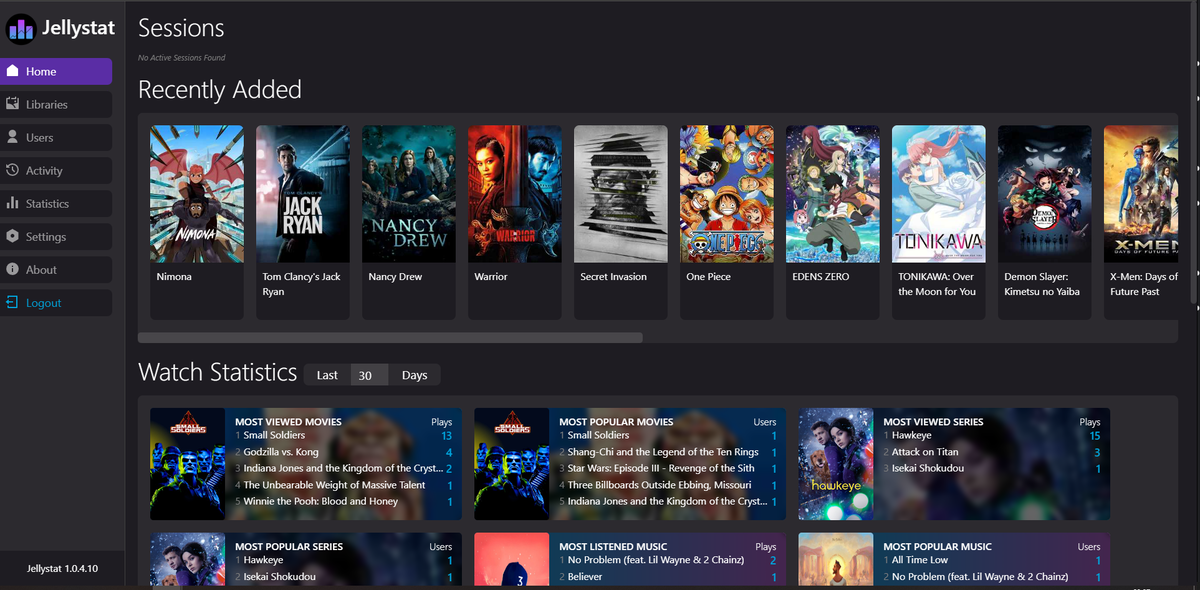
- Check the active session in JellyWatch - is it transcoding?
- If yes: identify the reason (codec, audio, subtitles)
- Set client bitrate to Original in app settings
- Disable subtitles if they are PGS (forces burn-in transcode)
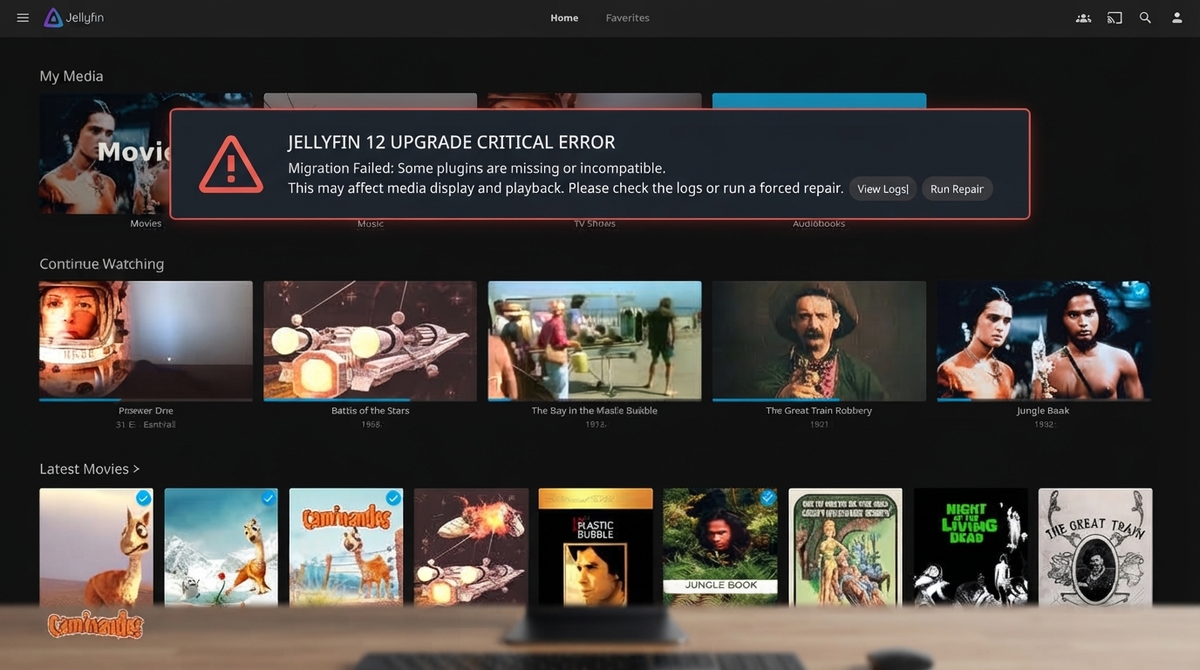
Dolby Vision not working
Cause: Client does not support the DV profile, or Jellyfin is remuxing the file.
Fix:
- Check the DV profile of your file (use MediaInfo)
- Ensure the client supports that profile
- Use Profile 8 files for maximum compatibility
Recommended 4K HDR File Specs for Jellyfin
| Spec | Recommendation |
|---|---|
| Video codec | H.265 (HEVC) |
| HDR format | HDR10 or Dolby Vision Profile 8 |
| Audio | EAC3 Atmos or TrueHD Atmos |
| Container | MKV |
| Bitrate | 50-80 Mbps |
| Resolution | 3840×2160 |
Monitor 4K HDR Sessions
4K HDR transcodes are the most resource-intensive events on your server. A single unexpected 4K transcode can max out your CPU and degrade every other stream.
JellyWatch shows you in real time:
- Whether a 4K session is Direct Play or transcoding
- The exact transcode reason (codec, audio, subtitle)
- CPU and GPU usage during the transcode
- Push notification when a new 4K session starts
Serving 4K HDR? Know exactly what your server is doing. Download JellyWatch on Google Play - real-time 4K session monitoring, transcode alerts, and server health for Jellyfin on Android.
On Emby? Download EmbyWatch on Google Play - the same 4K monitoring experience for Emby servers.


Comments 4
The Dolby Vision profile breakdown is the clearest explanation I've found anywhere. Profile 8 is the way to go for mixed client setups.
Infuse on Apple TV 4K + Jellyfin = the best 4K HDR experience money can buy. Direct Play everything, including DV Profile 7.
The Profile 8 recommendation is spot on. My DV Profile 8 files play as full Dolby Vision on my LG OLED and fall back to HDR10 on my bedroom Fire TV. One file, every device happy.
Bought Infuse Pro after reading this guide. The difference on my Apple TV 4K is night and day compared to Swiftfin for DV content. Worth every penny of the subscription.
Leave a comment