JellyEmu: Play Retro Games Directly in Jellyfin (2026)
Jellyfin handles movies, TV shows, music, audiobooks, and photos. But what about your ROM collection? Those thousands of NES, SNES, PlayStation, and Game Boy Advance files sitting on your NAS - until now, they needed a separate frontend like EmulatorJS or RetroArch.
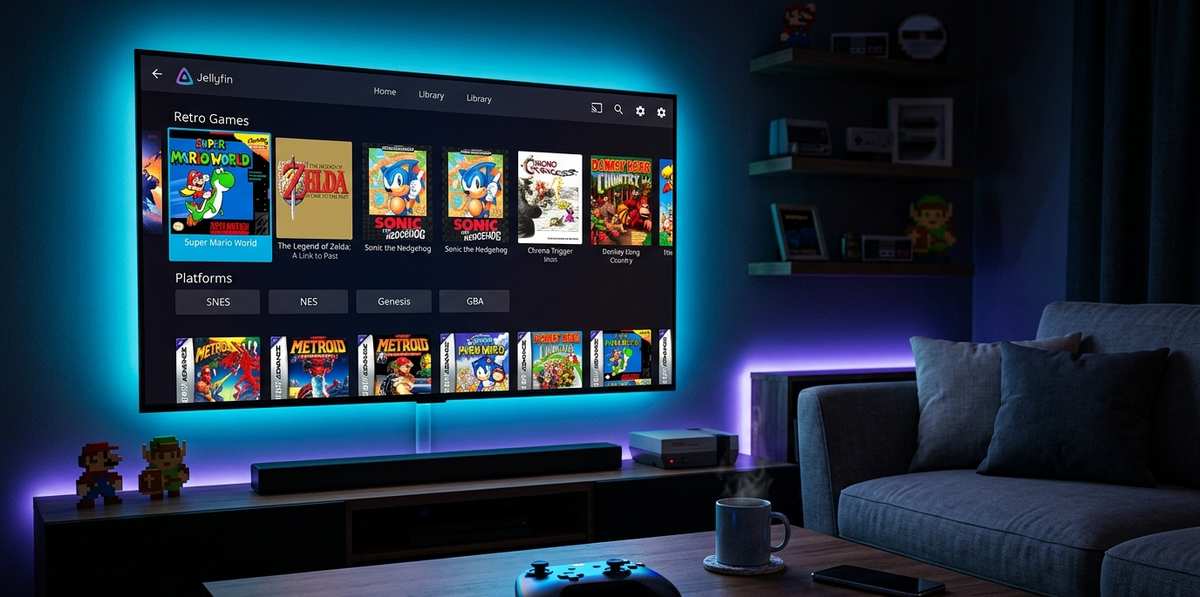
JellyEmu changes that. It is a Jellyfin plugin that turns your media server into a full retro gaming platform - complete with box art, game descriptions, and in-browser emulation. Your users browse games the same way they browse movies, click Play, and a fully functional emulator launches directly in the Jellyfin web interface.
No separate app. No client-side installation. Just Jellyfin.
What Is JellyEmu?
JellyEmu is a community-built Jellyfin plugin that:
- Imports your ROM library into Jellyfin as a browsable collection
- Fetches metadata (box art, descriptions, ratings, release dates) from IGDB and RAWG
- Launches games in-browser using EmulatorJS - no downloads, no client software
- Supports 30+ platforms from Atari 2600 to PlayStation and Nintendo DS
- Includes Pico-8 support for indie retro games
- Shares your collection with all Jellyfin users via the standard library system
Source: github.com/Jellyfin-PG/JellyEmu
Supported Platforms
JellyEmu supports an impressive range of retro consoles:
| Platform | Extensions |
|---|---|
| Nintendo (NES) | .nes |
| Super Nintendo (SNES) | .sfc, .smc |
| Nintendo 64 | .n64, .z64 |
| Game Boy / Color | .gb, .gbc |
| Game Boy Advance | .gba |
| Nintendo DS | .nds |
| Virtual Boy | .vb |
| PlayStation (PSX) | .iso, .bin, .cue, .chd |
| PlayStation Portable (PSP) | .iso, .cso |
| Sega Genesis / Mega Drive | .md, .gen, .bin |
| Sega CD | .iso, .bin, .cue, .chd |
| Sega Saturn | .iso, .bin, .cue |
| Sega Game Gear | .gg |
| Sega Master System | .sms |
| Sega 32X | .32x |
| Atari 2600 | .a26, .bin |
| Atari 5200 | .a52, .bin |
| Atari 7800 | .a78, .bin |
| Atari Jaguar | .j64, .jag |
| Atari Lynx | .lnx |
| MAME / Arcade / CPS | .zip, .7z |
| 3DO | .iso, .bin, .cue |
| Commodore 64 | .d64, .g64, .t64 |
| Amiga | .adf, .ipf, .lha |
| ColecoVision | .col, .rom |
| PC Engine / TurboGrafx-16 | .pce, .bin, .cue |
| Neo Geo Pocket | .ngp, .ngc |
| WonderSwan | .ws, .wsc |
| DOS | .exe, .com, .conf, .zip |
| Pico-8 | .p8, .p8.png, .zip |
That is over 30 platforms playable directly in your browser.
How It Works
The architecture is elegant:
Your ROM files on disk
  → JellyEmu scans and identifies them
  → Metadata fetched from IGDB + RAWG (box art, descriptions)
  → Games appear in Jellyfin library (browsable like movies)
  → User clicks Play
  → EmulatorJS launches in the browser
  → Game runs client-side (zero server CPU for emulation)
The emulation happens entirely in the browser via WebAssembly. Your Jellyfin server only serves the ROM file - the actual emulation runs on the client device. This means:
- Zero server CPU usage during gameplay
- Any device with a modern browser can play (PC, tablet, phone)
- No client software to install
- Multi-user - everyone on your server can play simultaneously
Prerequisites
- Jellyfin 10.11+ (required)
- An IGDB API key (free - register at api.igdb.com)
- A RAWG API key (free - register at rawg.io/apidocs)
- Your ROM collection organized on disk
Installation
JellyEmu depends on the File Transformation plugin to inject CSS and JavaScript into the Jellyfin web interface. Both plugins must be installed.
Step 1: Add the Plugin Repository
- Open Jellyfin Dashboard
- Go to Administration → Plugins → Repositories
- Click Add and enter:
https://raw.githubusercontent.com/Jellyfin-PG/Repository/refs/heads/main/manifest.json - Click Save
Step 2: Install File Transformation
- Go to Administration → Plugins → Catalogue
- Find File Transformation and click Install
- Confirm the installation
Step 3: Install JellyEmu
- Still in the Catalogue, find JellyEmu and click Install
- Confirm the installation
Step 4: Restart Jellyfin
Restart your Jellyfin server. Both plugins must be active simultaneously - File Transformation handles the page injection, JellyEmu manages your ROMs.
Configuration
Step 1: Configure API Keys
- Navigate to Dashboard → Plugins
- Open the Emulator Library configuration page
- Enter your IGDB API Key (Client ID and Client Secret)
- Enter your RAWG API Key
- Save
Step 2: Create the Game Library
- Go to Dashboard → Libraries → Add Media Library
- Select Books as the Content Type
Important: You must select "Books" as the content type. This is required for JellyEmu to map game data correctly within the Jellyfin database structure.
- Name it something like "Video Games" or "Retro Games"
- Add the folder path where your ROMs are stored
- Under Metadata Downloaders, enable IGDB and RAWG
- Click OK
Step 3: Scan Your Library
- Go to Dashboard → Libraries
- Click the three dots on your game library → Scan Library Files
- Jellyfin matches your files against IGDB and RAWG
- Box art, descriptions, and metadata download automatically
Once the scan completes, your games appear on the home screen - ready to browse and play.
Organizing Your ROM Library
JellyEmu uses a smart 3-step detection system to identify which platform a ROM belongs to:
- Inline tokens - platform name in brackets or parentheses in the filename
- Folder names - parent and grandparent folder names
- File extensions - only for unambiguous extensions (like .nes or .z64)
Method 1: Organize by Folder (Recommended)
The easiest approach for large collections:
/ROMs/
  ├── /SNES/
  │    └── Super Mario World.sfc
  ├── /PlayStation/
  │    ├── /Final Fantasy VII/
  │    │    └── Disc 1.chd
  └── /Sega Genesis/
       └── Sonic The Hedgehog.md
JellyEmu checks up to two directories up, so subfolders for multi-disc games or series work perfectly.
Accepted folder names include official names and common abbreviations: SNES, Super Nintendo, Super Famicom all map to the same platform.
Method 2: Inline Naming Tokens
For flat directory structures, add the platform in brackets:
Sonic CD [Sega CD].chd       → UI Display: Sonic CD
Crash Bandicoot (PS1).chd    → UI Display: Crash Bandicoot
Super Mario 64 [Nintendo 64].z64  → UI Display: Super Mario 64
JellyEmu automatically hides platform tags in the user interface - game titles remain clean.
Handling Ambiguous Formats
Formats shared across multiple consoles (.iso, .chd, .cue, .bin) are ambiguous. For these files, you must use either an inline token or a properly named folder. Otherwise the platform is marked as "Unknown".
Forcing Specific Metadata
For ambiguous titles (like "Doom" matching the 2016 reboot instead of the 1993 original), force a specific database entry:
Doom [igdb-1039].iso          → Forces the 1993 IGDB entry
Aladdin (Sega) [rawg-871812].md  → Forces the exact RAWG entry
Supported provider tags:
| Provider | Tag format |
|---|---|
| IGDB | [igdb-1039] |
| RAWG | [rawg-19291] |
| Wikipedia | [wiki-8482] |
| LexalOffle (Pico-8) | [loid-819821] |
You can combine provider IDs and platform tokens:
Sonic Adventure [igdb-3273][Sega CD].chd
This matches the exact IGDB entry, assigns the Sega CD platform, and displays cleanly as "Sonic Adventure".
The User Experience
Once configured, your users see games exactly like they see movies:
- Home screen shows recently added games with box art
- Library browsing displays a grid of game covers
- Game detail page shows description, platform, release date, and rating
- Click Play → EmulatorJS launches in a full-screen overlay
- Controller support via the browser Gamepad API (USB and Bluetooth controllers work)
- Save states handled by EmulatorJS locally in the browser
- Region flags (like
(USA)) are parsed and added to game details
The experience is seamless. Non-technical users do not need to know anything about emulation - they just browse and play.
Performance and Compatibility
Server-side
- Zero CPU usage during gameplay - emulation runs client-side in WebAssembly
- Minimal storage overhead - only metadata and artwork are stored alongside your ROMs
- Standard Jellyfin library scan - no special background processes
Client-side
- Any modern browser - Chrome, Firefox, Edge, Safari
- Mobile browsers - works on Android and iOS (touch controls available)
- Performance depends on the client device - a phone handles NES/SNES easily; PSX/N64 need a decent CPU
- Controller support - USB and Bluetooth gamepads via the Gamepad API
Platform performance expectations
| Platform | Client requirement |
|---|---|
| NES, SNES, Game Boy | Any device (phone, tablet, PC) |
| Genesis, Game Gear | Any device |
| N64, PSX | Mid-range phone or any PC |
| PSP, DS | Modern phone or PC |
| Arcade (MAME) | Depends on the game |
JellyEmu vs Standalone EmulatorJS
The LinuxServer.io team maintains a standalone docker-emulatorjs container. How does JellyEmu compare?
| Feature | JellyEmu (Jellyfin plugin) | Standalone EmulatorJS |
|---|---|---|
| Integration | Native Jellyfin library | Separate web app |
| User management | Jellyfin users (multi-user) | Separate auth or none |
| Metadata | IGDB + RAWG (automatic) | Manual or basic |
| UI | Jellyfin interface (familiar) | Custom web frontend |
| Sharing | Via Jellyfin (Watch Pass, etc.) | Direct URL sharing |
| Setup | Plugin install | Docker container |
| Emulation engine | EmulatorJS (same) | EmulatorJS (same) |
JellyEmu wins on integration. If you already run Jellyfin, your games live alongside your movies and shows in one unified interface. Standalone EmulatorJS is better if you want a dedicated gaming-only frontend.
Tips for the Best Experience
Use CHD format for disc-based games
CHD (Compressed Hunks of Data) is the recommended format for PlayStation, Sega CD, and Saturn games:
- Significantly smaller than raw BIN/CUE
- Single file per disc (no multi-file headaches)
- Fully supported by EmulatorJS
Convert with chdman:
chdman createcd -i game.cue -o game.chd
Organize multi-disc games in subfolders
/PlayStation/
  /Final Fantasy VII/
    Final Fantasy VII - Disc 1.chd
    Final Fantasy VII - Disc 2.chd
    Final Fantasy VII - Disc 3.chd
JellyEmu detects the platform from the parent folder.
Use IGDB IDs for accurate metadata
For games with common names (Doom, Pac-Man, Tetris), add the IGDB ID to ensure the correct version is matched:
Tetris [igdb-2918][Game Boy].gb
Pair with JellyWatch for monitoring
JellyEmu sessions appear as regular Jellyfin activity. JellyWatch shows you who is playing what game, on which device, in real time.
Limitations
- No save sync across devices - EmulatorJS saves are stored in the browser localStorage
- No multiplayer - single-player only (local multiplayer works with multiple controllers on one device)
- No achievements - no RetroAchievements integration
- Browser-dependent performance - older phones may struggle with N64/PSX
- No native client support - only works in the Jellyfin web interface (not Findroid, Swiftfin, etc.)
- Requires "Books" library type - a workaround that may confuse users initially
FAQ
Does JellyEmu work on mobile? Yes. EmulatorJS provides touch controls for mobile browsers. Performance depends on the device and the emulated platform.
Can I use a controller? Yes. Any USB or Bluetooth controller recognized by the browser Gamepad API works. Xbox, PlayStation, and 8BitDo controllers are all compatible.
Does this use server CPU for emulation? No. The server only serves the ROM file. All emulation runs client-side in WebAssembly.
Why does it require the "Books" content type? This is a technical requirement for how JellyEmu maps game metadata into the Jellyfin database structure. It does not affect functionality.
Can multiple users play simultaneously? Yes. Each user runs their own emulator instance in their browser. The server just serves files.
Are save states preserved? Yes, in the browser localStorage. They do not sync across devices or browsers.
Does JellyEmu work with Jellyfin 10.10? No. Jellyfin 10.11+ is required.
Is this legal? JellyEmu is a legal plugin. Emulation itself is legal. The legality of ROMs depends on your jurisdiction and whether you own the original games. This guide does not provide legal advice.
Does it work on Android TV or Fire TV? Only if the device has a web browser that supports WebAssembly. The native Jellyfin Android TV app does not support JellyEmu - it requires the web interface.
Can I restrict game access to certain users? Yes. Standard Jellyfin library permissions apply. Restrict the game library to specific users from Dashboard → Users → Library Access.
Conclusion
JellyEmu is one of the most creative Jellyfin plugins to emerge in 2026. It takes something that previously required a separate Docker container, a separate frontend, and separate user management - and collapses it into a single Jellyfin library.
Your ROM collection gets the same treatment as your movie collection: beautiful metadata, organized browsing, and instant playback. The fact that "playback" means launching a full retro emulator in the browser is almost magical.
For homelab enthusiasts who already run Jellyfin and have a ROM collection gathering dust, JellyEmu is a no-brainer addition.
Your Jellyfin server now handles movies, music, AND retro games. Monitor it all from one app. Download JellyWatch on Google Play - session monitoring, server health, and your complete homelab in your pocket.
On Emby? Download EmbyWatch on Google Play - the same monitoring experience for Emby servers.


Comments 2
This is the most creative Jellyfin plugin I have ever seen. My kids browse games the same way they browse movies. Click play and a full SNES emulator launches in the browser. They have no idea it is emulation. Magic.
The CHD format tip is essential for PlayStation games. Converted my entire PSX collection from BIN/CUE to CHD. Saved 40% storage and everything is a single file per game now. Much cleaner.
Leave a comment