
How to Install a Jellyfin Server in 2026: Complete Guide
Jellyfin is the leading free, open-source media server in 2026. No subscriptions, no accounts, no telemetry just your media, your rules. This guide covers the fastest and most reliable installation method: Docker Compose on Linux, with optional sections for Windows and bare-metal Linux.
Prerequisites
Before you start, make sure you have:
- A machine running Ubuntu 22.04 / Debian 12 (or Windows 10/11 for the Windows section)
- Docker Engine and Docker Compose plugin installed
- At least 4 GB RAM and a 64-bit CPU
- Your media files accessible on the host (e.g.,
/mnt/media)
Install Docker (Linux)
curl -fsSL https://get.docker.com | sh
sudo usermod -aG docker $USER
newgrp docker
Verify:
docker --version
docker compose version
Method 1: Docker Compose (Recommended)
Docker is the officially recommended deployment method. It isolates Jellyfin, makes updates trivial, and works identically on any Linux host.
Project structure
~/jellyfin/
  docker-compose.yml
  config/          ← Jellyfin config & metadata (use SSD)
  cache/           ← Transcoding cache
mkdir -p ~/jellyfin && cd ~/jellyfin
docker-compose.yml
services:
  jellyfin:
    image: jellyfin/jellyfin:latest
    container_name: jellyfin
    user: "1000:1000"
    network_mode: host
    volumes:
      - ./config:/config
      - ./cache:/cache
      - /mnt/media:/media:ro
    restart: unless-stopped
    environment:
      - JELLYFIN_PublishedServerUrl=http://YOUR_SERVER_IP:8096
Note:
network_mode: hostis recommended on Linux for best performance and automatic device discovery. On Windows/macOS, replace it withports: - "8096:8096".
Start Jellyfin
docker compose up -d
Jellyfin is now running at http://YOUR_SERVER_IP:8096. Open it in your browser to complete the setup wizard.
Method 2: Docker Compose with Hardware Transcoding (Intel QSV)
If your server has an Intel CPU with integrated graphics (N100, i3/i5/i7 12th gen+), enable hardware transcoding for smooth 4K streams at minimal CPU cost.
Check your GPU is available
ls /dev/dri
# Should show: card0  renderD128
Updated docker-compose.yml
services:
  jellyfin:
    image: jellyfin/jellyfin:latest
    container_name: jellyfin
    user: "1000:1000"
    network_mode: host
    volumes:
      - ./config:/config
      - ./cache:/cache
      - /mnt/media:/media:ro
    devices:
      - /dev/dri/renderD128:/dev/dri/renderD128
    group_add:
      - "109"  # render group check with: getent group render
    restart: unless-stopped
Enable QSV in Jellyfin
- Open Dashboard → Playback → Transcoding
- Set Hardware acceleration to Intel QuickSync (QSV)
- Enable HEVC, H.264, VP9, AV1 (decode)
- Enable Hardware Tone Mapping (for HDR → SDR)
- Save and restart the container
NVIDIA NVENC
For NVIDIA GPUs, add the NVIDIA runtime:
    runtime: nvidia
    environment:
      - NVIDIA_VISIBLE_DEVICES=all
      - NVIDIA_DRIVER_CAPABILITIES=compute,video,utility
Then select NVIDIA NVENC in the transcoding settings.
Method 3: Full Stack with Caddy Reverse Proxy
For remote access with automatic HTTPS, add Caddy to your Compose file.
services:
  caddy:
    image: caddy:2-alpine
    ports:
      - "80:80"
      - "443:443"
    volumes:
      - ./Caddyfile:/etc/caddy/Caddyfile
      - caddy_data:/data
    restart: unless-stopped

  jellyfin:
    image: jellyfin/jellyfin:latest
    container_name: jellyfin
    volumes:
      - ./config:/config
      - ./cache:/cache
      - /mnt/media:/media:ro
    devices:
      - /dev/dri/renderD128:/dev/dri/renderD128
    restart: unless-stopped

volumes:
  caddy_data:
Caddyfile:
jellyfin.yourdomain.com {
    reverse_proxy jellyfin:8096
}
Point your domain DNS A record to your server IP, then:
docker compose up -d
Caddy automatically obtains and renews a Let's Encrypt SSL certificate.
Method 4: Native Linux Installation (APT)
If you prefer running Jellyfin directly on the host without Docker:
# Add the Jellyfin repository
curl -fsSL https://repo.jellyfin.org/install-debuntu.sh | sudo bash

# Enable and start
sudo systemctl enable --now jellyfin

# Check status
sudo systemctl status jellyfin
Access at http://localhost:8096.
Tip: For hardware transcoding on bare metal, add the
jellyfinuser to therenderandvideogroups:sudo usermod -aG render,video jellyfin sudo systemctl restart jellyfin
Method 5: Windows Installation
- Download the Windows installer from jellyfin.org/downloads
- Run the
.exeJellyfin installs as a Windows Service - Access at
http://localhost:8096
For hardware transcoding on Windows, select DXVA2 or D3D11VA in the transcoding settings.
Note: Linux/Docker delivers better hardware transcoding performance and stability than Windows. Use Windows only if it is your only option.
First-Run Setup Wizard
Once Jellyfin is running, open http://YOUR_IP:8096 and follow the wizard:
1. Create your admin account
Choose a strong username and password. This is your server admin never share it.
2. Add your media libraries
Click Add Media Library for each content type:
| Content type | Example path |
|---|---|
| Movies | /media/movies |
| TV Shows | /media/tv |
| Music | /media/music |
| Photos | /media/photos |
Naming conventions matter. Jellyfin matches metadata from TMDB/TVDB based on filenames:
/media/movies/
  The Dark Knight (2008)/
    The Dark Knight (2008).mkv

/media/tv/
  Breaking Bad/
    Season 01/
      Breaking Bad - S01E01.mkv
3. Configure metadata language
Set your preferred metadata language in Dashboard → Libraries → [Library] → Metadata language.
4. Enable hardware transcoding
Dashboard → Playback → Transcoding → select your GPU type.
Post-Installation Checklist
| Task | Why |
|---|---|
| Enable hardware transcoding | Smooth 4K, low CPU |
| Set up a reverse proxy (Caddy/Nginx) | HTTPS for remote access |
| Configure Fail2Ban | Block brute-force logins |
| Install Intro Skipper plugin | Netflix-style skip buttons |
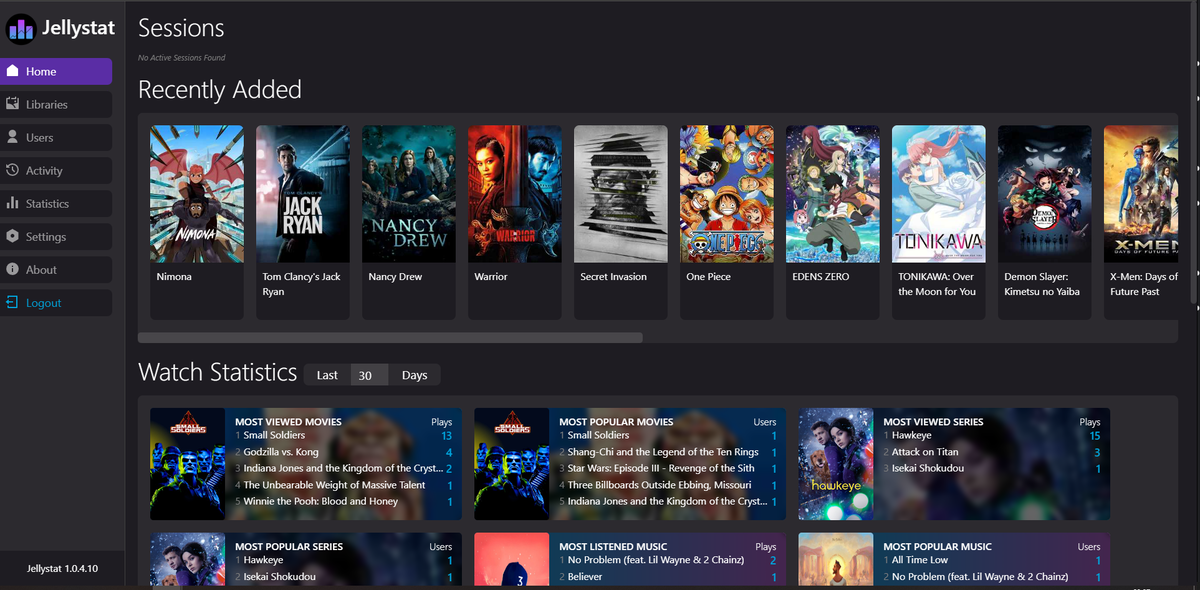
| Install Playback Reporting plugin | Usage statistics |
| Set up automated backups | Protect your config |
| Install JellyWatch on Android | Monitor from your phone |
Updating Jellyfin
Docker
docker compose pull
docker compose up -d
APT
sudo apt update && sudo apt upgrade jellyfin
Always back up
/configbefore a major version upgrade. Jellyfin 10.11 introduced a database migration that is irreversible.
Troubleshooting
| Problem | Fix |
|---|---|
| Cannot access port 8096 | Check firewall: sudo ufw allow 8096/tcp |
| Hardware transcoding not working | Verify /dev/dri is mapped and group permissions are correct |
| Library scan stuck | Check file permissions Jellyfin user must be able to read media |
| Metadata wrong | Use the Identify feature to manually match TMDB/TVDB ID |
| High CPU at idle | Disable chapter image extraction or reschedule background tasks |
Monitor Your Jellyfin Server
Once your server is live, you need visibility into what is happening active streams, CPU usage, transcoding load, and failed logins.
JellyWatch is the dedicated Android admin app for Jellyfin:
- Real-time session monitoring
- Transcoding diagnostics (why is this stream buffering?)
- CPU, RAM, and storage alerts
- Push notifications for new sessions and server events
- Radarr, Sonarr, and Jellyseerr integration
- Android home screen widget
Your Jellyfin server is live now keep it under control. Download JellyWatch on Google Play the essential Android companion for every Jellyfin admin.
Questions? Join the community on Discord or the Jellyfin Forum.



Comments
No comments yet. Be the first to share your thoughts.
Leave a comment