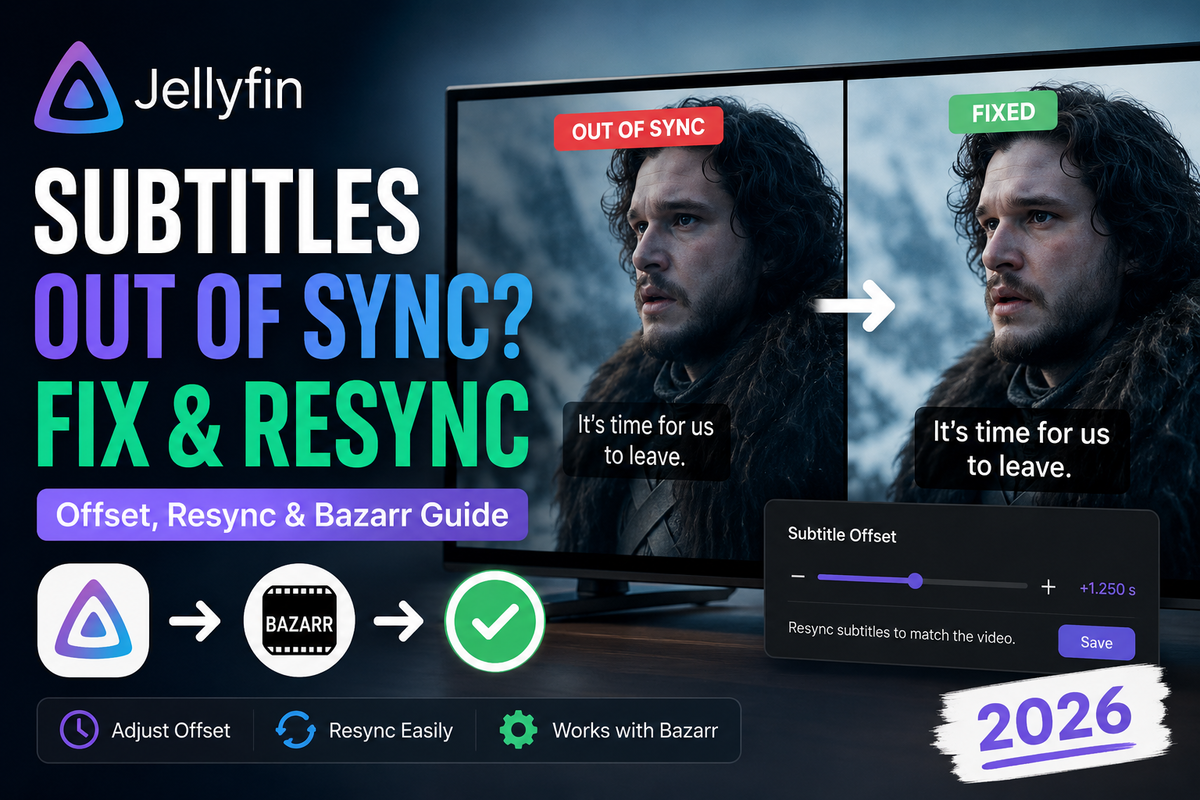
Fix Jellyfin Subtitles Out of Sync in 2026: Manual Offset, Resync, and Auto-Sync with Bazarr
Subtitles that drift ahead of or behind the audio are one of the most annoying Jellyfin problems, and one of the most fixable. Sometimes the fix is a quick offset in the player. Sometimes the subtitle file itself is wrong and needs resyncing. Sometimes you want it solved permanently across your whole library.
This guide walks through all three, from the 30-second fix to the automated solution, plus how to stop the problem from happening again.
First, Figure Out Which Kind of Out-of-Sync You Have
Not all sync problems are the same, and the fix depends on the cause. There are two patterns:
| Pattern | What you see | Cause |
|---|---|---|
| Constant offset | Subtitles are always early or late by the same amount (say 2 seconds) the whole way through | Subtitle file timed for a different release / a fixed delay |
| Drift | Subtitles start fine, then slowly slide out of sync, getting worse over time | Frame rate mismatch (for example 23.976 fps vs 25 fps) |
A constant offset is easy: shift the whole subtitle track. Drift is harder, because no single offset fixes it. You need to rescale the timing, which means resyncing the file.
Knowing which one you have saves a lot of wasted effort, so check whether the gap is steady or growing before you start.
Fix 1: Adjust the Subtitle Offset in the Player (30 Seconds)
The fastest fix, and the right one for a constant offset, is to nudge the subtitle timing right in the Jellyfin player. This does not change the file, it just shifts playback.
Jellyfin Web
- Start playback
- Open the subtitle settings menu in the player (the speech-bubble or gear icon)
- Find Subtitle offset (or "Secondary subtitle offset")
- Adjust in small steps until the words match the voices
- Positive values delay the subtitles, negative values move them earlier
Jellyfin Android / Android TV
The Android apps have a subtitle offset control in the playback overlay. Tap the screen during playback, open subtitle options, and adjust the offset there.
Swiftfin (iOS / Apple TV)
Swiftfin exposes a subtitle delay control in its player settings during playback.
Heads up: Subtitle offset is a per-session, per-client setting in most cases. It fixes the episode you are watching right now, but it does not edit the file, so the same offset may be needed next time. For a permanent fix, resync the file (Fix 2) or automate it (Fix 3).
Fix 2: Resync the Subtitle File Itself
When you have drift, or when you want the fix to stick permanently, you need to correct the subtitle file's timestamps. The best tool for this is ffsubsync (also packaged as subsync), which automatically aligns a subtitle file to the audio track of the video.
Using ffsubsync
ffsubsync analyzes the speech in the video and shifts (and rescales) the subtitle timing to match. It handles both constant offset and frame-rate drift.
pip install ffsubsync
ffs video.mkv -i wrong-subs.srt -o fixed-subs.srt
It reads the audio from video.mkv, aligns wrong-subs.srt, and writes a corrected fixed-subs.srt. Drop the fixed file next to your video using Jellyfin's external subtitle naming and rescan.
Manual resync as a fallback
If you prefer a GUI, Subtitle Edit (Windows) and Aegisub (cross-platform) both let you:
- Shift all lines by a fixed amount (for constant offset)
- Sync by matching the first and last spoken lines, which rescales timing (for drift)
These are the right tools when automatic sync gets it slightly wrong and you want manual control.
Fix 3: Automate It with Bazarr (The Permanent Solution)
If you are constantly fixing subtitle timing, stop doing it by hand. Bazarr downloads subtitles for your library automatically and, crucially, can sync them to the audio as it goes. This is the real fix for a media server.
Enable subtitle sync in Bazarr
- In Bazarr, go to Settings - Subtitles
- Enable Automatic Subtitle Synchronization (this uses ffsubsync under the hood)
- Choose to sync on download, so every subtitle Bazarr fetches is aligned to the audio before it lands in your library
Sync existing subtitles
For subtitles you already have, Bazarr can resync on demand:
- Open a movie or episode in Bazarr
- Use the tools menu on a subtitle track
- Select Sync, and Bazarr aligns that subtitle to the audio
This is the cleanest setup: new subtitles arrive pre-synced, and you can fix old ones with one click. If you have not set up Bazarr yet, it integrates directly with your Radarr and Sonarr stack and is the standard subtitle automation tool for Jellyfin in 2026.
Why Subtitles Go Out of Sync in the First Place
Understanding the cause helps you avoid it:
- Different release than the subtitle was timed for. A subtitle made for the BluRay release will not match a WEB-DL with different intro lengths or ad breaks.
- Frame rate mismatch. A subtitle timed for 25 fps played against a 23.976 fps file drifts steadily. This is the classic "starts fine, gets worse" symptom.
- Embedded vs external mismatch. The embedded subtitle track is usually correctly timed for that exact file, while a downloaded external one might not be. If an embedded track exists and is correct, prefer it.
- Container edits. If a file was re-muxed or trimmed, baked-in subtitle timings can shift.
Matching subtitles to the specific release, and letting Bazarr sync on download, removes almost all of these.
Quick Troubleshooting Checklist
- Off by a constant amount? Use the player offset, or shift the file in Subtitle Edit.
- Slowly drifting? It is a frame-rate issue. Resync with ffsubsync or Bazarr, an offset will not fix it.
- Every subtitle in your library is off? Set up Bazarr with automatic sync rather than fixing files one by one.
- Offset resets every episode? That is expected for the player offset. Fix the file or automate with Bazarr for a permanent result.
- Embedded subtitle is correct but external is not? Switch to the embedded track and disable the bad external one.
Bottom Line
For a one-off, nudge the subtitle offset in the player and move on. For a file that drifts or one you will rewatch, resync it with ffsubsync or a GUI tool so the fix is permanent. And if you are fixing subtitle timing more than once in a while, set up Bazarr with automatic synchronization so every subtitle is aligned to the audio before it ever reaches your screen. Match the right fix to the right symptom and out-of-sync subtitles become a problem you solve once.
Server set up the way you want - now keep an eye on it from your phone. Download JellyWatch on Google Play - real-time CPU monitoring, session tracking, and server health for Jellyfin on Android.
On Emby? Download EmbyWatch on Google Play - the same monitoring experience for Emby servers.


Comments
No comments yet. Be the first to share your thoughts.
Leave a comment