Fix Jellyfin Not Finding Media: Library Empty and Missing Movies (2026)
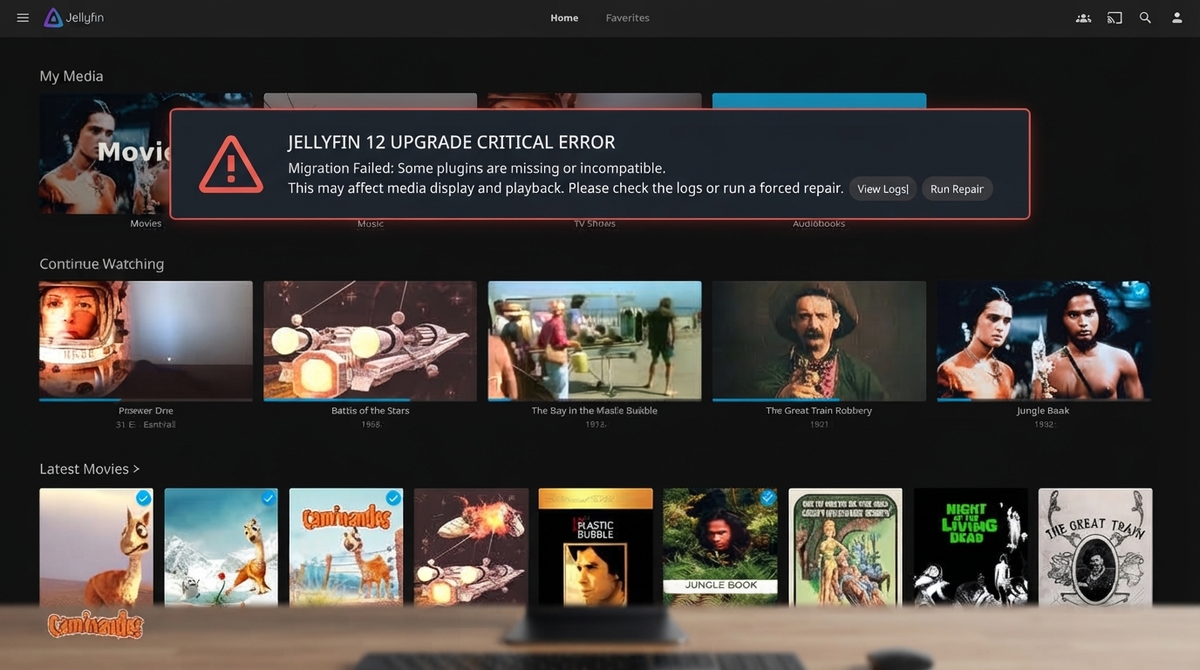
This is the single most common Jellyfin problem. You added your media folder, Jellyfin is running, but the library shows nothing.
This guide covers every cause and its fix.
The 7 Most Common Causes
| Cause | Frequency | Fix difficulty |
|---|---|---|
| Wrong file/folder permissions | Very common | Easy |
| Incorrect Docker volume mapping | Very common | Easy |
| Bad file naming convention | Common | Medium |
| NAS mount not accessible | Common | Medium |
| Library content type mismatch | Occasional | Easy |
| Metadata scan stuck or failed | Occasional | Easy |
| Symlinks not followed in Docker | Occasional | Easy |
Fix 1: File Permissions (Most Common Cause)
Jellyfin must be able to read your media files. If the Jellyfin process runs as a different user than the file owner, it silently shows an empty library.
Docker
Verify the container can see your files:
docker exec jellyfin ls -la /media/movies/
If you see Permission denied or an empty listing, permissions are wrong.
Fix:
# Option 1: Make media world-readable
chmod -R 755 /path/to/media

# Option 2: Match the container user
# Check your user ID
id $USER
# uid=1000(user) gid=1000(user)

# Add to docker-compose.yml:
user: "1000:1000"
Native Linux
sudo usermod -aG your_media_group jellyfin
sudo systemctl restart jellyfin
Windows
Right-click your media folder, Properties, Security - ensure the Jellyfin service account has Read access.
Fix 2: Docker Volume Mapping Errors
The most common Docker mistake: mapping the wrong host path.
Wrong:
volumes:
  - /media:/media  # /media on the host might be empty
Correct:
volumes:
  - /mnt/storage/movies:/media/movies:ro
  - /mnt/storage/tv:/media/tv:ro
Verify inside the container:
docker exec jellyfin ls /media/movies/
If empty, your host path is wrong.
Fix 3: File Naming Convention
Jellyfin is strict about naming. Incorrectly named files are silently ignored.
Movies - Correct format
/media/movies/
  The Dark Knight (2008)/
    The Dark Knight (2008).mkv
TV Shows - Correct format
/media/tv/
  Breaking Bad/
    Season 01/
      Breaking Bad - S01E01.mkv
Key rules
- Movies: Movie Name (Year)/Movie Name (Year).ext
- TV: Show Name/Season XX/Show Name - SXXEXX.ext
- Always include the year in parentheses for movies
- Use S##E## format for episodes
- Each movie in its own folder
- Avoid special characters: colon, question mark, asterisk
Fix 4: Library Content Type Mismatch
If you add a Movies folder but set the content type to TV Shows, nothing matches.
- Dashboard, Libraries, check each library
- Verify the content type matches the actual content
- If wrong: delete the library and recreate with the correct type
| Folder content | Correct library type |
|---|---|
| Movies | Movies |
| TV series | Shows |
| Music albums | Music |
| Audiobooks | Books or Music |
| Home videos | Home Videos and Photos |
Fix 5: NAS Mount Issues
If your media is on a NAS, the mount may not be available when Jellyfin starts.
df -h | grep media
ls /mnt/nas/media/movies/
If empty, the mount failed.
Fix NFS mount
echo "NAS_IP:/volume1/media /mnt/media nfs defaults,_netdev 0 0" >> /etc/fstab
sudo mount -a
Fix SMB/CIFS mount
echo "//NAS_IP/media /mnt/media cifs credentials=/root/.smbcredentials,_netdev,uid=1000,gid=1000 0 0" >> /etc/fstab
sudo mount -a
Fix 6: Force a Library Rescan
- Dashboard, Libraries, your library, three-dot menu, Scan Library Files
- Wait for completion
- If still empty: try Refresh Metadata, Replace all metadata
Check server logs
Dashboard, Logs - look for:
- Access denied - permissions issue
- Path not found - wrong volume mapping
- No valid media files - naming issue
Fix 7: Symlinks in Docker
Docker containers cannot follow symlinks that point outside the mapped volume.
Map the real path, not a symlink:
volumes:
  - /mnt/storage/media:/media
Fix 8: Special Characters in Filenames
Problematic characters: colons, question marks, non-ASCII characters.
Rename files to use standard ASCII. Radarr and Sonarr handle this automatically.
Fix 9: Media on an External USB Drive
USB drives may not auto-mount after reboot.
lsblk
echo "/dev/sda1 /mnt/media ext4 defaults,nofail 0 0" >> /etc/fstab
sudo mount -a
The nofail flag prevents boot failure if the drive is disconnected.
Debug Checklist
| Step | Command / Action | Expected |
|---|---|---|
| Container sees files | docker exec jellyfin ls /media/movies/ | Lists folders |
| Permissions OK | docker exec jellyfin stat /media/movies/ | Read access |
| Naming correct | Check Movie (Year)/Movie (Year).mkv | Correct format |
| Library type correct | Dashboard, Libraries, verify | Matches content |
| Force rescan | Dashboard, Scan Library Files | Scan completes |
| Check logs | Dashboard, Logs | No errors |
FAQ
Jellyfin found some movies but not all. The missing ones likely have naming issues. Check each missing file against the naming rules above.
Library was working but suddenly shows empty. Your NAS mount or USB drive disconnected. Run df -h and remount.
Jellyfin shows the movie but with wrong poster. Use Edit, Identify to manually match the correct TMDB entry.
How long does a library scan take? 100 movies: 1-5 min. 1,000 movies: 10-30 min. 10,000+ items: 1-2 hours.
Library fixed? Monitor your server from your phone. Download JellyWatch on Google Play - session monitoring, server health, and push notifications for Jellyfin admins.


Comments
No comments yet. Be the first to share your thoughts.
Leave a comment