Best Jellyfin Themes and How to Install Them in 2026
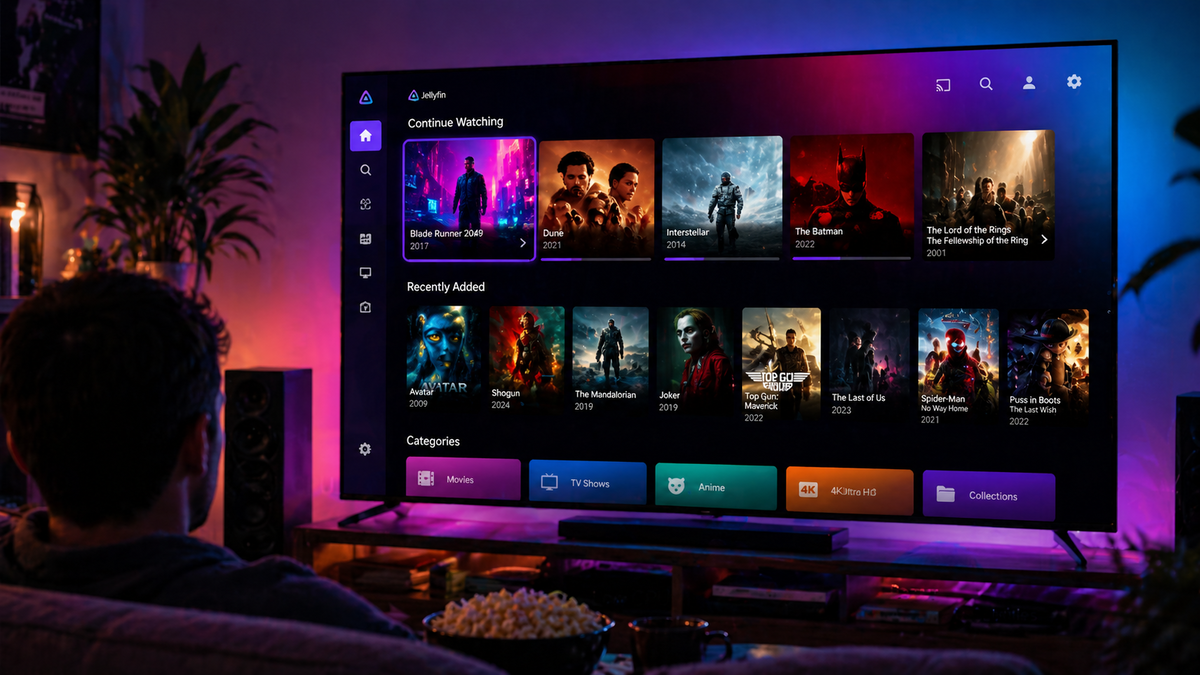
The default Jellyfin interface is functional and clean, but the community has built stunning custom themes that transform it into something that rivals Netflix or Disney+.
In 2026, installing a custom Jellyfin theme takes less than two minutes using the Skin Manager plugin. This guide covers the best themes available, how to install them, and advanced customization tips. If you want to skip the manual research, browse all Jellyfin themes on the Hub — every theme below has a dedicated page with install instructions.
Why Customize Your Jellyfin Theme?
- Make the interface feel more like a premium streaming platform
- Reduce eye strain with dark or OLED-optimized themes
- Impress users you share your server with
- Personalize artwork display (ClearArt, banners, backdrops)
Method 1: Skin Manager Plugin (Recommended)
The Skin Manager plugin is the easiest way to apply themes. It provides a one-click installer for community themes directly from the Jellyfin dashboard.
Install Skin Manager
- Dashboard → Plugins → Catalog
- Search for Skin Manager
- Click Install → Restart Jellyfin
- Go to Dashboard → Plugins → Skin Manager
Apply a theme
- Open Skin Manager from the plugin list
- Browse the available themes
- Click Install on your chosen theme
- Refresh your browser
Note: Skin Manager injects custom CSS. It does not replace the Jellyfin client - it applies styling on top of the existing web interface.
Method 2: Manual CSS Injection
If you prefer full control, you can inject CSS manually:
Dashboard → General → Custom CSS code → Paste your theme CSS → Save
This method works without any plugin and survives Jellyfin updates cleanly.
The Best Jellyfin Themes in 2026
1. JellyFlix - The Netflix Look
The most popular Jellyfin theme. JellyFlix replaces the default interface with a Netflix-inspired layout: red accents, bold typography, full-width hero banners.
Best for: Users who want the Netflix feeling from their personal library.
Install via Skin Manager or grab the CSS from the JellyFlix Hub page.
Key features:
- Netflix-style hero section on the home page
- Red primary color scheme
- Improved card hover effects
- Cleaner navigation bar
2. Monochrome - Minimal and Elegant
A clean, minimal dark theme with no color distractions. Perfect for OLED screens.
Best for: Users who prefer a focused, distraction-free viewing experience.
Features:
- Pure black / dark grey palette
- OLED-optimized dark backgrounds
- Subtle accent colors
- Cleaner typography
Install via Skin Manager → search "Monochrome". Hub page: Monochromic on the JellyWatch Hub.
3. Ultrachromium - Vibrant and Cinematic
A high-contrast, colorful theme with vivid accent colors. Popular in communities that share servers with family. Hub page: Ultrachromic on the JellyWatch Hub.
Best for: Visually striking servers shared with non-technical users.
Features:
- Colorful gradients
- Cinematic poster display
- Bold section headers
- Enhanced backdrop blur effects
4. Kaleidochrome - Adaptive Colors
A unique theme that adapts the interface accent color to the currently displayed media. The home screen shifts color based on your latest watched content.
Best for: Power users who want a dynamic, personalized feel.
5. JellyBlue - Clean Blue Accent
A refined dark theme with blue accent colors. More conservative than JellyFlix but still a significant upgrade over the default.
Best for: Users who prefer a subtle upgrade without a dramatic reskin.
ClearArt: Make Your Library Look Professional
ClearArt is a type of artwork - transparent PNG logos and character renders - that appears over media backdrops instead of plain text titles.
Enable ClearArt in Jellyfin
- Dashboard → Libraries → [Library] → Manage Library
- Enable Image Fetcher: FanArt
- Refresh metadata for your library
Install FanArt plugin
Dashboard → Plugins → Catalog → FanArt → Install
FanArt fetches high-quality ClearArt, disc art, banners, and character renders automatically.
ClearArt dramatically improves how your library looks in any theme.
Custom Home Screen Layout
Beyond themes, you can customize what appears on your Jellyfin home page:
Dashboard → Display → Home Screen Sections
Recommended order:
- Continue Watching
- Next Up (series)
- Latest Movies
- Latest TV Shows
- Recently Added
Theme Comparison Table
| Theme | Style | Best for | Install method |
|---|---|---|---|
| JellyFlix | Netflix-like | Family servers | Skin Manager / CSS |
| Monochrome | Minimal/OLED | Solo use | Skin Manager |
| Ultrachromium | Vibrant | Shared servers | Skin Manager |
| Kaleidochrome | Adaptive | Power users | CSS |
| JellyBlue | Blue accent | Subtle upgrade | CSS |
Browse the full theme catalog on the JellyWatch Hub: Ultrachromic, JellySkin, Jamfin, Catppuccin for Jellyfin, Scyfin, Finimalism, ElegantFin, and more on the UI/Themes category.
Keep an Eye on Your Server After Plugin Installation
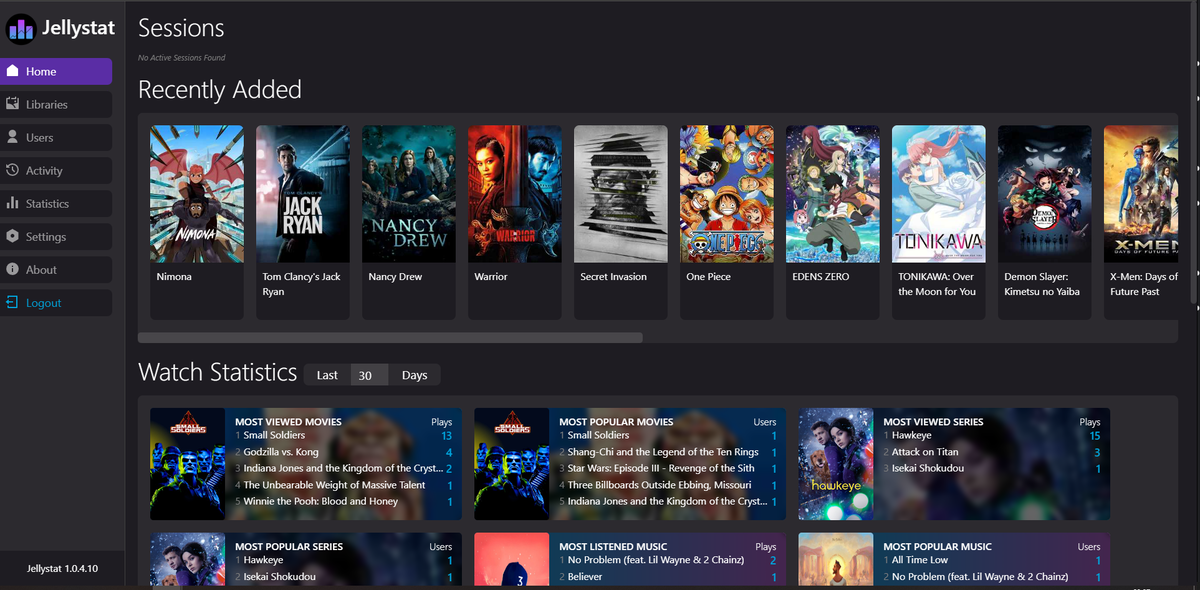
Skin Manager and theme plugins are generally lightweight, but it is good practice to monitor your server after any new plugin install - especially on smaller hardware.
JellyWatch lets you check CPU and RAM usage after installing plugins:
- Open the app → Server Health → check CPU is stable
- Check that no background tasks were triggered unexpectedly
- Confirm active streams are unaffected
Step 1: Add Theme Repositories to Skin Manager
Skin Manager works with external theme repositories. The main one covers most popular community themes.
- Open Dashboard → Skin Manager
- Click Add Repository
- Paste the community repository URL:
https://raw.githubusercontent.com/danieladov/JellyfinPluginManifest/master/manifest.json - Repeat for any other repositories you want
Popular theme repositories to add:
| Theme | Repository URL | Hub page |
|---|---|---|
| Ultrachromic | https://raw.githubusercontent.com/CTalvio/Ultrachromic/main/skin.json | Ultrachromic on the Hub |
| JellyFlix | https://raw.githubusercontent.com/prayag17/JellyFlix/master/skin.json | JellyFlix on the Hub |
| Jellyfin-Netflix | https://raw.githubusercontent.com/DevilsDesigns/Jellyfin-Netflix/master/skin.json | Jellyfin-Netflix on the Hub |
| Finnergie / Scyfin | https://raw.githubusercontent.com/loof2736/scyfin/master/skin.json | Scyfin on the Hub |
| Monochromic | https://raw.githubusercontent.com/CTalvio/Monochromic/main/skin.json | Monochromic on the Hub |
Troubleshooting
Theme not applying?
- Make sure the plugin is installed and the server was restarted after installation
- Clear your browser cache (Ctrl+Shift+R) after applying a theme
- Check that the repository URL is correct and accessible from your server
Theme looks broken or incomplete?
- Some themes require a specific Jellyfin version. Check the theme's GitHub page for compatibility notes
- After a Jellyfin server update, themes may need to be re-applied
Can't find the Skin Manager in the catalog?
- Confirm the Awesome Jellyfin repository was added and the catalog refreshed
- Try removing and re-adding the repository URL
Customize your Jellyfin theme - then monitor it from your phone. Download JellyWatch on Google Play - server health, active sessions, and real-time monitoring for Jellyfin on Android.
Discover more themes: the community-curated awesome list and the most popular themes voted by users on the JellyWatch Hub.
For Emby users: Download EmbyWatch on Google Play


Comments 5
JellyFlix theme makes my server look exactly like Netflix. My family can't tell the difference. Love it!
Monochrome on my OLED TV is stunning. Pure blacks, minimal UI. Perfect for movie nights.
Installed Skin Manager and tried all 5 themes in 10 minutes. Settled on Ultrachromium, the backdrop blur effects are gorgeous.
Installed JellyFlix and my wife said "oh you got Netflix on the TV?" Mission accomplished. The hero banner on the home page really sells it.
Never touched CSS before but the Skin Manager plugin made it one-click. Applied Ultrachromic, changed the accent color to blue with one line of custom CSS. Looks incredible.
Leave a comment