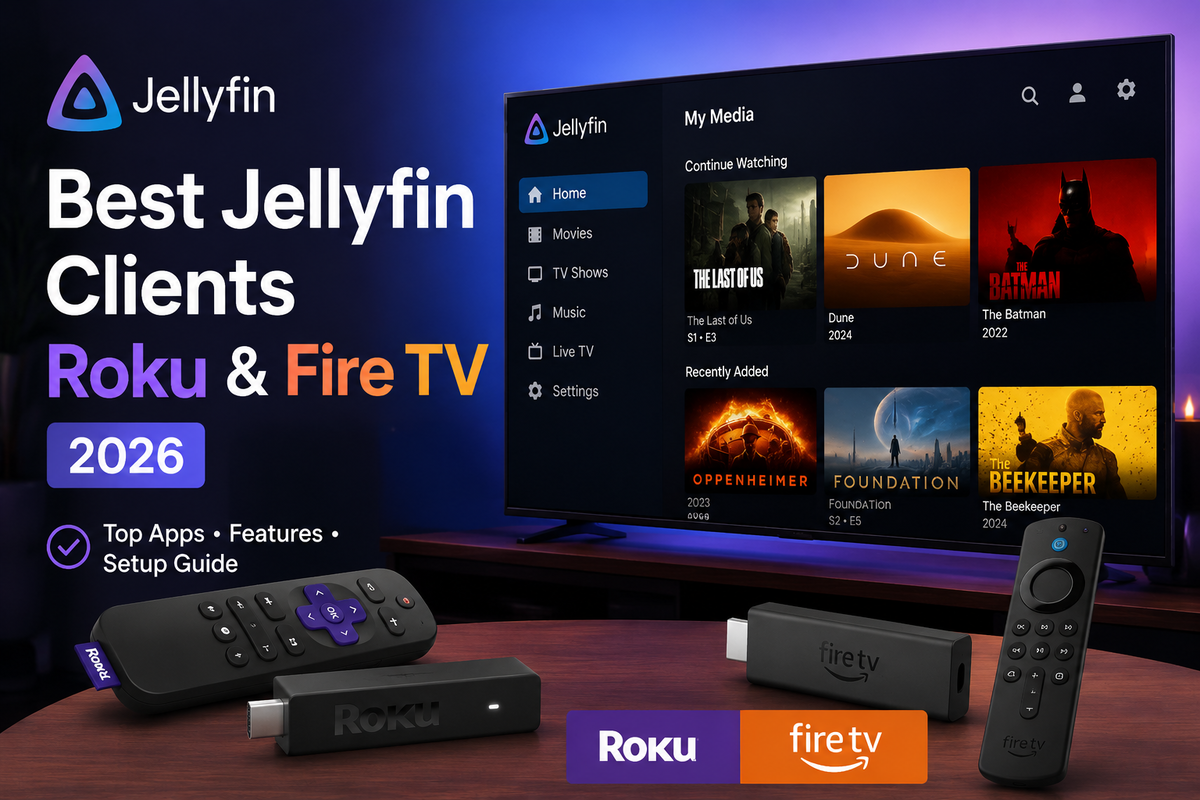
Jellyfin on Roku and Fire TV: Not Quite Android TV
Most Jellyfin setup guides focus on Android TV, Google TV, and Nvidia Shield because those platforms run the official app with the fewest compromises. Roku and Fire TV are different animals. Both are extremely popular streaming devices, and both can run Jellyfin, but each comes with its own quirks around installation, codec support, and hardware limitations.
This guide covers both platforms side by side so you know exactly what to expect before buying a device or troubleshooting one you already own.
Jellyfin on Roku
Roku has an official Jellyfin channel available directly through the Roku Channel Store, which makes installation the easiest part of the Roku experience.
Installing Jellyfin on Roku
- On your Roku remote, press the Home button and go to Streaming Channels.
- Search for Jellyfin and select Add Channel.
- Launch the channel from your home screen once installation finishes.
- Enter your server address (local IP or domain) and log in with your Jellyfin credentials.
No sideloading, no developer mode, no PC required. This is the single biggest advantage Roku has over Fire TV for the official Jellyfin app.
Roku Limitations
Roku hardware is built around efficient video decoding rather than raw processing power, and the Jellyfin channel inherits real limitations as a result:
- Codec support varies significantly by Roku model. Older and budget models often lack HEVC or AV1 hardware decoding.
- Dolby Vision and HDR10+ support depends entirely on your specific Roku model and TV combination.
- Because Roku devices have limited processing headroom, direct play is essential. Any file requiring transcoding will lean heavily on your server, not the Roku device.
- The official channel is functional but basic. Roku does not currently support third party clients like JellyWatch TV, since Roku uses a closed channel model rather than an open app store.
Best Roku Models for Jellyfin
| Model | HEVC support | HDR | Recommended |
|---|---|---|---|
| Roku Express | Limited | No | Budget only, Direct Play SD/1080p |
| Roku Streaming Stick 4K | Yes | HDR10, Dolby Vision | Good all rounder |
| Roku Ultra | Yes | HDR10, Dolby Vision | Best Roku option for Jellyfin |
If you are buying a Roku specifically for Jellyfin, skip the entry level models. The Streaming Stick 4K or Ultra are worth the small price difference for reliable HEVC and HDR direct play.
Jellyfin on Fire TV
Fire TV is where things get more interesting. The official Jellyfin project does not publish an app on the Amazon Appstore, but that does not mean Fire TV owners are stuck sideloading. JellyWatch for Android TV (JellyWatch TV) is available directly on the Amazon Appstore, which makes Fire TV a genuinely good Jellyfin platform once you pick the right client.
The VegaOS Problem
Amazon has been transitioning newer Fire TV hardware to VegaOS, a new operating system that changes how apps are distributed compared to the Fire OS devices most Fire TV owners already have. This mainly affects sideloaded apps and community APKs. It does not affect JellyWatch TV, since it is distributed through the Amazon Appstore itself rather than sideloaded, and stays subject to Amazon normal app review and distribution process on both Fire OS and VegaOS.
Installing JellyWatch TV on Fire TV
- On your Fire TV remote, go to Find > Search.
- Search for JellyWatch for Android TV and select it from the Amazon Appstore results.
- Select Get or Download to install, exactly like installing any other Fire TV app.
- Launch JellyWatch TV, enter your Jellyfin or Emby server address, and log in.
No developer mode, no Downloader app, no unknown sources setting. It installs the same way any other Fire TV app does because it is a fully listed Amazon Appstore title.
Why JellyWatch TV Is the Better Fire TV Client
JellyWatch TV is built from scratch for the Android TV and Fire TV platform using Jetpack Compose and ExoPlayer Media3, with navigation designed specifically for D-pad remotes. On Fire TV hardware this includes:
- 4K, HDR10, HDR10+, and Dolby Vision playback on supported Fire TV models, with hardware decode enabled by default and FFmpeg software fallback when needed
- TrueHD Atmos and DTS:X passthrough where the hardware and receiver support it
- Automatic Jellyfin and Emby server detection from a single app
- Seerr and Jellyseerr integration to browse and request media directly from the couch
- SyncPlay, trickplay thumbnails, theme songs, and Home Screen Channels for Continue Watching and Recently Added
Fire TV Notes
- JellyWatch TV is listed on the Amazon Appstore, so it receives updates the same way any other Fire TV app does, with no risk of breaking after a system update the way sideloaded APKs sometimes do.
- The official Jellyfin project app is still not on the Amazon Appstore. Community APKs for the stock app do exist and require sideloading via Downloader, but that extra step is unnecessary once JellyWatch TV covers the same use case natively.
- Performance is generally strong on Fire TV Stick 4K Max and Fire TV Cube models, close to native Android TV performance when paired with a client built for the platform.
For device specific codec tables and setup notes, see our dedicated Jellyfin Fire TV Stick 4K Max setup guide.
Roku vs Fire TV for Jellyfin: Which Should You Buy?
| Criteria | Roku | Fire TV |
|---|---|---|
| Official Jellyfin app | Yes | No |
| Best available client | Official Roku channel | JellyWatch TV (Amazon Appstore) |
| Installation difficulty | Very easy | Very easy (Appstore, no sideload) |
| Codec support (top models) | Good | Very good |
| Risk of breaking after OS update | Low | Low with Appstore apps |
| Best model for Jellyfin | Roku Ultra | Fire TV Stick 4K Max |
Our Recommendation
- Already own a Roku? The official channel on the Streaming Stick 4K or Ultra covers most needs well.
- Already own Fire TV hardware, or considering one? Install JellyWatch TV from the Amazon Appstore. It matches or beats the official Jellyfin app on features and remote navigation, with no sideloading required.
- Buying new hardware today with no brand loyalty either way? Android TV, Google TV, and Fire TV all run JellyWatch TV directly from their respective app stores, so the choice comes down to price and ecosystem rather than Jellyfin compatibility.
Frequently Asked Questions
Does Jellyfin have an official Fire TV app? No. The official Jellyfin project does not publish an app on the Amazon Appstore. JellyWatch TV fills that gap as a fully listed Appstore app.
Do I need to sideload anything to use Jellyfin on Fire TV? No, not if you use JellyWatch TV. It installs directly from the Amazon Appstore like any other Fire TV app. Sideloading is only relevant if you specifically want the community built stock Jellyfin APK, which is not required for a full Jellyfin experience on Fire TV.
What is the best Jellyfin client for Fire TV? JellyWatch TV. It is available directly on the Amazon Appstore, built specifically for TV remotes, and supports both Jellyfin and Emby with automatic server detection, 4K HDR direct play, and Seerr integration.
Can I direct play 4K HDR on Roku? Yes, on higher end models like the Roku Ultra or Streaming Stick 4K, provided your file uses a codec the hardware supports and your TV handles the HDR format correctly.
Does VegaOS break Jellyfin on Fire TV? Not for Appstore apps like JellyWatch TV, since they go through Amazon normal app distribution regardless of the underlying OS. VegaOS mainly affects sideloaded, non Appstore APKs.
Final Thoughts
Roku and Fire TV both cover Jellyfin well once you know where to look. Roku relies on its official channel, simple and reliable but limited to what Jellyfin project ships. Fire TV has no official app, but JellyWatch TV fills that gap directly through the Amazon Appstore, with better remote navigation and more features than the official app offers on other platforms. If you already own either device, there is no need to buy new hardware just for Jellyfin, the right client already covers you.
The best Jellyfin and Emby experience on your TV in 2026. Get JellyWatch for Android TV on Google Play or search for it directly on the Amazon Appstore on your Fire TV. Native remote navigation, 4K HDR direct play, and Seerr integration built for the couch.
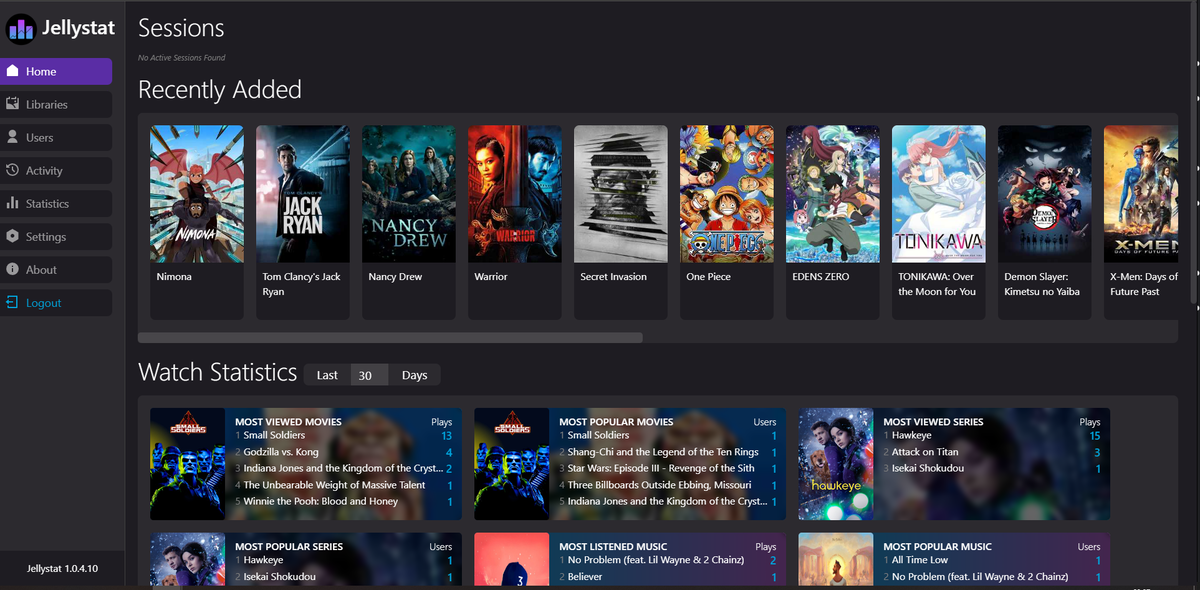
Monitoring the server behind all these clients? Download JellyWatch on Google Play - see active sessions, direct play status, and transcode reasons across every client connected to your server.


Comments
No comments yet. Be the first to share your thoughts.
Leave a comment